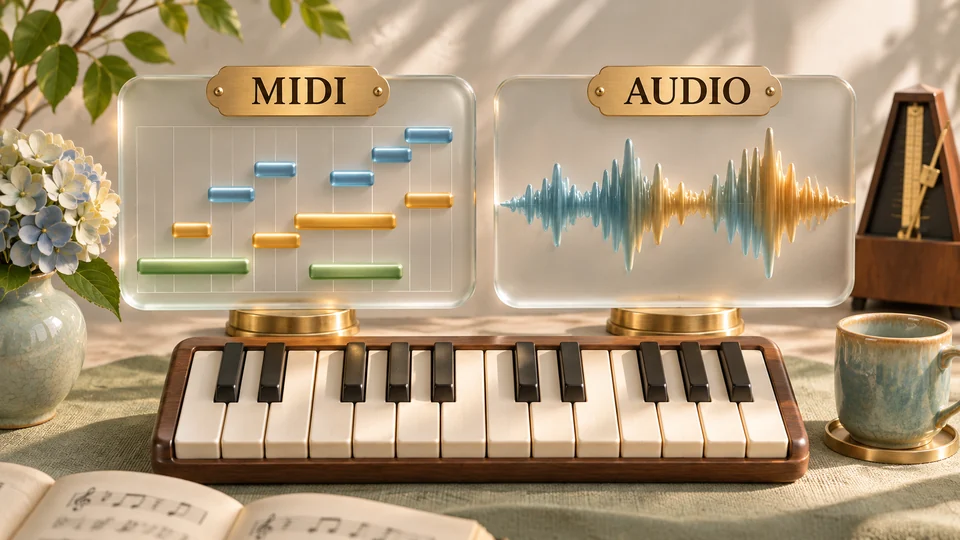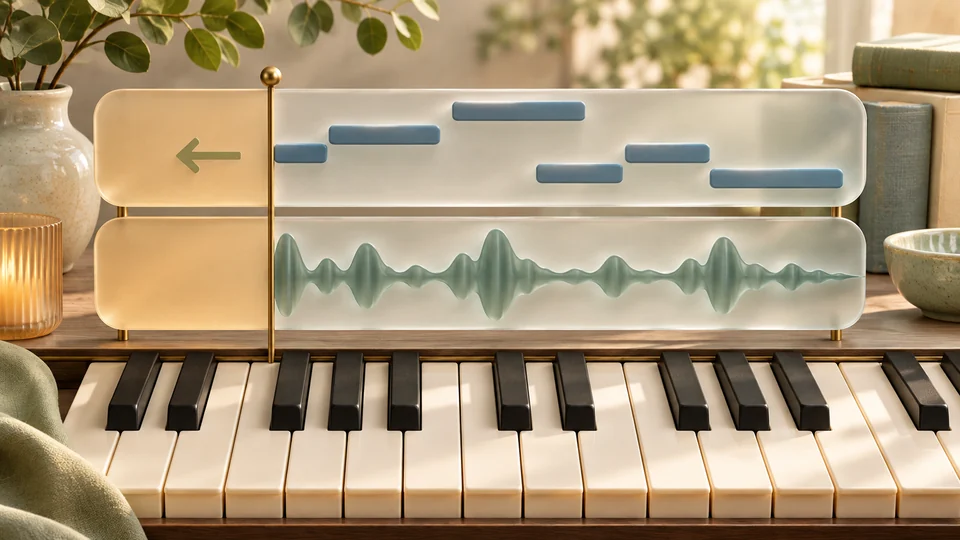
Check the final note's duration
Play the MIDI and find the note that continues too long. In a piano roll, the bar shows the note's duration. If the final bar is unusually long, inspect its ending before blaming the pedal.
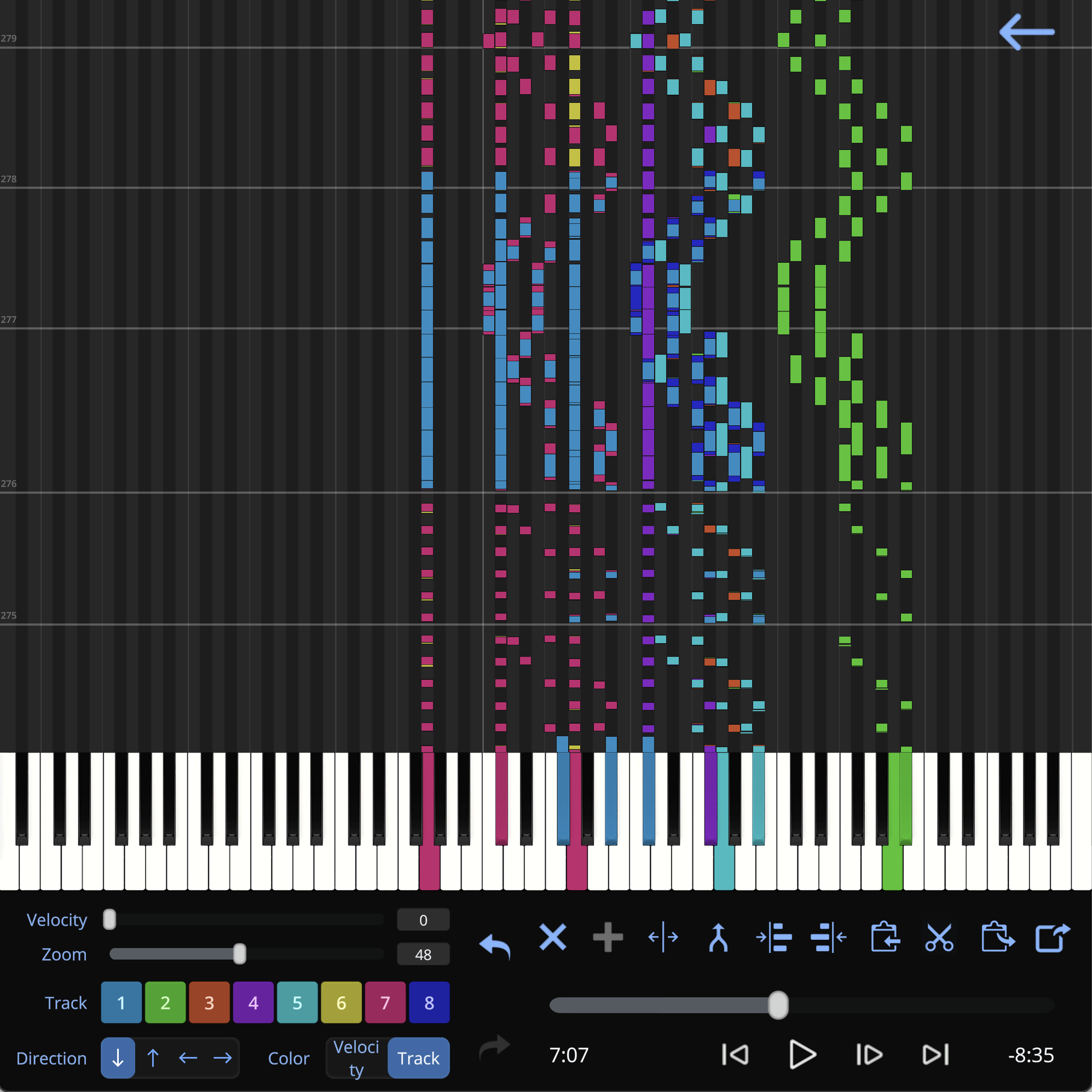
The SeeMusic editor example illustrates note positions and lengths. Inspecting these note bars is separate from opening a controller view for pedal messages.
Display the sustain controller
In an editor with controller editing, select Sustain or CC64. This is different from Velocity; selecting note bars alone will not show pedal values.
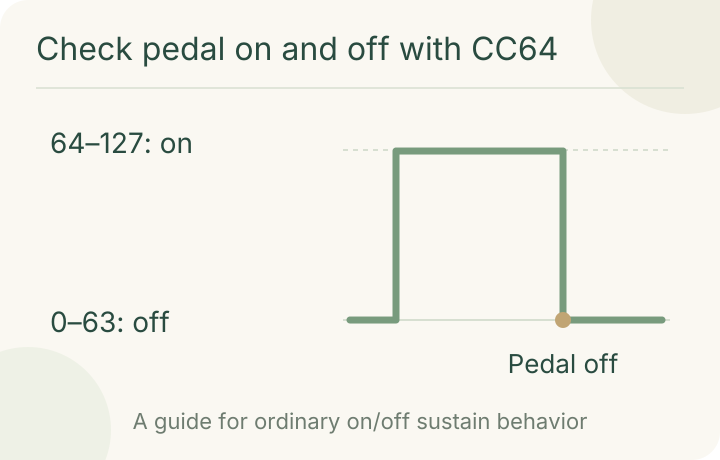
For ordinary on/off sustain, values 64–127 mean on and 0–63 mean off. A high value remaining at the end can indicate a missing release. Half-pedal sound sources can use intermediate values, so do not replace everything with 0 or 127 without checking.
Look for a pedal-off event at the end
Check for an event returning CC64 to 0 after the final notes. If it is missing, add a release at a suitable point and listen.
Placing the release exactly at the last keypress can shorten the desired resonance. Try a point after the final chord and choose by listening to the ending.
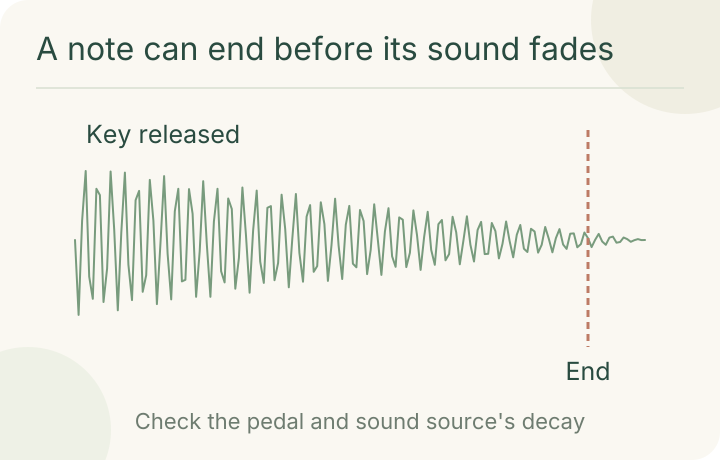
Distinguish pedal sustain from reverb
A sound source's reverb can remain after CC64 is off. A natural decrease in level suggests decay; a note continuing without the expected ending suggests note or pedal information to inspect.
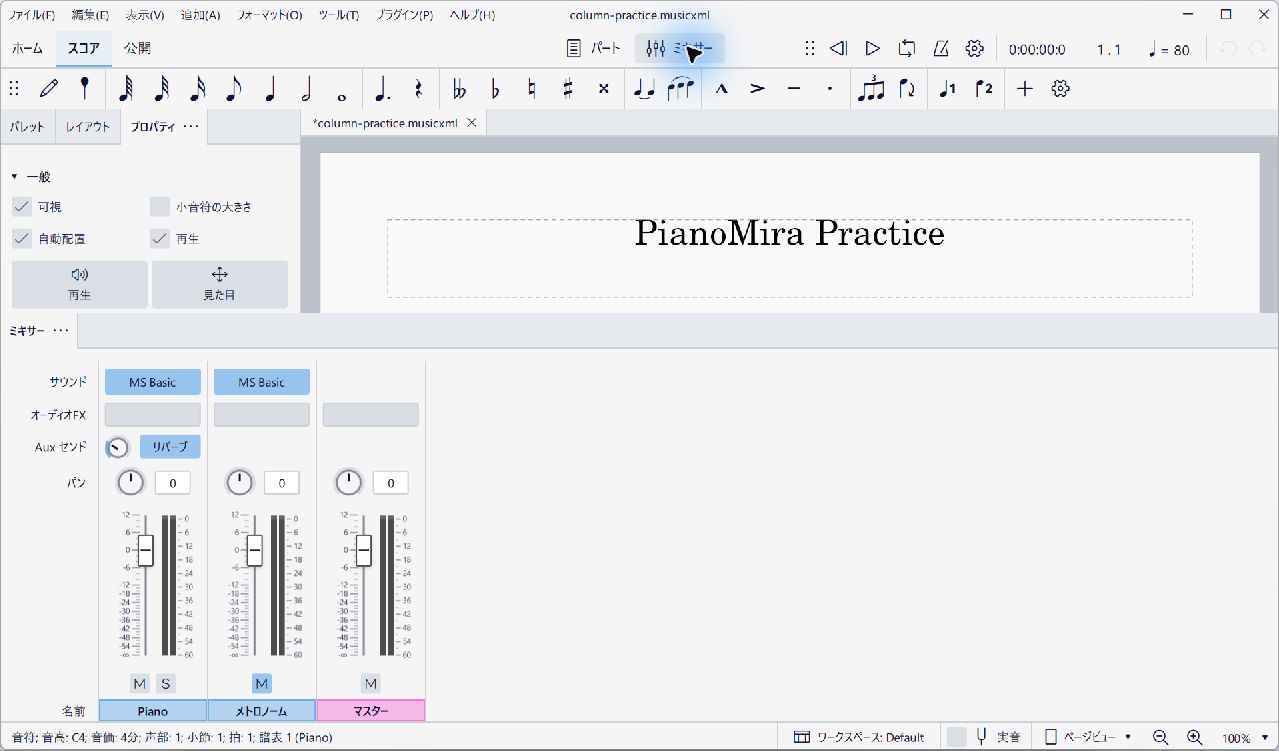
Check the chosen instrument in a mixer, or compare the same MIDI with another sound source. Keep track of which setting changed so you can tell a pedal correction from a different reverb response.
Save a copy and test the receiving app
Save the revised MIDI under another name and play it through the end in the video application. Applications and instruments may handle pedal data differently.
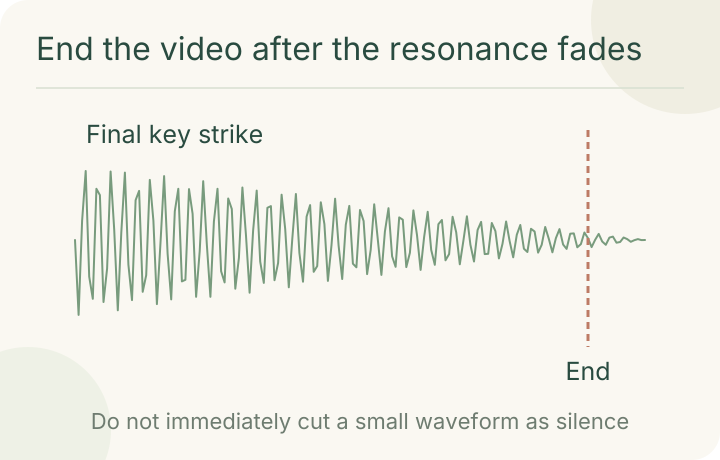
Compare the original and corrected version through the same sound source. A note bar ending and audible sound ending are not necessarily the same moment, so inspect both.
Compare playback from the beginning and from the middle
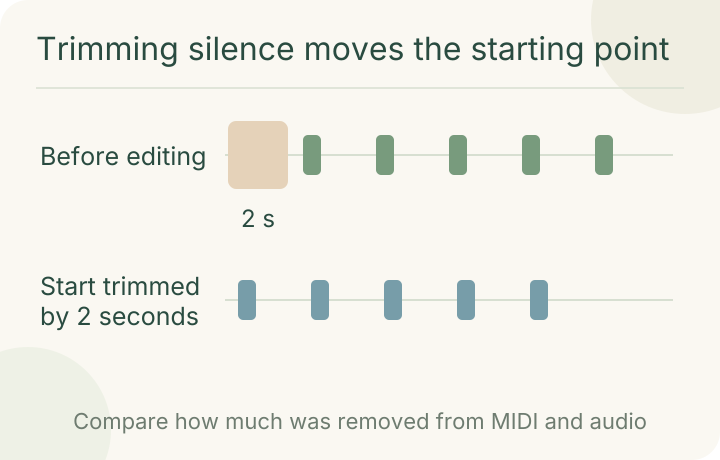
Starting partway through a piece can produce a different pedal state if the app handles earlier controller messages differently. Start slightly before the problem so playback includes the pedal press and release.
When extracting a MIDI passage, inspect its starting and ending pedal state as well as its notes. If only the extracted version rings too long, compare it with the original full file before shortening notes repeatedly.
Frequently asked questions
Can I replace pedal use by making every note longer?
That is not equivalent. It can create excessive overlap or a different instrument response. Inspect the pedal information first.
The last note never stops. What should I check?
Check both the note-off and pedal-off information. Compare before and after any trimming or conversion if the original plays correctly.