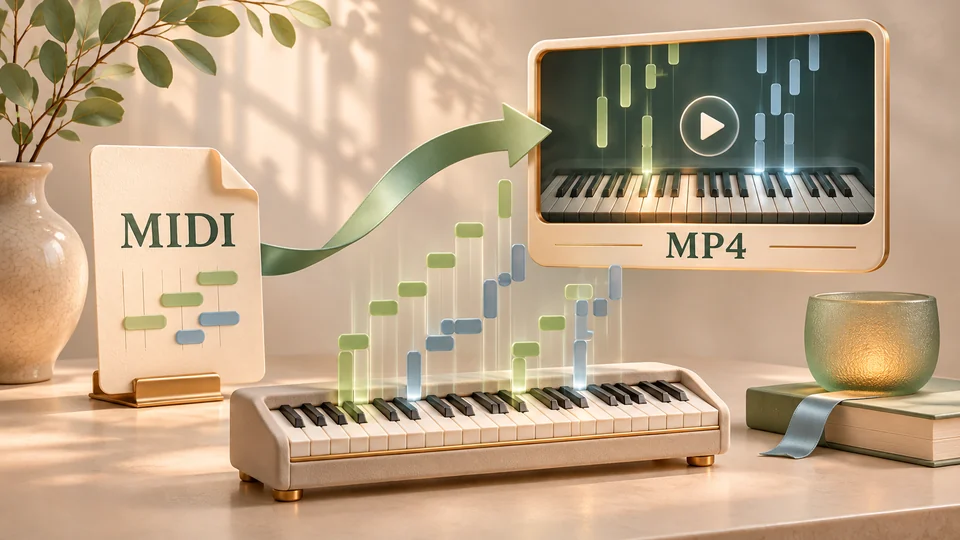
Start with the result you want
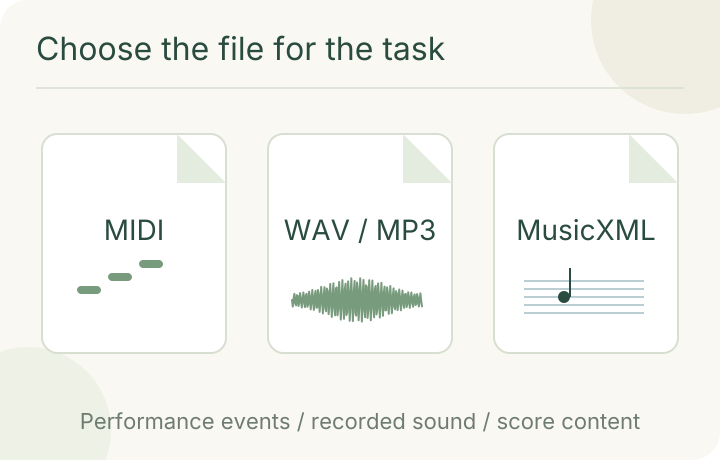
Decide whether you want to show your real hands, create a video without filming, or play a piece for practice. This makes it easier to use the files you already have.
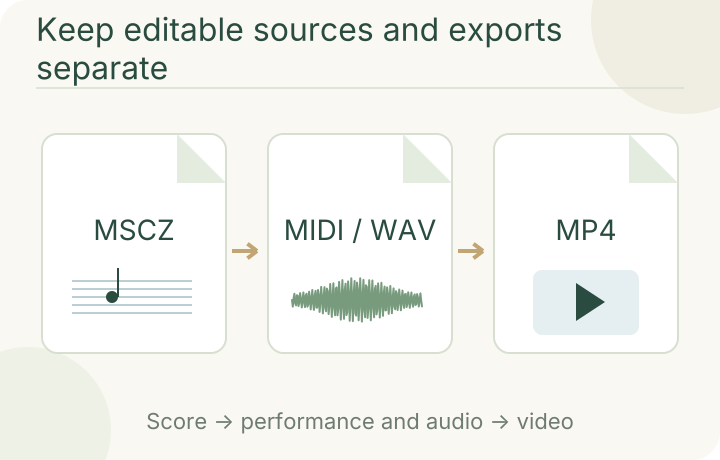
Playback and video export are separate features. An app can display falling notes without directly saving an MP4. If recording is required, include a tool such as OBS in the workflow.
| Tool | Useful for | Required material |
|---|---|---|
| PianoMira | Generate hands, keyboard and notes without filming | MIDI or a solo piano MP3, WAV or M4A |
| SeeMusic | Combine performance footage, notes and light effects | MIDI and performance footage; MusicXML for score display |
| Synthesia | Display hands separately and adjust practice speed | MIDI; recording software such as OBS to save a video |
PianoMira · When to start with MIDI or a recording
PianoMira generates the hands, so a phone recording is enough for a keyboard video. If your lesson is about the precise fingers you used, film your hands as well.
MIDI gives the visualizer the notes directly. With audio, it estimates them from the sound. Sustained pedal can make the inner notes of a chord hard to distinguish.
How to make a piano video from MIDI or a piano recording
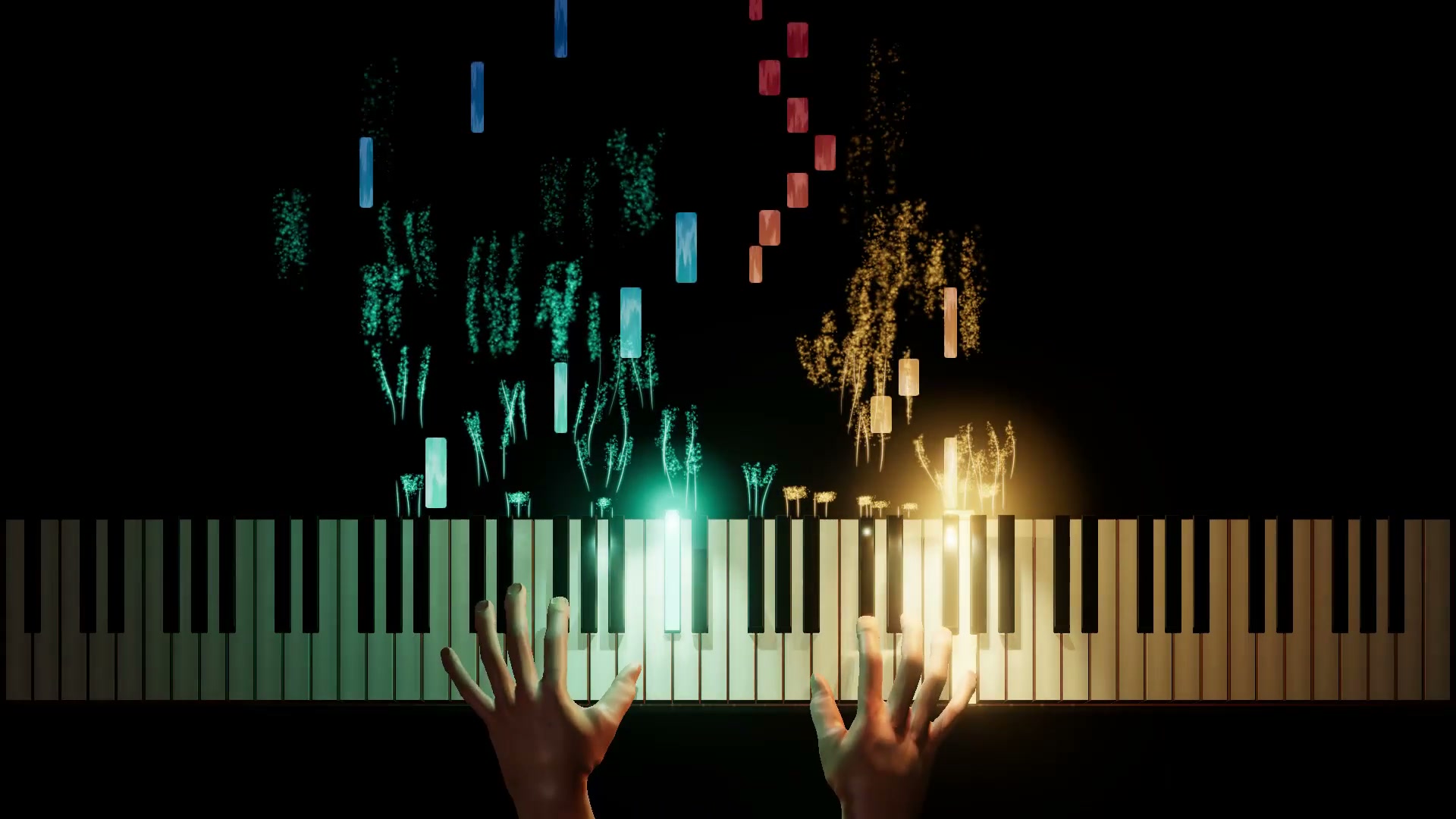
SeeMusic combines footage, notes and effects
SeeMusic can add note and lighting effects to MIDI-based visuals and combine them with filmed performance footage. If you want to show your own hands, prepare the footage and matching MIDI and check their timing.
SeeMusic also supports MusicXML score display. Import the relevant files, align their timing, arrange the visuals and export the video from the app.
Synthesia is useful for separate-hand practice
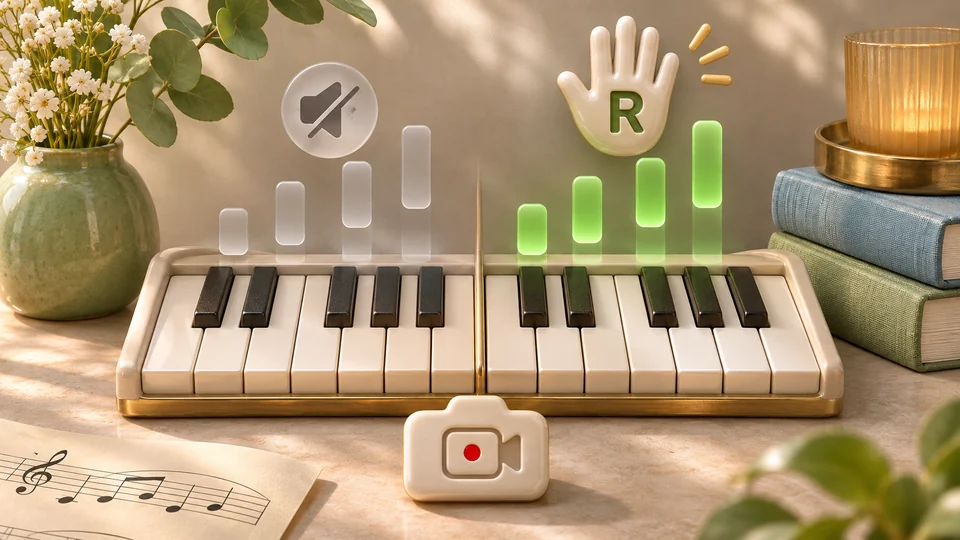
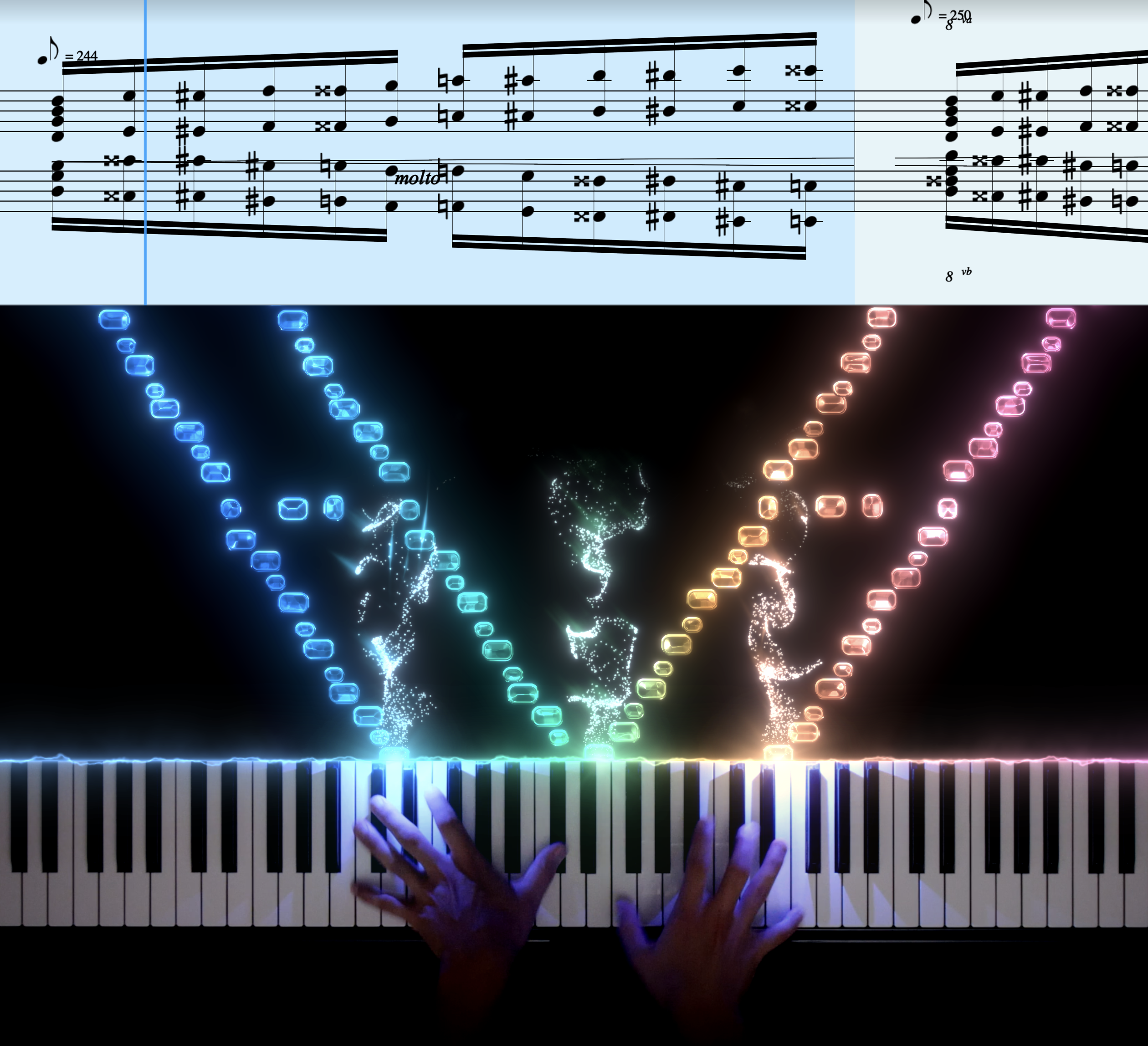
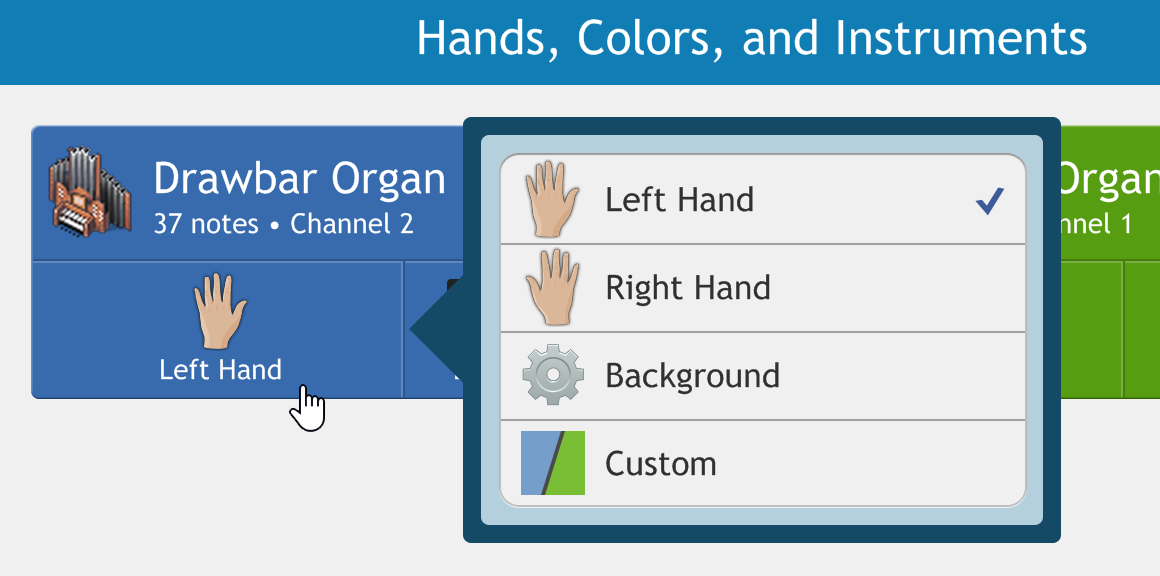
Open MIDI in Synthesia and set hand assignments, colors, sound and playback speed. You can listen to the accompaniment while showing only the part you want to practise.
To save the workflow described here as a video, record Synthesia with OBS. For a practice video, muting the correct part and choosing a comfortable speed matter more than elaborate effects. Check the selected sound before recording.
Test the full workflow with a short file
Before preparing a long song, try importing, setting up the display and saving a short example. If real-hand footage is essential, test synchronization with a short filmed passage too.
Include a chord or busy passage where both hands overlap. Check that the keys, labels and hands remain visible. The useful test is whether you can supply the required files and save the kind of video you need.
Download the four-bar MIDI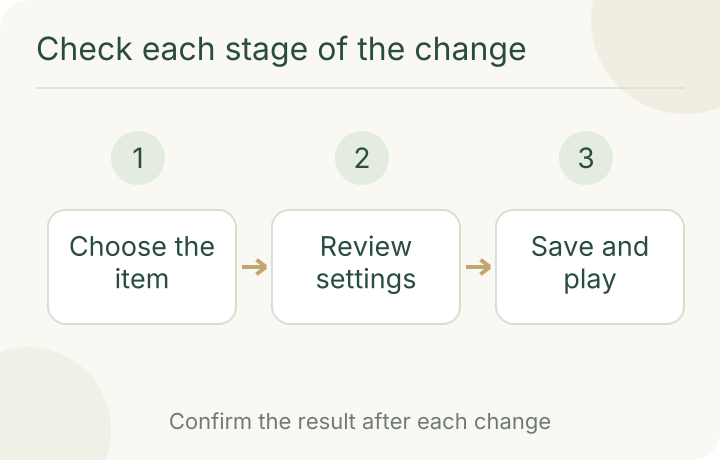
Sort your files before choosing an app
Have either a .mid or .midi file from your instrument, or a solo piano recording in MP3, WAV or M4A. One file is enough to start.
Choose Synthesia for practice-part settings, PianoMira for generated hands without filming, or SeeMusic when its footage and visual-effect features fit your project. Complete a short example with one workflow before expanding to the whole song.
Frequently asked questions
Can I finish a video for free?
Free import, preview and export limits differ between services and can change. Check the current official conditions and export settings for duration, watermark and resolution.
Will generated hands show my exact fingering?
Not necessarily. Fingering generated from MIDI may differ from the fingers you actually used. Film your hands when you need to show your real fingering.