Add the MIDI to Synthesia
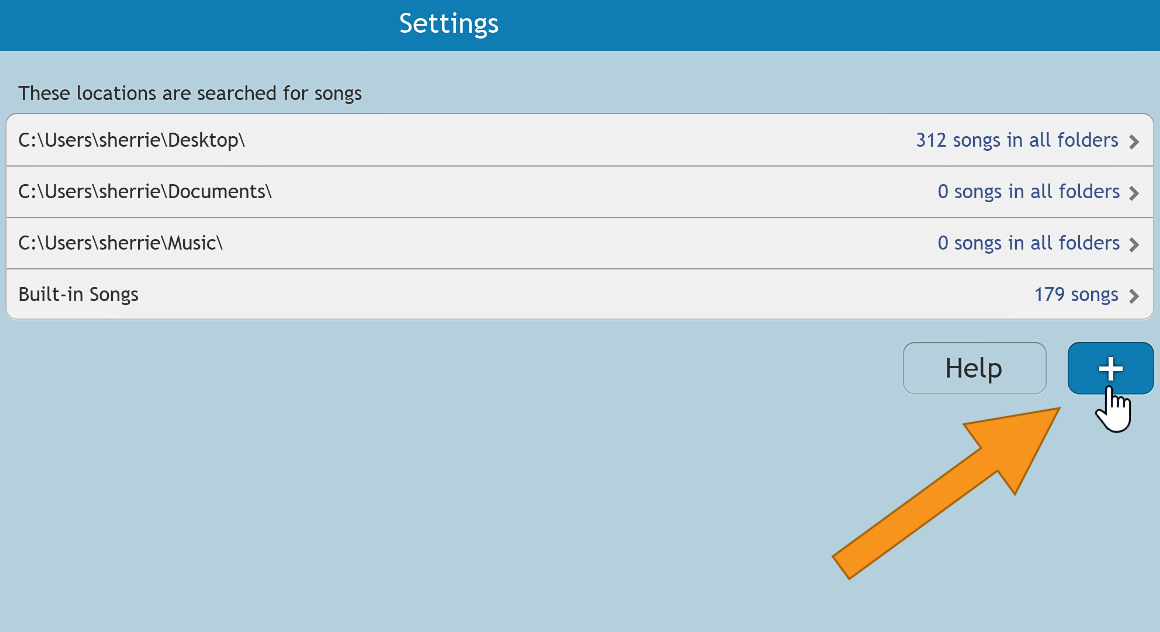
On Windows, right-click a MIDI file and choose Play in Synthesia. To keep a folder in the song library, open Settings → Songs → + and add the folder containing your MIDI.
Return to the song list and select the song. If it is missing, make sure the extracted .mid file is in the registered folder rather than still inside a ZIP archive.
Download the four-bar MIDI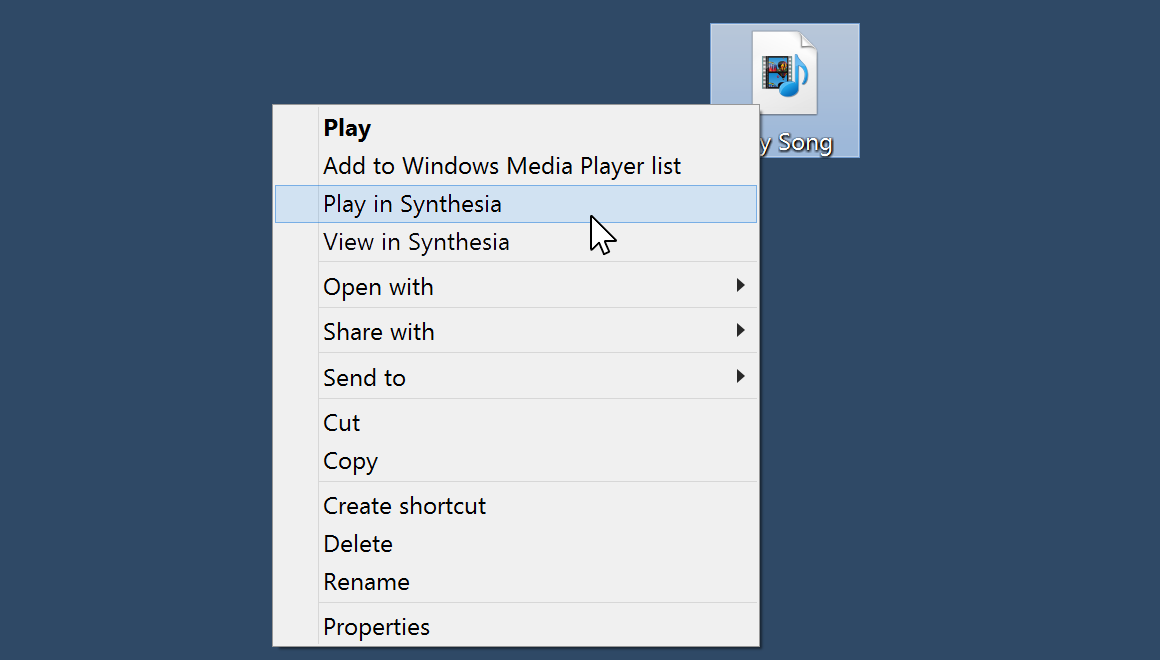
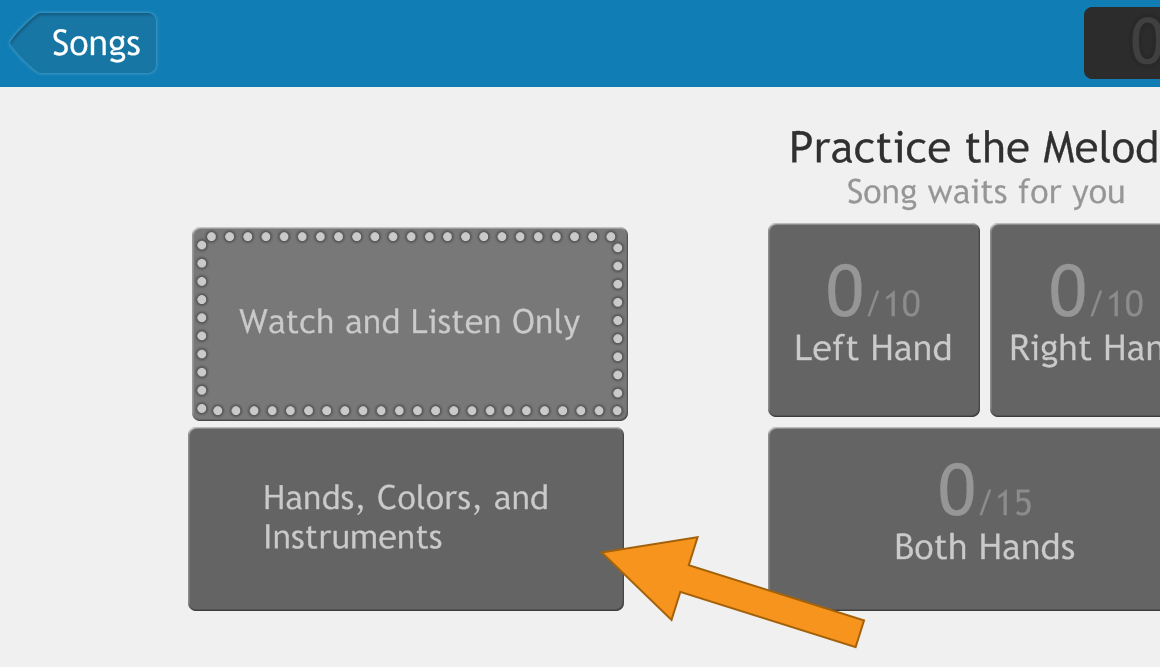
Open Hands, Colors, and Instruments
On the selected song's screen, open Hands, Colors, and Instruments. The listed MIDI parts have separate controls for hand assignment, display color and sound.
Listen to each part to identify melody and accompaniment. A MIDI file does not always arrive with its right and left hands already separated.
Assign the parts to hands
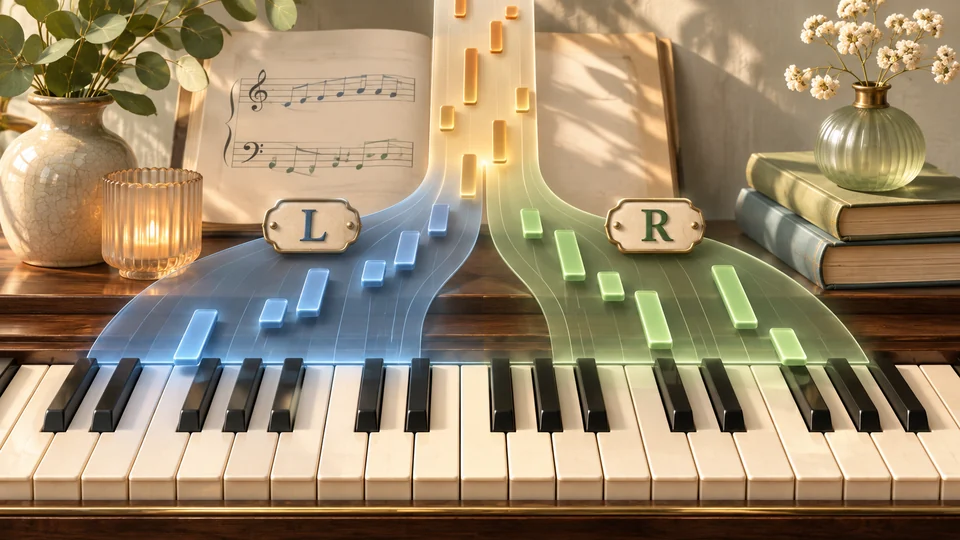
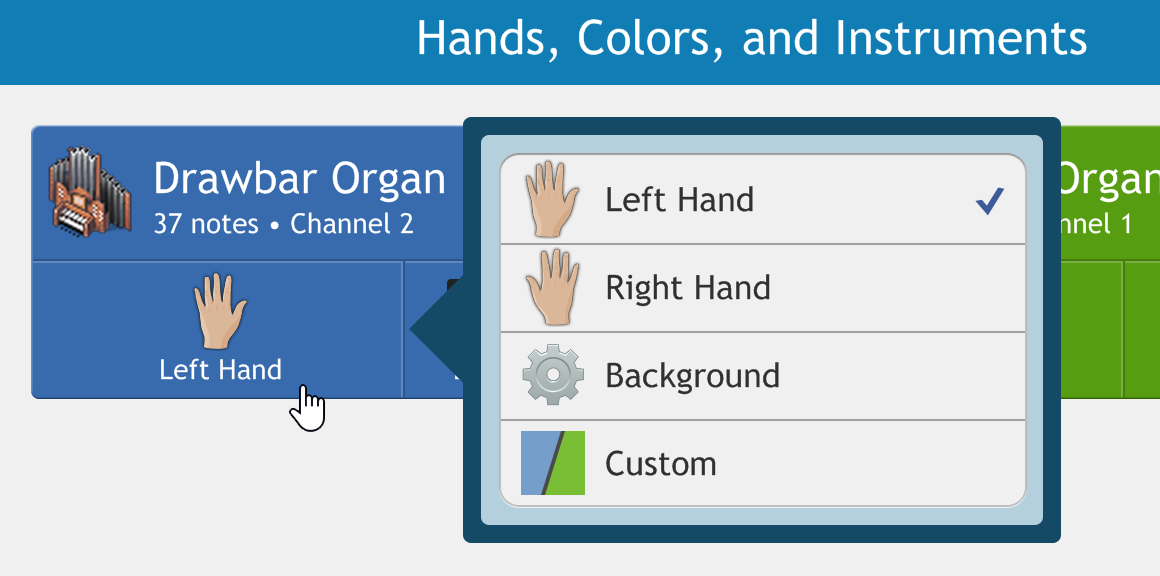
Use the hand control to assign the melody part to Right Hand and the accompaniment to Left Hand. Listen and watch together: higher notes do not always belong to the right hand.
If both hands are stored in one part, use Custom to inspect and assign individual notes. Check passages where the hands cross instead of relying only on pitch.
Choose which notes to show and which parts to hear
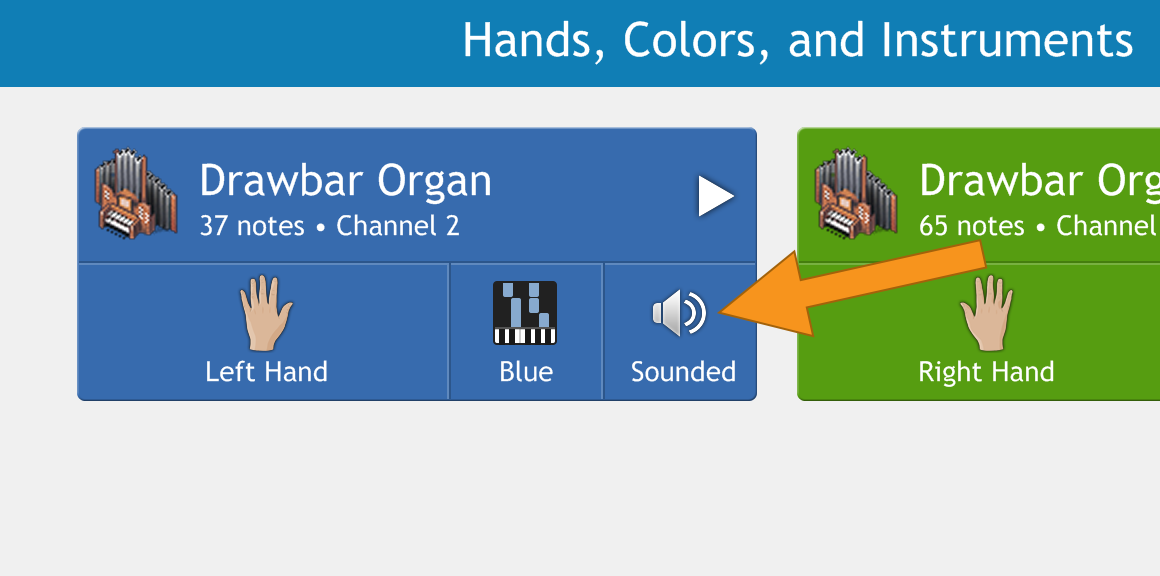
Hidden changes the note display. Sounded and Muted control whether the part is audible. To show only the right-hand notes while hearing both hands, hide the left-hand display and leave its sound enabled.
To hear only the left-hand accompaniment, switch the right-hand part from Sounded to Muted. Hide its notes separately if desired. Play a passage containing both parts. If unwanted notes remain, check other parts and Background accompaniment before recording.
Slow playback and choose a starting point
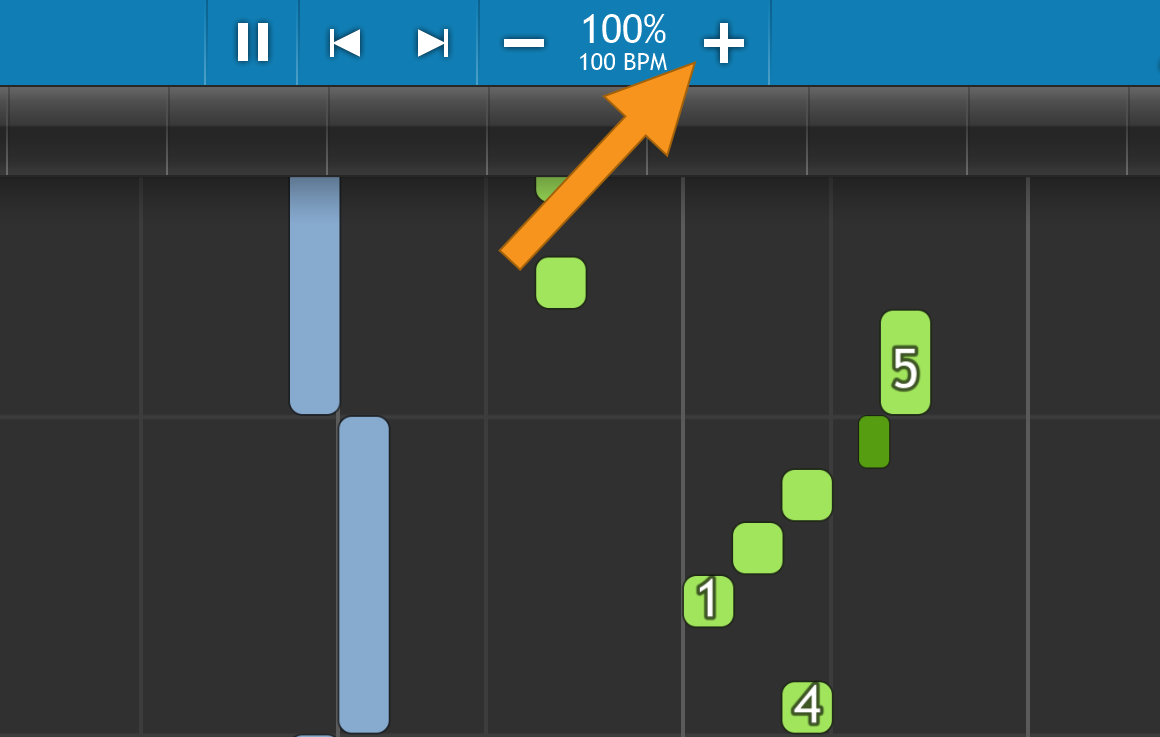
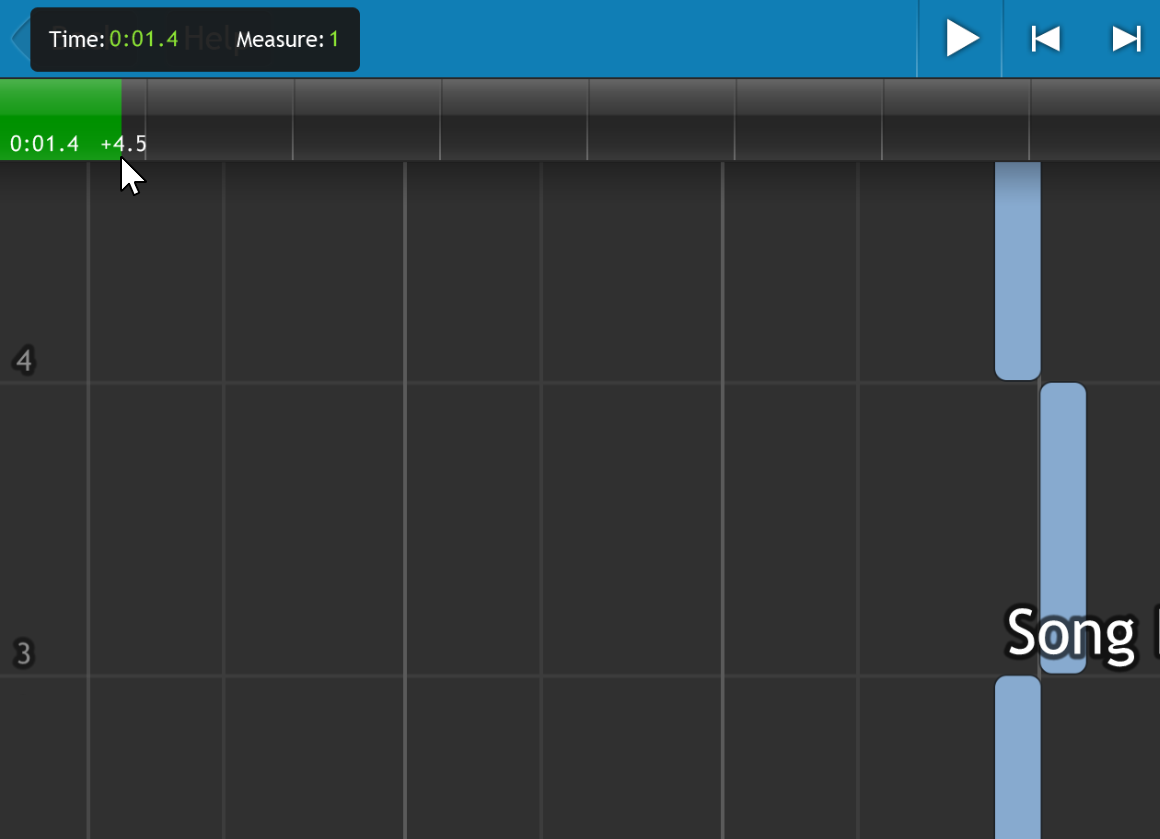
Use the minus control for playback speed to slow the piece. Select a point just before the difficult passage on the timeline and start playback from there.
Choose Watch and Listen Only when playback should continue without waiting for keyboard input. Use this playback mode while recording the example.
Add Synthesia's screen and audio to OBS
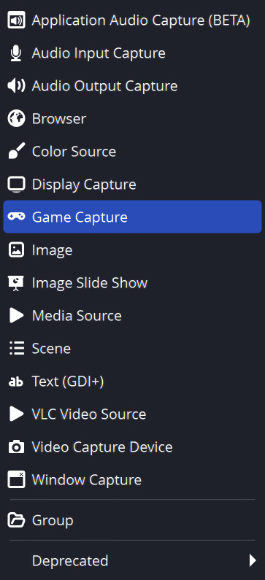
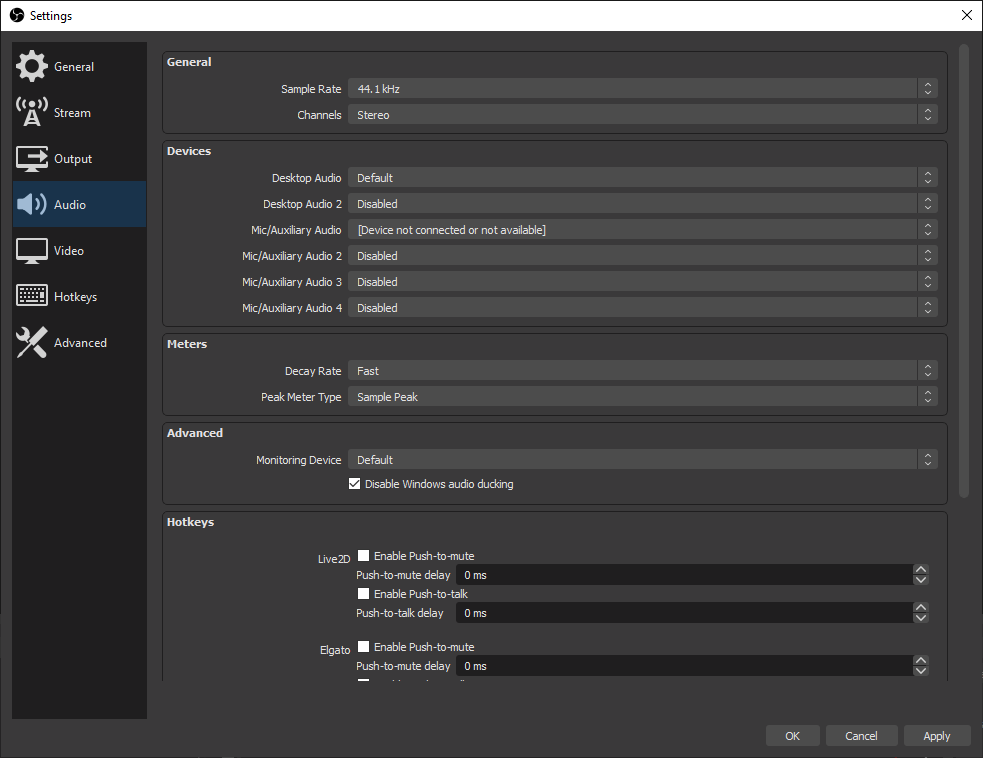
In OBS, choose Sources → + → Window Capture and select Synthesia. Once the keyboard appears in the preview, open Settings → Audio and select the desktop-audio device that carries Synthesia's sound.
Play a few seconds and check that the audio meter moves. Mute the microphone if you do not want your voice recorded. Listen to the selected hand parts in Synthesia before recording; disappearing note colors do not prove that a part is muted.
Record a short test and save MP4
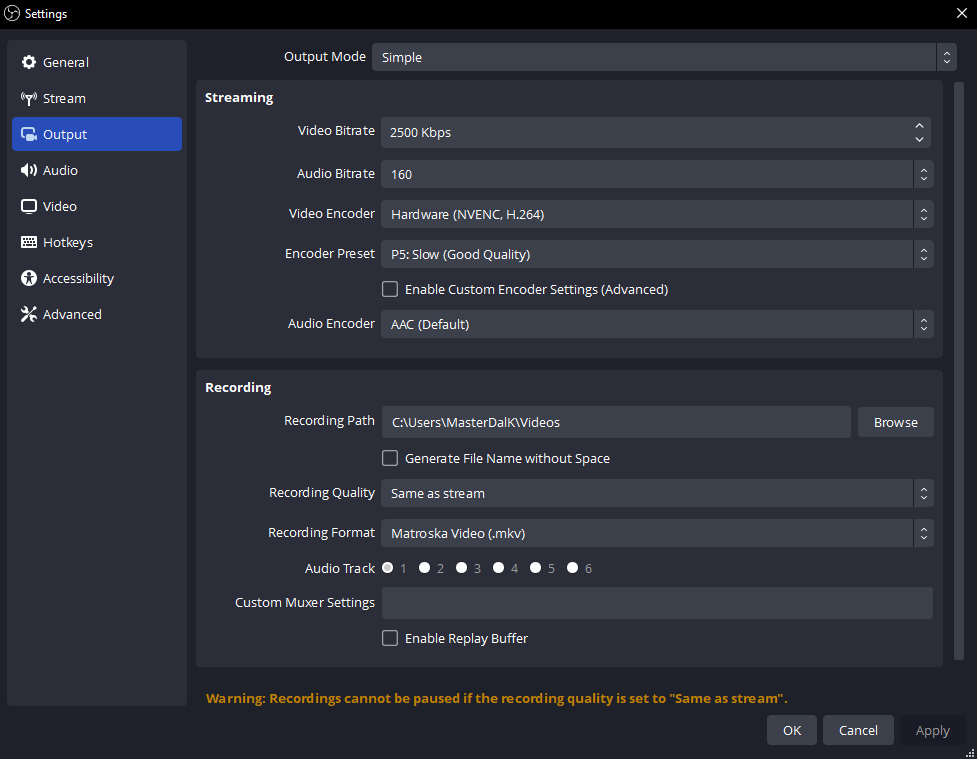
In OBS Settings → Output, choose a recording folder and MKV as the recording format. Start recording, return to Synthesia, leave a brief pause and start playback. Stop after about ten seconds for the first test.
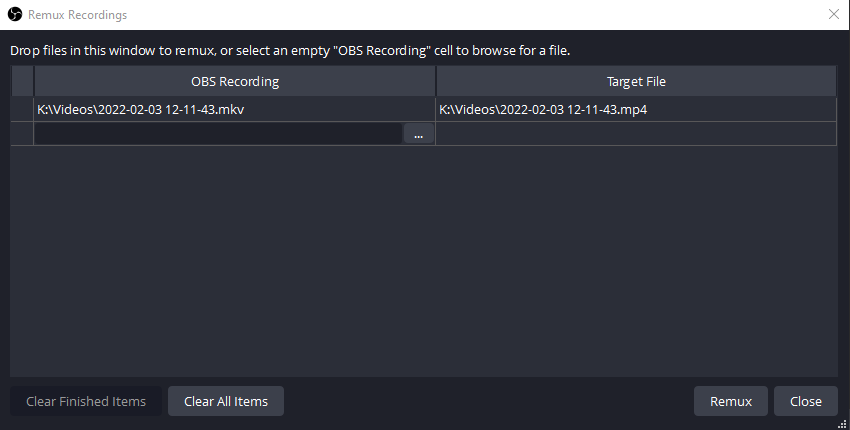
Choose File → Remux Recordings to convert the MKV recording to MP4. Open it and check both picture and sound. Edit an unwanted opening if needed, then record the required passage with the same settings. Include the hand and speed in the filename to distinguish practice versions.
Frequently asked questions
Why can I still hear the right hand after hiding it?
Hidden controls display only. Change that part from Sounded to Muted to remove its audio too.
Does PianoMira provide the same accompaniment-only workflow?
PianoMira's portrait output can select the hand shown, but the audio still contains both hands. This guide uses Synthesia for hand assignment and part muting.