Find a passage containing only background noise
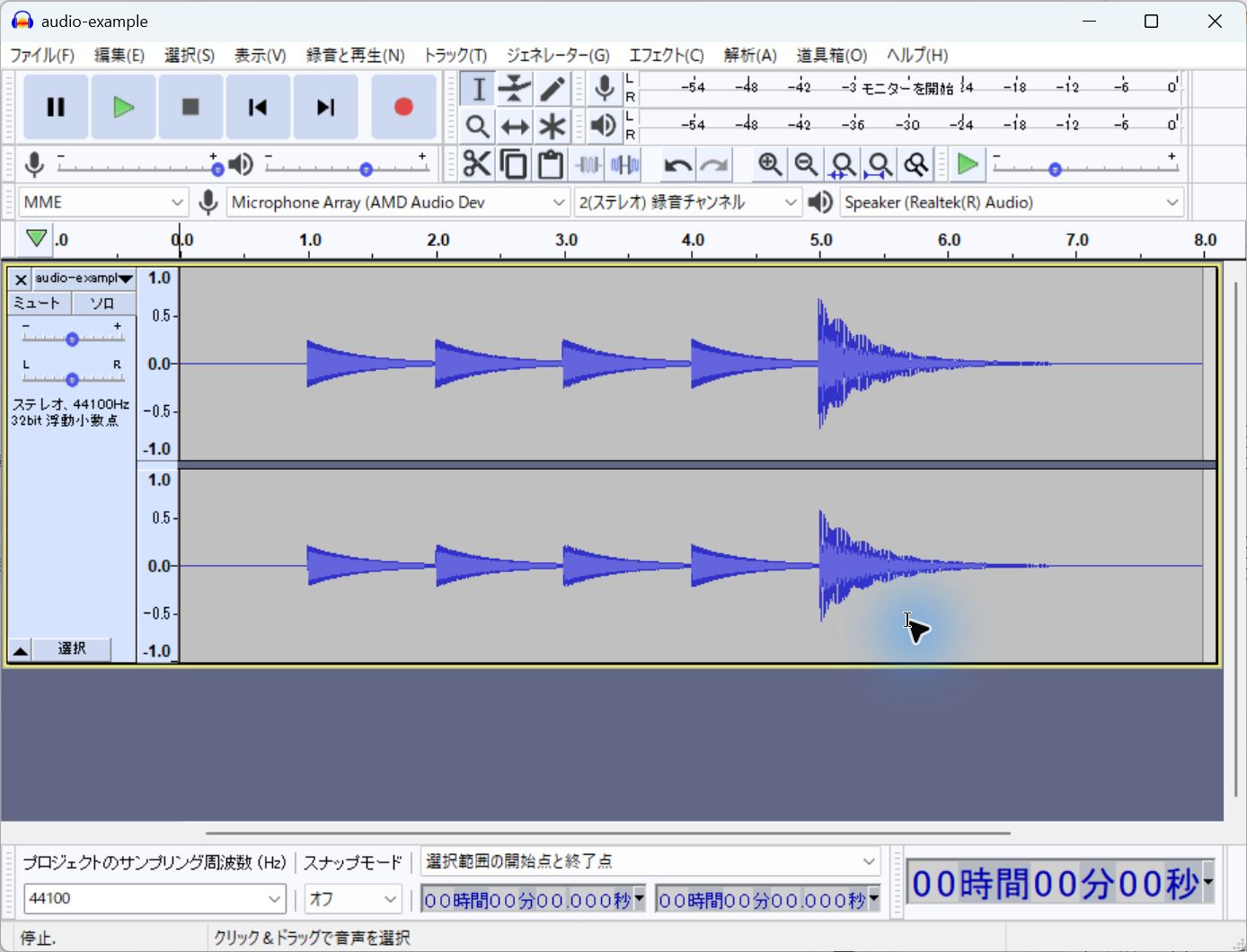
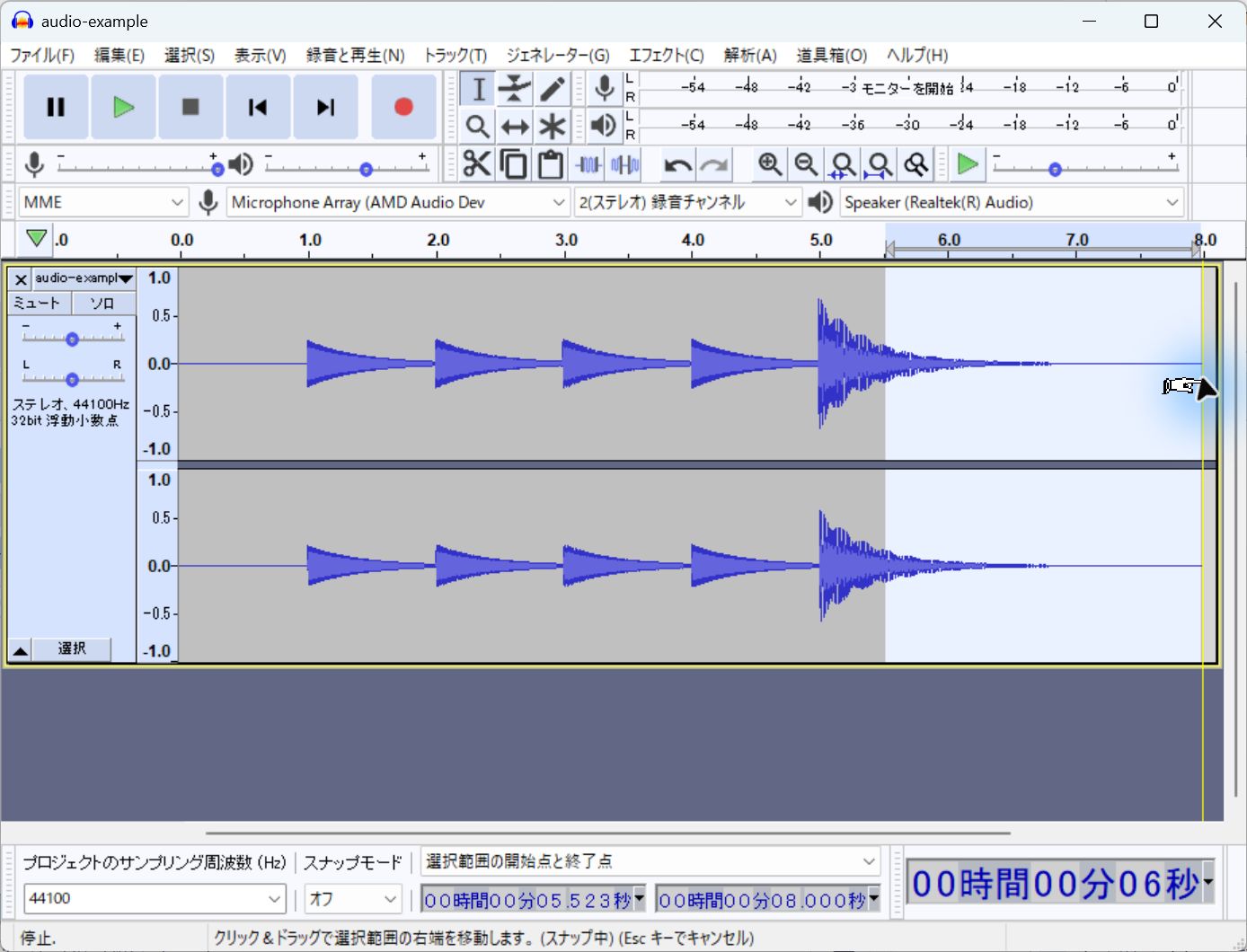
Select a short passage before or after the performance where no piano note or pedal resonance remains. Play the selection to confirm that it contains only the noise you want to reduce.
A small waveform is not necessarily silence. Including a fading piano note in the noise sample can cause the effect to treat part of the piano sound as unwanted noise.
Get a noise profile
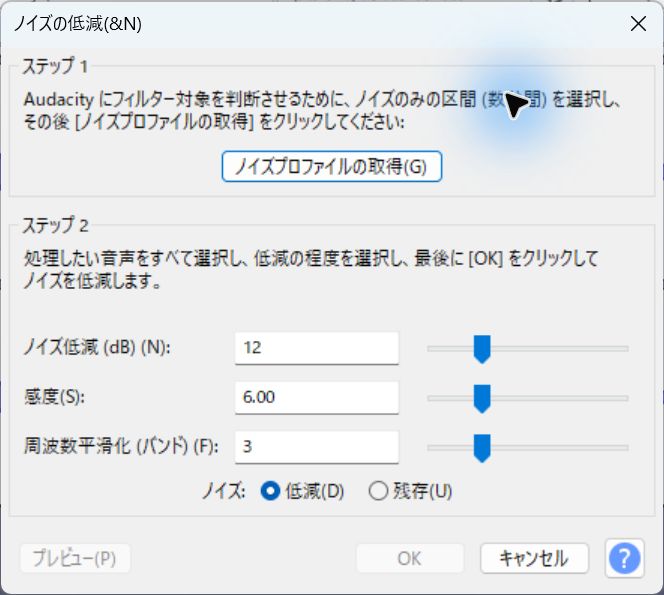
Open Effect → Noise Reduction and click Get Noise Profile. In newer Audacity versions, the command is grouped with the noise removal effects.
This first action learns the characteristics of the selected noise. It does not yet process the whole recording, so the waveform may appear unchanged after the dialog closes.
Select the music and apply a gentle reduction
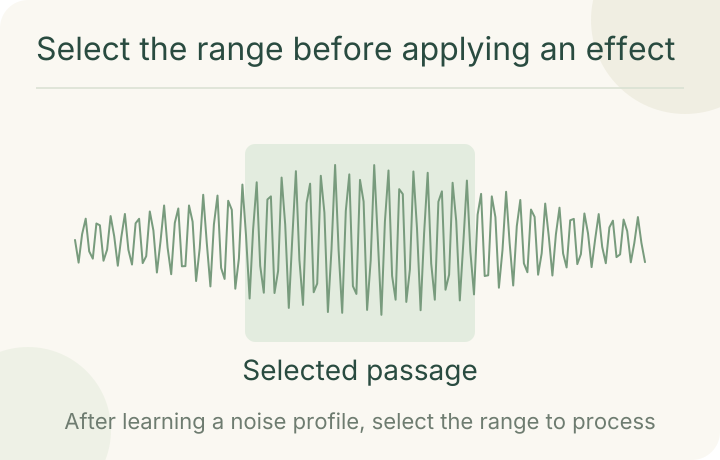
Press Ctrl+A, or Command+A on Mac, to select the full recording. Open Noise Reduction again, start with a modest reduction and use Preview before applying it.
Remember to change the selection after getting the profile. If the piano becomes watery, metallic or unstable, reduce the strength and compare the same passage again.
Judge the result on the quiet ending
Listen to soft notes and the final decay, where processing damage is easier to hear than during a strong chord. Undo the effect to compare with the unprocessed recording.
Keep enough of the piano's natural resonance. A little steady room noise may be less distracting than a decay that suddenly becomes thin or breaks apart.
Export a separate WAV and identify any remaining noises
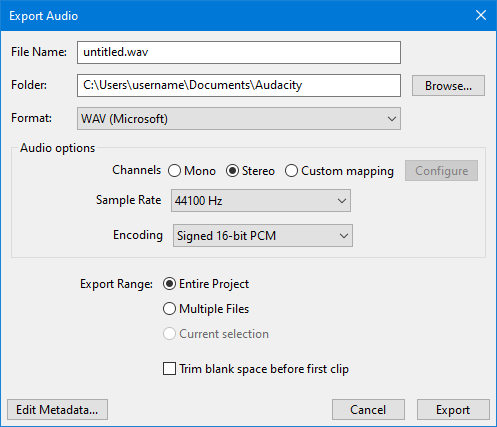
Once the result sounds natural, export a new WAV rather than overwriting your source. Listen to it outside Audacity before using it in the video.
A steady fan sound and a one-off cough are different problems. Noise Reduction may not remove sudden sounds cleanly; when rerecording is practical, improve the room noise or microphone position first.
For transcription, listen for the quiet repeated notes as well as the hiss. If noise reduction takes the attack off a note, it may disappear from the animation. Keep the original take for comparison.
How to turn a piano recording into a video: MP3, WAV or M4A?
Use undo when the piano loses its natural sound
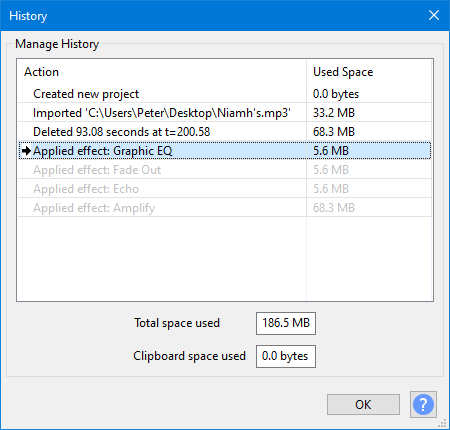
If the noise is lower but the quiet notes sound damaged, undo the processing and try a gentler setting. Compare a passage containing music as well as the noise-only section.
Use a profile recorded after the piano has fully stopped. If no suitable noise-only passage exists, do not force a sample from the performance; look for an unused part of the original recording made in the same conditions.
Frequently asked questions
Can I remove every trace of noise?
Not always. Noise overlapping the music cannot necessarily be separated perfectly. Reduce the processing if notes disappear or the decay sounds metallic.
What if there is no noise-only passage?
Look in the original take for a short passage recorded before or after the performance. For future recordings, capture a little room sound while the piano is silent.