Use Unlisted for sharing by link
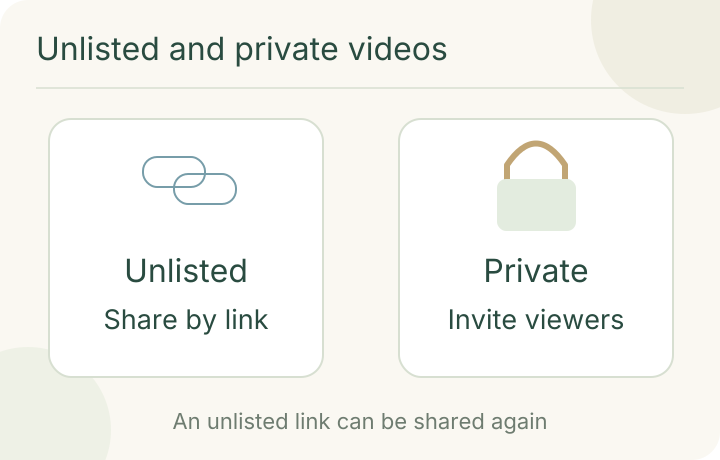
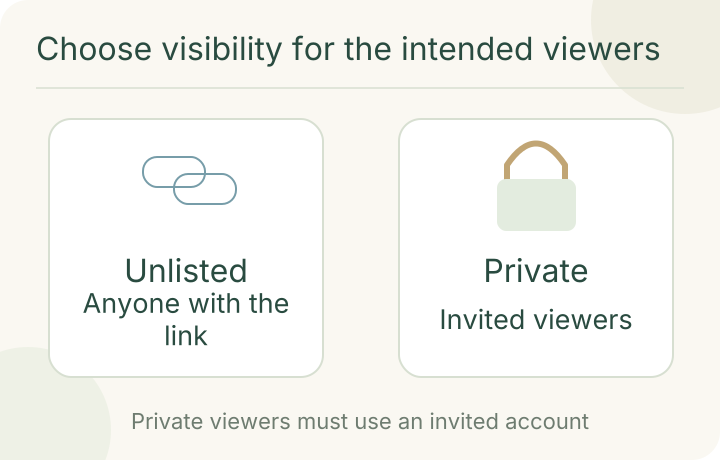
An unlisted video can be watched by someone who has its link without requiring the invitation process used for private sharing. It can be convenient for asking someone to review a performance.
The recipient can pass the link on. Keeping a video out of ordinary search results is different from restricting it to named viewers.
Use Private when the viewers must be specified
A private video is available to you and the people you choose to share it with. Private sharing uses the recipients' email addresses associated with their Google accounts.
Private videos do not provide the usual public commenting workflow, so arrange another way to receive feedback if needed. Decide who needs access before choosing the setting.
| Setting | Who can watch |
|---|---|
| Public | Anyone |
| Unlisted | Anyone with the link |
| Private | You and the invited viewers |
Open Visibility from the Content list
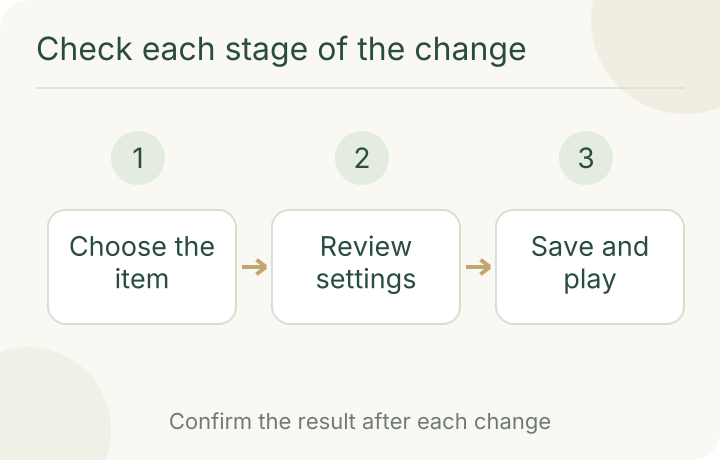
In YouTube Studio, select Content in the left menu. Find the correct video, open its Visibility control and choose Public, Unlisted or Private, then save.
Check the title, thumbnail and duration when several versions of the same song exist. If the video is not uploaded yet, use Create → Upload videos and choose the MP4 first.
Specify recipients for a private video
Open the video's details and use the private sharing option under Visibility. Enter the intended viewers' email addresses and save the sharing settings.
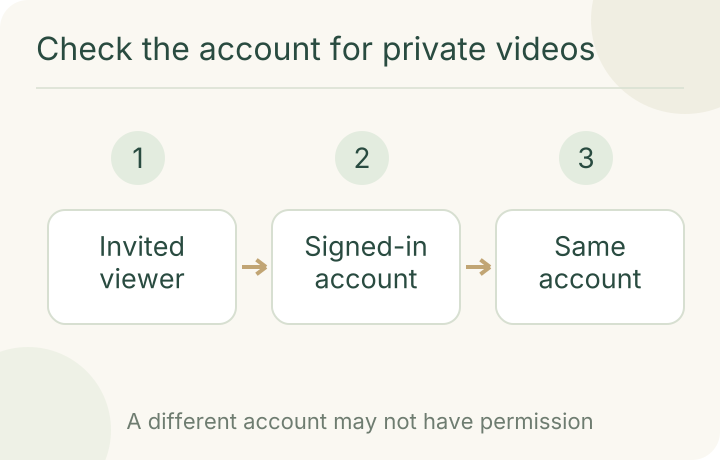
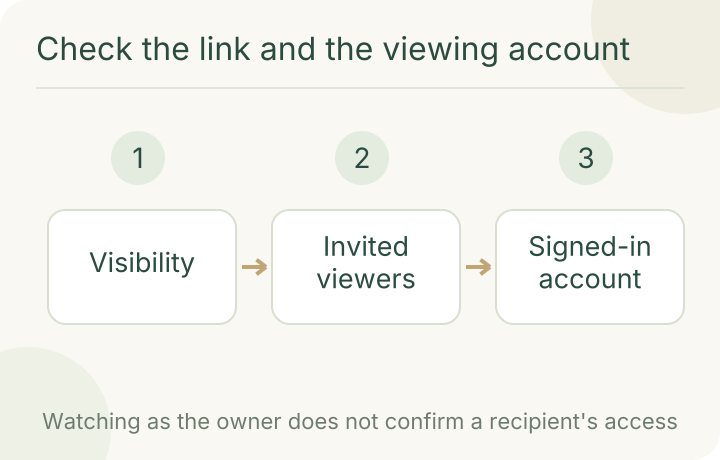
If someone cannot watch, ask them to confirm that they are signed in with the Google account you invited. A correct link alone does not grant an uninvited account access.
Review the saved setting before sending the link
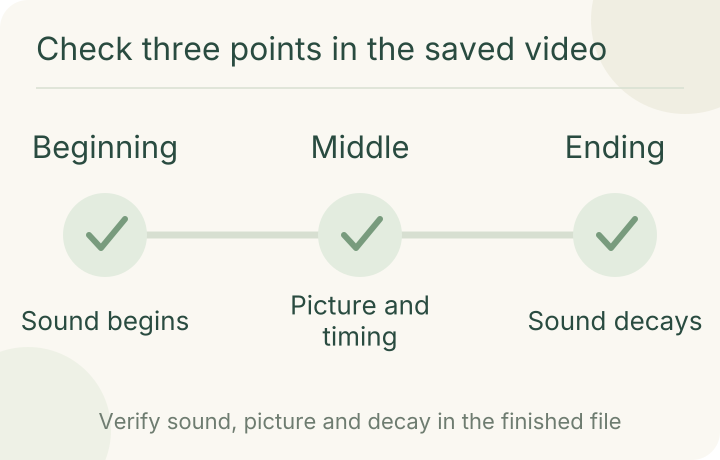
Return to the Content list and confirm the intended visibility on the correct video. Check that you did not change another recording with a similar name.
Your ability to watch as the owner does not prove that the recipient has access. Tell the recipient whether the video is unlisted or privately shared so they know what to expect.
Check the invited account when private sharing fails
A viewer may be signed into a different Google account from the one invited. Ask them to switch to the invited account before changing the video's visibility unnecessarily.
For unlisted sharing, remember that the link can be forwarded. Lesson recordings do not become private automatically; choose the intended audience explicitly and verify the saved result in Studio.
Frequently asked questions
Can only my family watch an unlisted video if I send them the link?
Anyone who receives the link can pass it on. Consider private sharing if you need to specify the viewers.
Can I still manage a private video in YouTube Studio?
Yes. The uploader can manage it in Studio. Owner access and the audience visibility setting are different things.