Play the MP4 before uploading
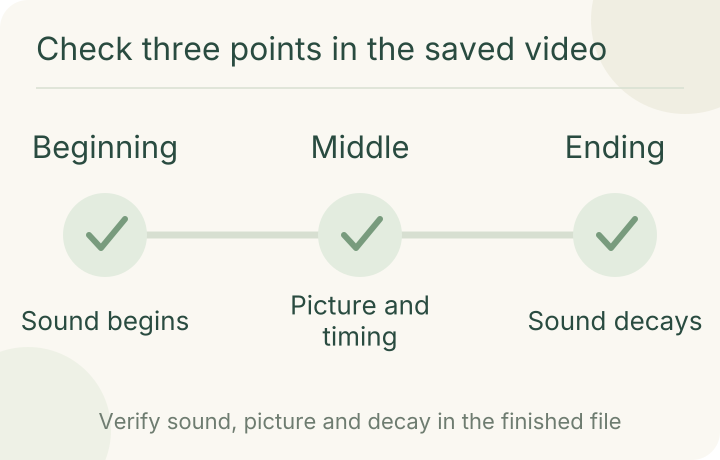
Open the saved MP4 and check that it has sound, the keys match the audio and playback reaches the end. Uploading will not repair problems already present in the file. Also check the conditions for publishing the music, recordings and images you used.
Review the exported file rather than only the editor preview. If the opening is cut off, fix the export range. If synchronization drifts, correct the source timing and export a new finished file before uploading.
Open Create and upload your file
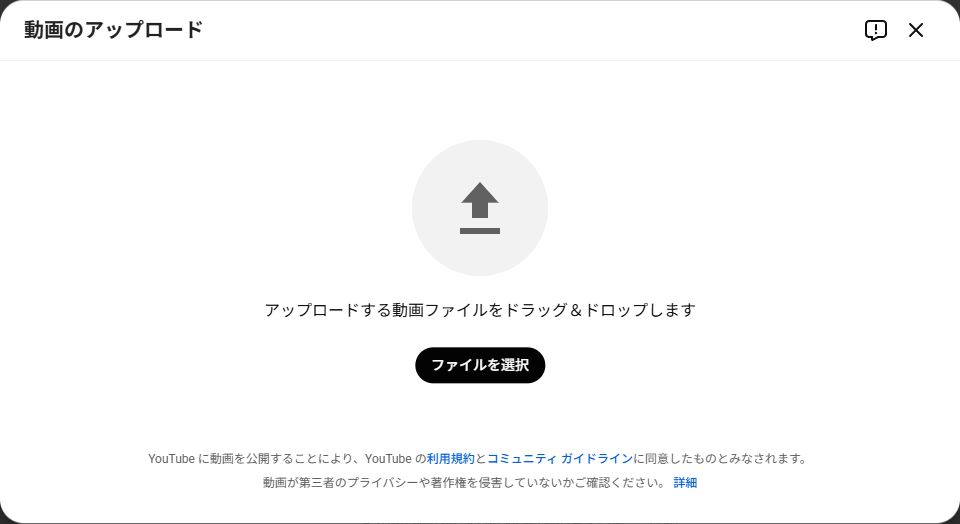
In the upper-right corner of YouTube Studio, choose Create, then Upload videos. Click Select files and choose the MP4, or drag it into the upload area.
When filenames look similar, check that you selected the final version. Keeping drafts and finished exports in separate folders helps avoid uploading an earlier test.
Name the song and the type of performance
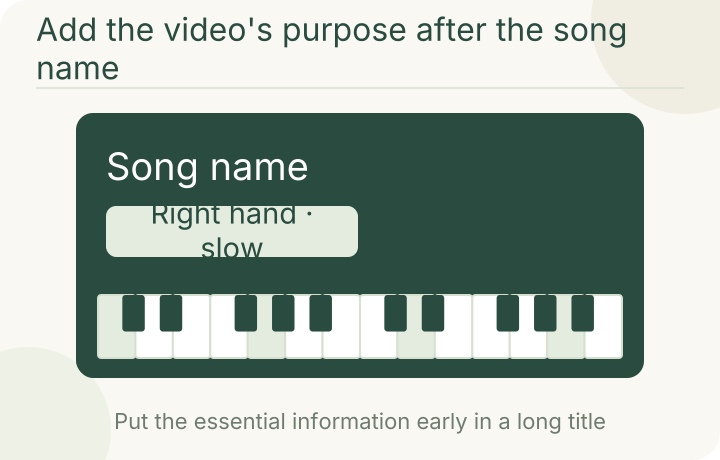
Use the song name and a useful description such as piano performance, right-hand practice or slow playback. Write a title that identifies the video instead of repeating a list of search terms.
In the description, include relevant performance, arrangement and sound-source details. Set the audience option to match the actual content. If the video shows both hands but plays only one part, explain that difference.
Choose visibility and save
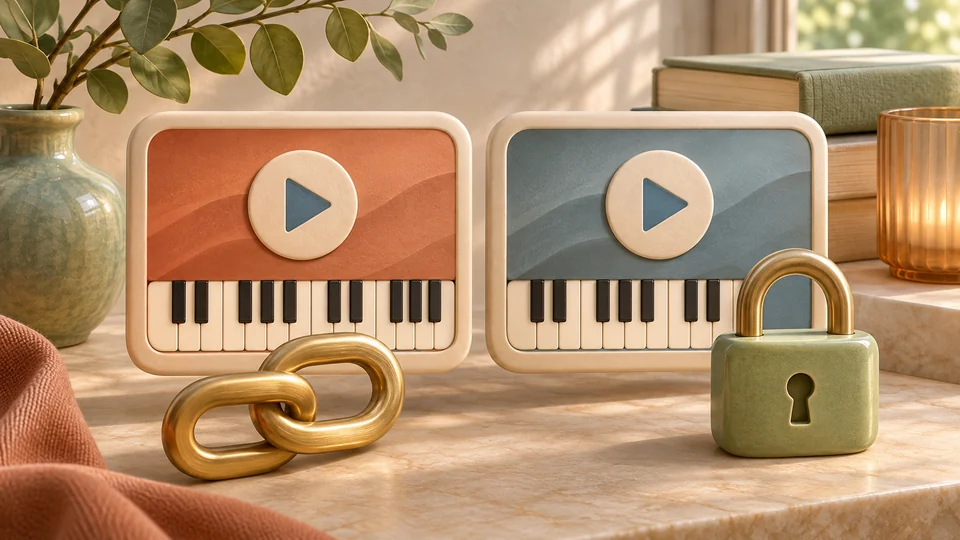
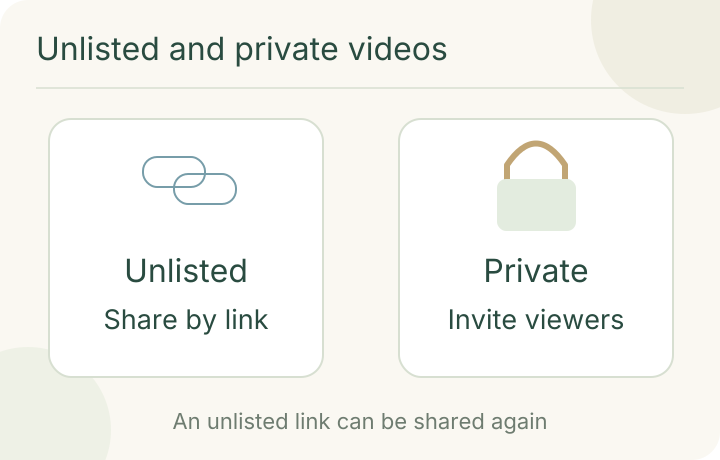
Continue through the checks to Visibility. Choose Unlisted when someone should review the video through a link, or Private when access should be limited to you and the people you specify.
An unlisted link can be shared again by its recipients. For restricted access, use private sharing. Saving an unlisted review version gives you time to check the title, sound and picture before making it public; use private sharing instead when the audience must remain limited.
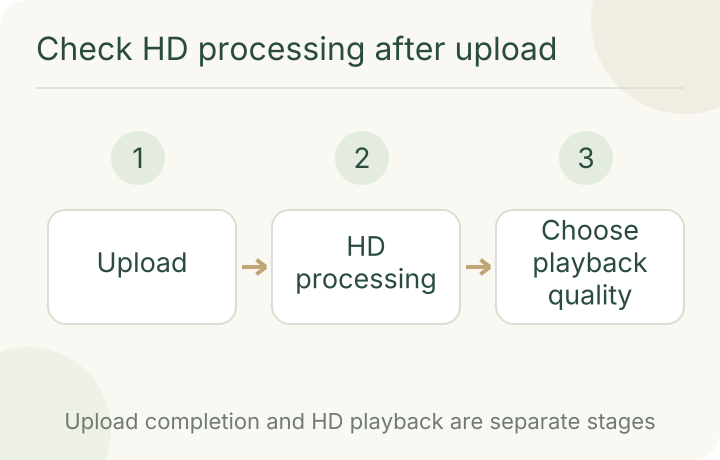
Check phone playback after HD processing
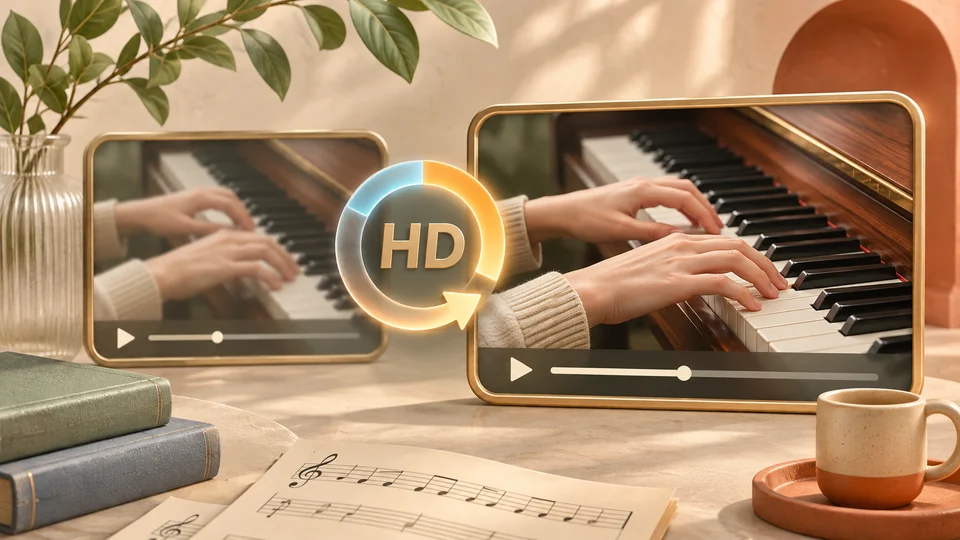
Open the watch page and check whether the quality menu offers your intended resolution. Higher-resolution processing may still be running immediately after upload. Listen at a comfortable volume and check the note labels on your phone.
If the higher resolution is not available yet, check the processing status before deleting and re-uploading the video. You can use that time to finish the title, description and visibility settings.
Check the title outside the editing screen
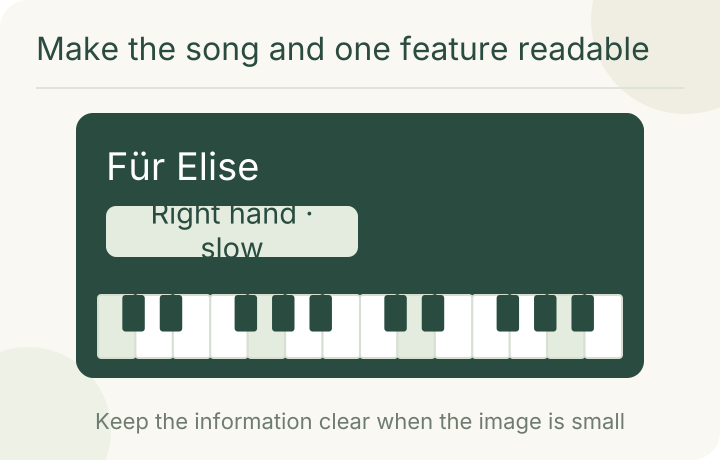
After saving a title change, open the watch page and a video list on your phone. A title that fits inside Studio may be shortened in a list. Put the song name and the most useful detail near the beginning.
For example, Fur Elise | Right hand, slow is easier to identify than Practice video, part 3. State whether the audio contains one or both hands and which passage is included at the start of the description. Make the wording match what the video actually provides.
Frequently asked questions
Can I use a landscape video in a vertical format?
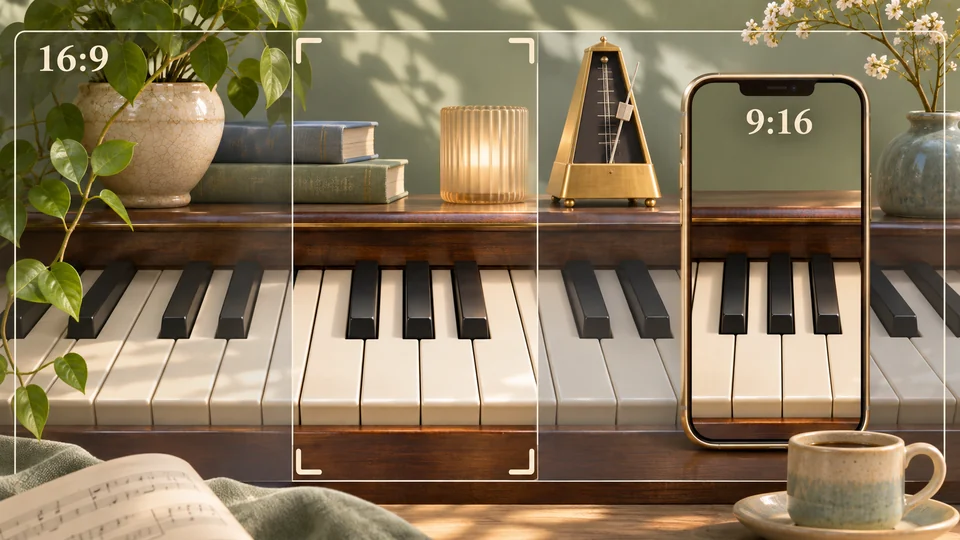
You can place it inside a vertical frame. Enlarging it to fill that frame crops the sides, so use space above and below if both hands need to remain visible.
Does every upload have to be under three minutes?
Shorts and regular videos have different format requirements. Choose the format that fits the performance you want to show.