Inspect the exported MP4 first
Open the actual MP4 in a local player, not just the video editor's preview. If note labels or keyboard details are already blurred, revisit the original generation or recording settings.
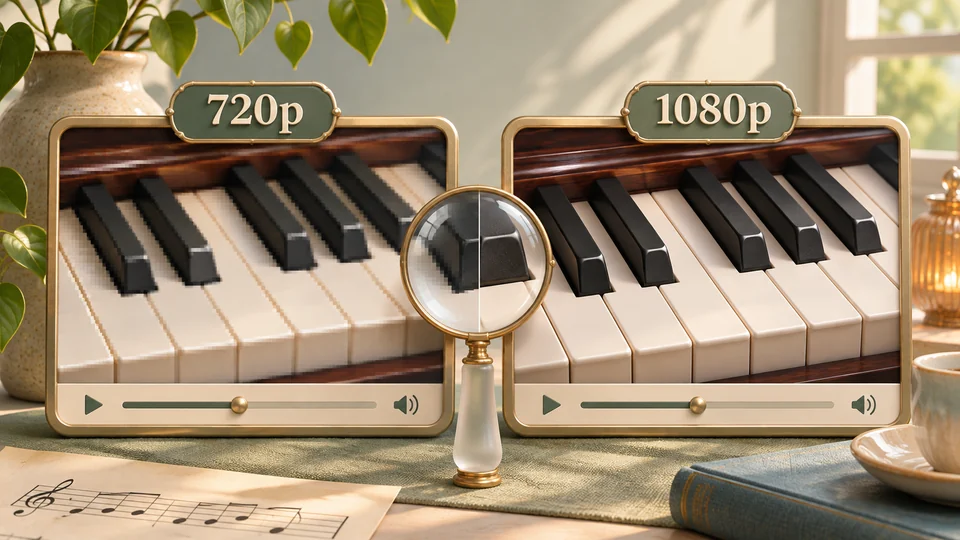
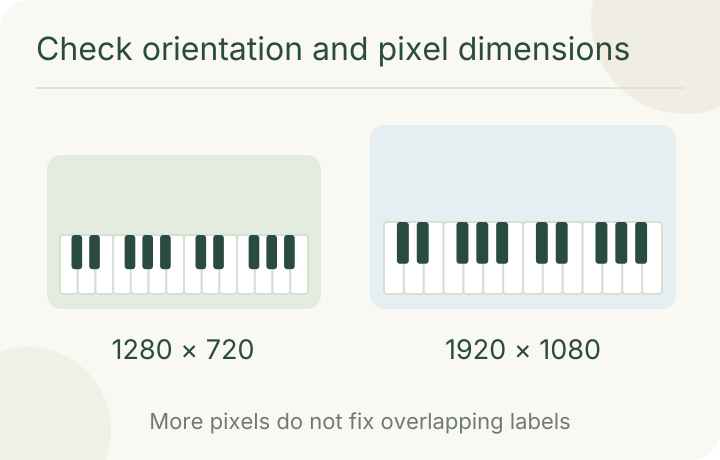
Check the source dimensions. Uploading a 720p file does not create the fine detail of a native 1080p source, even if another stage enlarges the picture.
Separate upload completion from HD processing
A video may become playable at a lower quality while higher-quality processing continues. Finishing the file transfer does not mean that every playback resolution is ready.
Check the processing status in YouTube Studio. Duration, resolution and frame rate can affect the work required, so avoid assuming a fixed waiting time for every video.
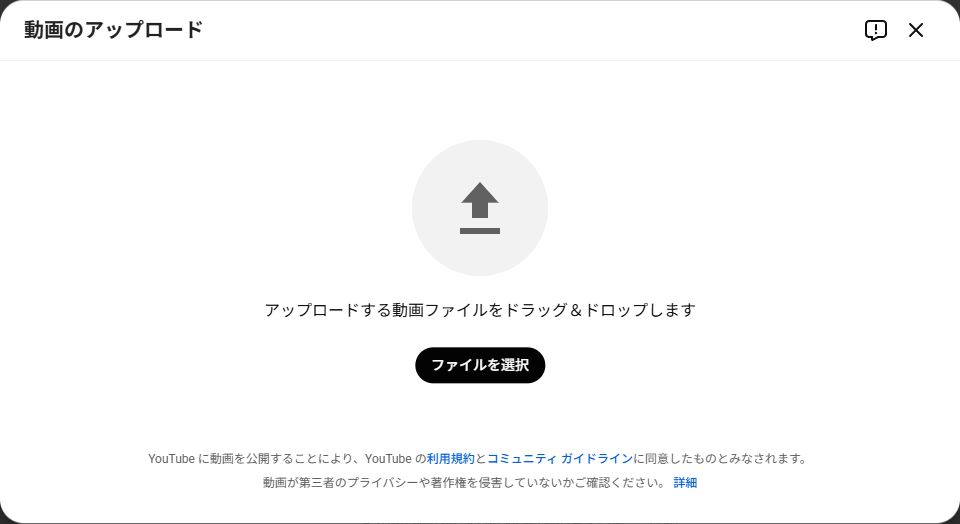
Open the player's quality menu
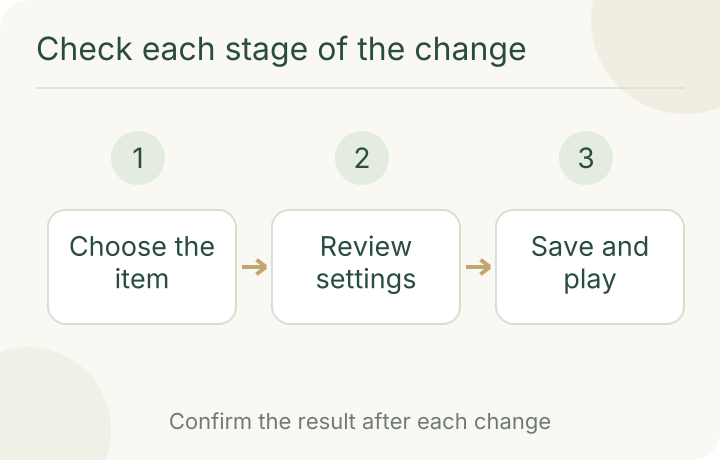
Use the player's settings gear and open Quality. On a phone, open the detailed quality choices to check whether 720p or 1080p is available.
Select the intended quality if it appears, then replay the passage. Automatic quality can choose a lower level depending on the viewing conditions.
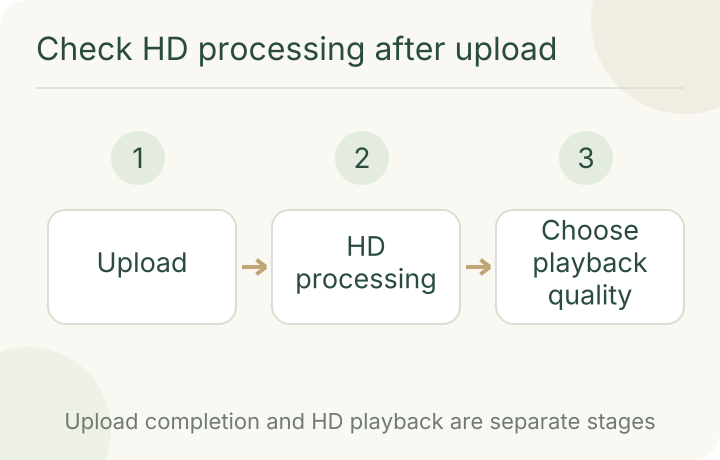
Recheck after higher-quality processing
If the source is HD but that quality is not available yet, wait and check Studio and the playback menu again. Repeatedly uploading the same file immediately is unlikely to help the original finish.
Use an unlisted or private upload if you want to inspect it before general publication. Judge readiness from the processing status and available quality options rather than a promised number of minutes.
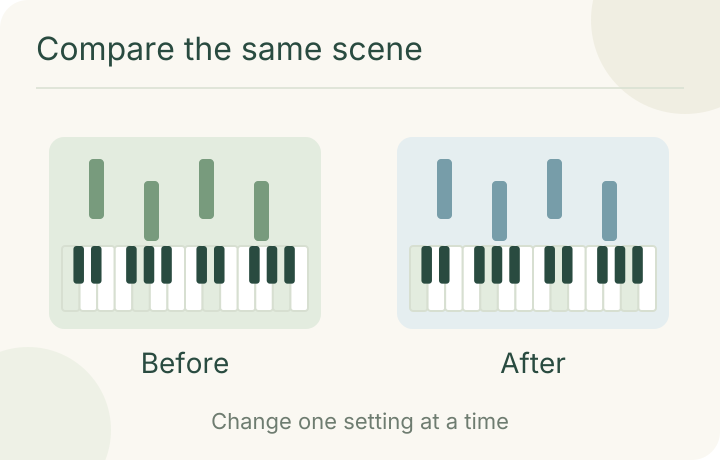
Compare the same scene after processing
Play the same chord or fast passage in the local MP4 and the uploaded video at the chosen HD quality. Fine particles and strong moving glow can reveal compression differences.
If the local file also has the problem, improve the original settings. If processing appears stuck only on YouTube, check Studio's status and the current official troubleshooting guidance.
Distinguish available HD from the quality currently playing
Seeing 1080p in the menu means it is available, but an automatic playback setting may still use a lower quality. Select it deliberately before comparing the same scene.
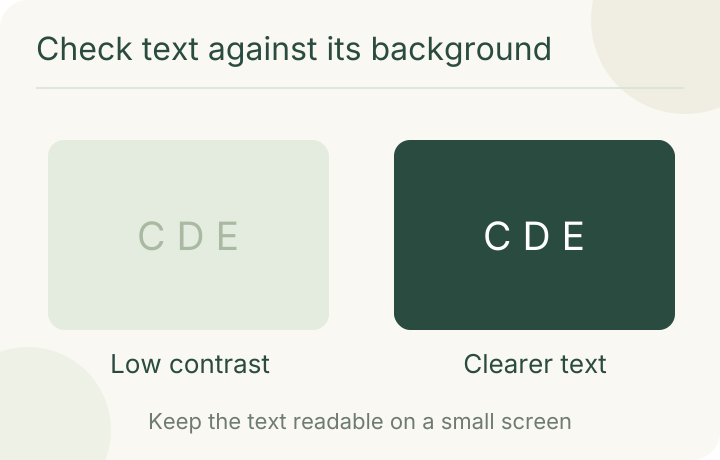
If the source labels are already unreadable, rework the source rather than repeatedly uploading it. Larger labels, clearer contrast and a simpler background can help the video remain understandable across playback conditions.
Frequently asked questions
Is HD ready as soon as the upload finishes?
Not necessarily. Upload completion and higher-quality processing are separate stages. Check the available playback qualities.
How many minutes should I wait?
There is no single duration for every video. Use Studio's processing information and the playback quality menu to assess readiness.