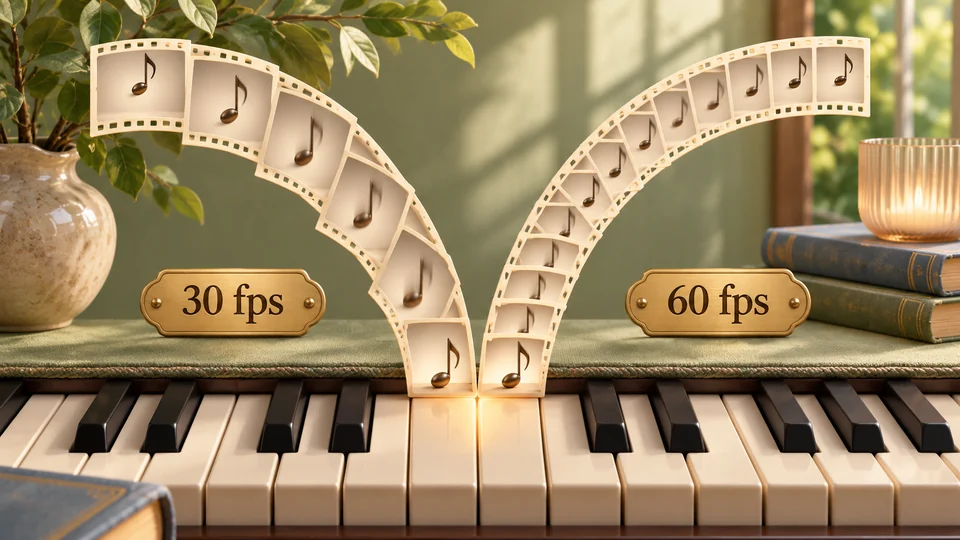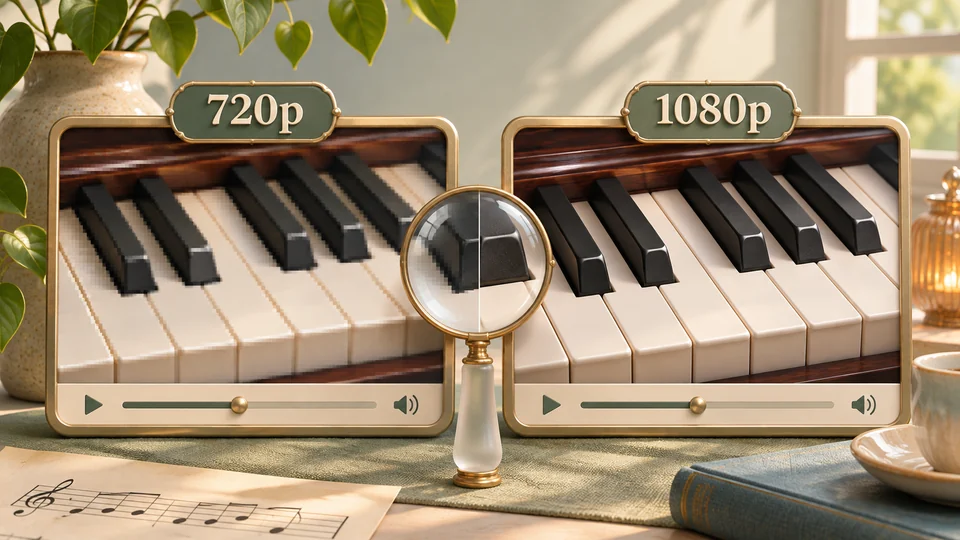
Record a short reference clip
Record about ten seconds containing moving notes, keyboard details and any text you use. Check the saved file's size and keep it as a reference.
Use the same passage and duration for every comparison. Files of different songs or lengths do not show the effect of a setting clearly.
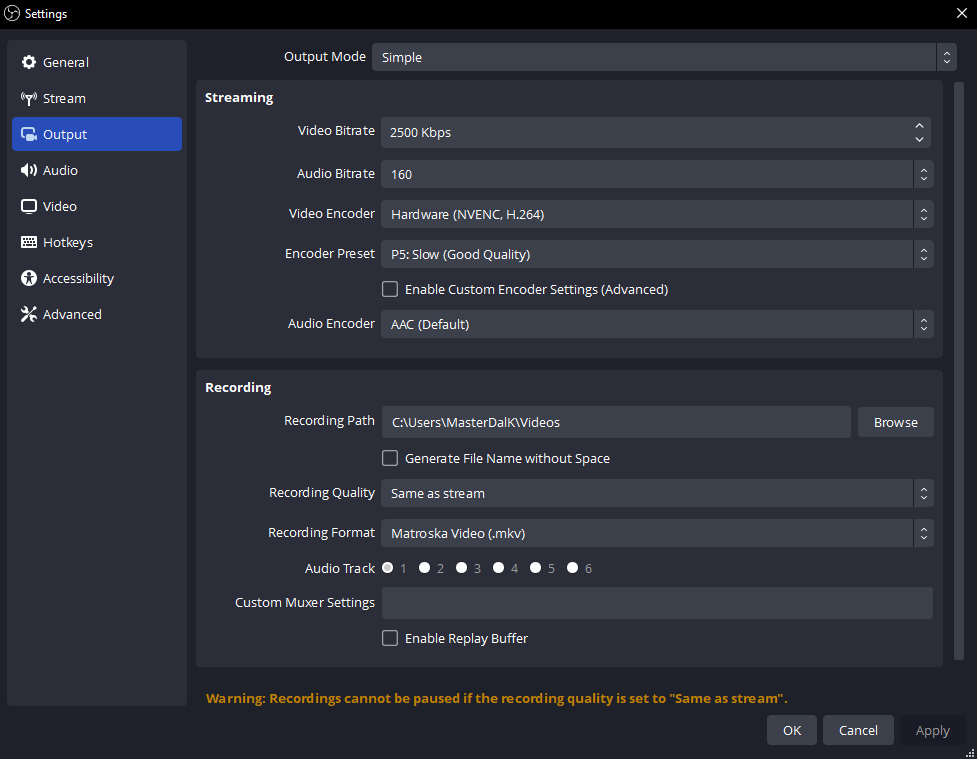
Review recording quality in Output settings
Open Settings → Output. In Simple mode, inspect the recording quality option and avoid unnecessarily large settings such as lossless quality when you need a compact file.
Note the current quality, format and recording path before changing them. Simple and Advanced output modes expose different controls, so check which mode you are using.
Change resolution or fps separately
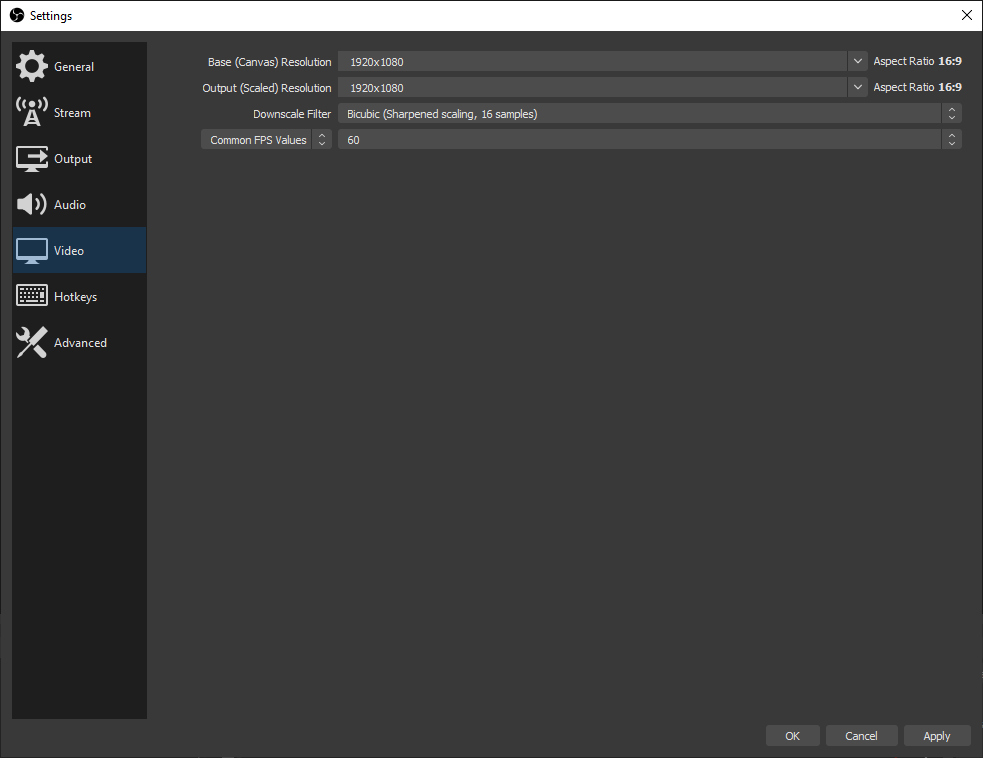
Open Settings → Video and test one change at a time. For example, compare 1080p at 60 fps with 1080p at 30 fps before changing resolution.
Try 720p if the labels remain readable. Keeping other settings fixed helps you identify which change produces a useful size reduction without sacrificing essential detail.
Inspect fine lines, text and bright effects
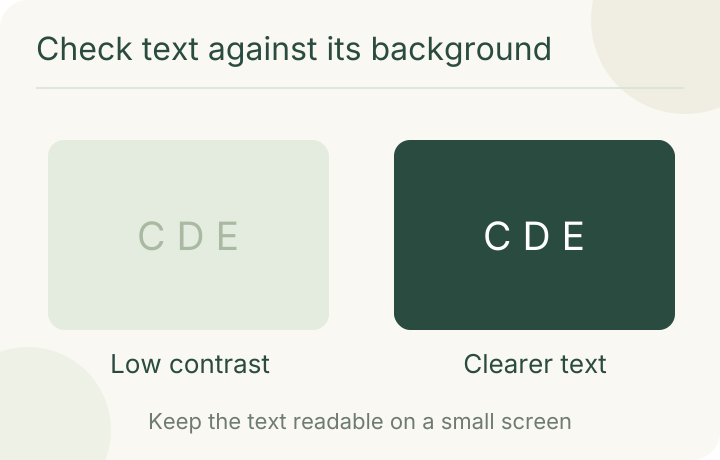
Play the smaller recording and inspect note labels, thin lines and the edges around glow effects. Busy particle effects can make compression artifacts more visible.
Check the result on a phone as well as a computer. Keep a setting that communicates the performance clearly, rather than choosing the smallest file regardless of quality.
Remux to MP4 when needed
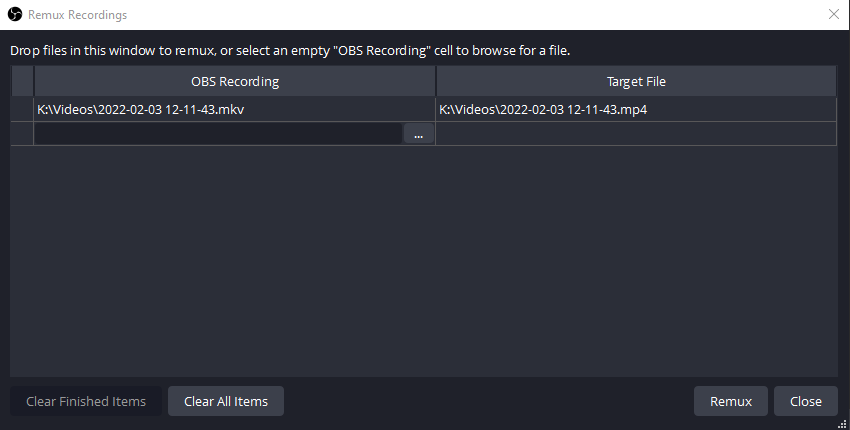
If you recorded MKV, choose File → Remux Recordings to make an MP4. Remuxing changes the container; it is not a quality-reducing compression step for dramatically shrinking the file.
Keep the original recording until you have checked the MP4's picture, sound and duration. To reduce size substantially, revisit the recording settings or use a deliberate re-encoding workflow.
Estimate the full recording from a short test
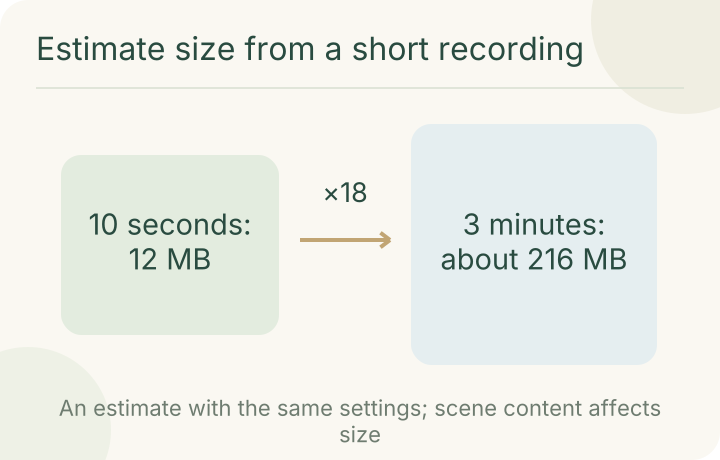
For a rough estimate, scale the test file by duration. A ten-second recording of 12 MB would suggest about 216 MB for three minutes if the data rate stayed similar.
Actual size can vary with the scene and encoding mode. Use the estimate for planning, then confirm the finished file and retain enough quality for the keyboard, labels and moving notes.
Frequently asked questions
Will renaming the extension make a video smaller?
No. Renaming does not change the encoded content. Reducing size requires different recording settings or re-encoding.
Does lowering resolution always reduce file size?
Not necessarily. If the bitrate is held constant, changing resolution alone may have little effect on size.