Add the piano app as a capture source
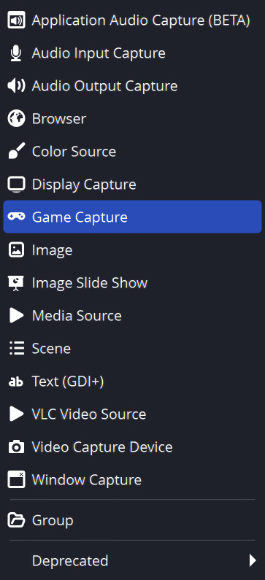
Click the plus button in Sources and add a Window Capture source for the piano app. Check that the notes and keyboard appear in the OBS preview.
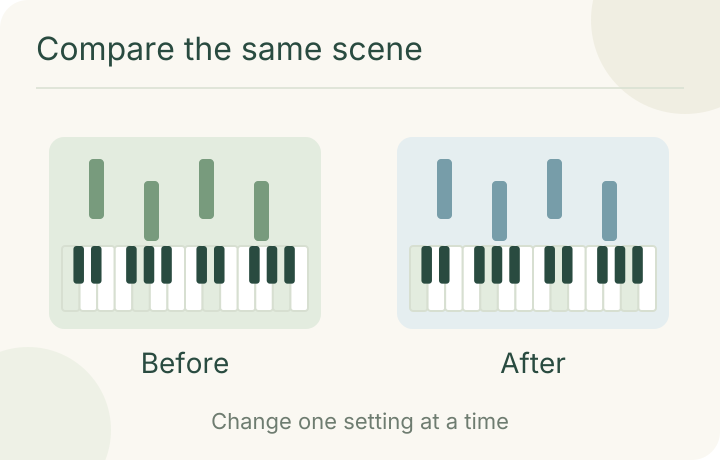
Adjust the source to the canvas before comparing frame rates. Keeping the composition unchanged makes the difference in motion easier to judge.
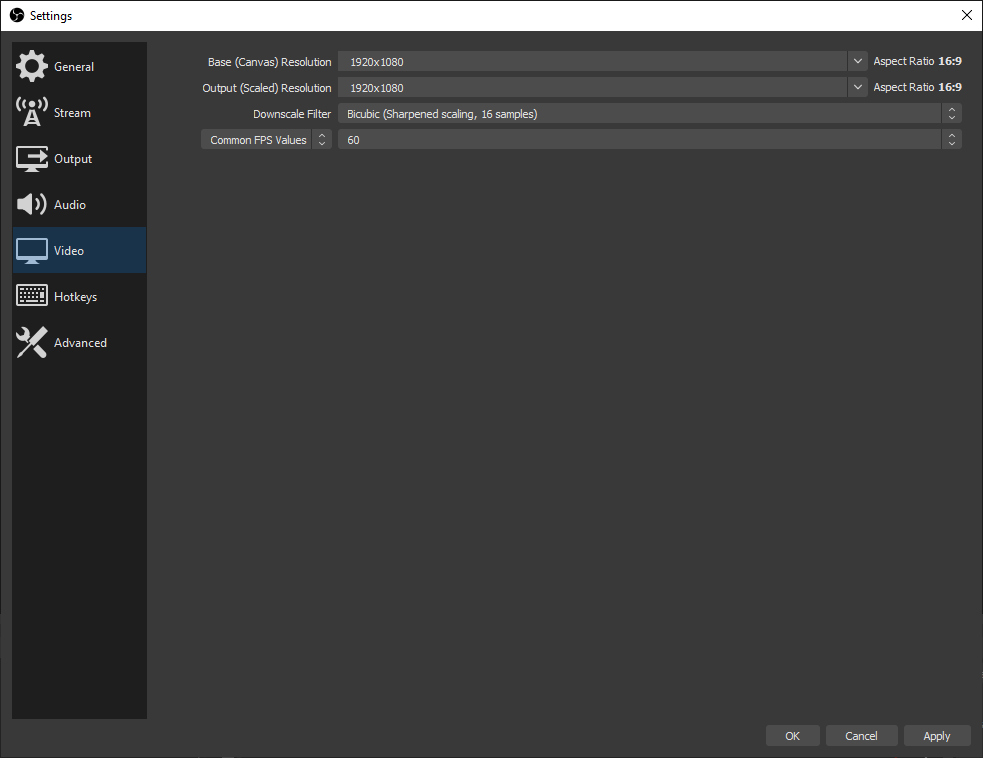
Choose the frame rate in Video settings
Stop recording or streaming, then open Settings → Video. Select 30 or 60 under Common FPS Values and keep the resolution unchanged for the comparison.
Recording at 60 fps cannot create smoother original animation if the source app itself is running slowly. Check that the source is moving smoothly before testing the recording.
Record the same fast passage twice
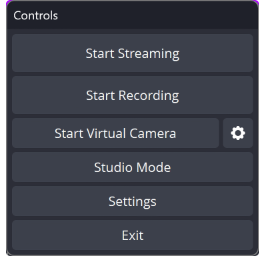
Record about ten seconds at each frame rate and include the chosen fps in the filenames. Use moving notes or a dense chord passage rather than a mostly static screen.
Keep the recording quality and resolution the same. Changing several settings at once makes it harder to explain differences in sharpness, motion and file size.
Compare smoothness and recording load
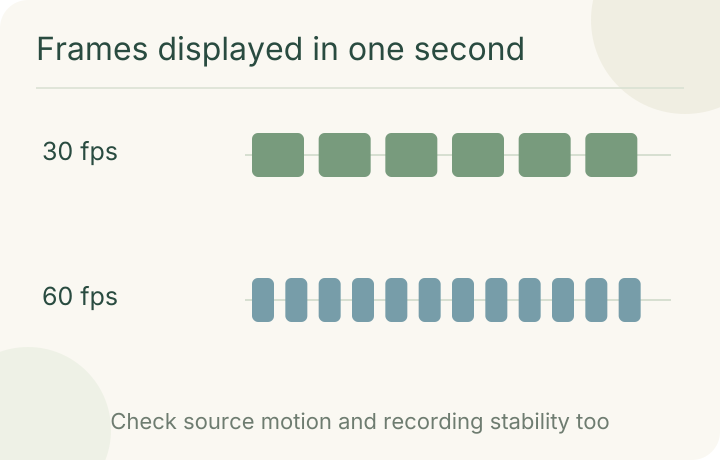
Open both saved files in the same player. Watch for smooth movement, pauses and sudden jumps in the notes. A nominal 60 fps recording can still look uneven if the computer cannot keep up.
Check OBS's statistics for rendering or encoding lag. Consider other active applications and the chosen resolution if frame loss increases during the test.
Record with the chosen setting and verify the audio
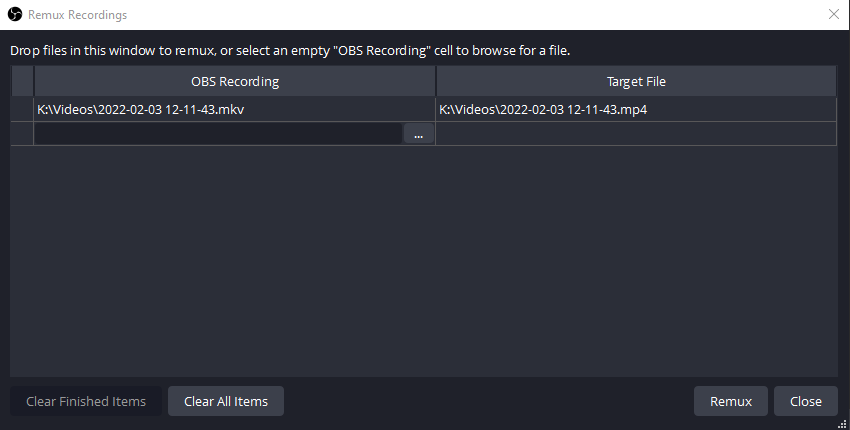
Use the setting that gives a stable result and confirm the audio meters move during recording. If you recorded MKV, use File → Remux Recordings to create an MP4.
Frame rate describes the video frames per second. If audio timing is wrong, investigate the start offset and audio capture settings rather than assuming that changing fps will fix it.
Reduce the load if 60 fps stutters
Close other demanding work and repeat the same short passage. If the notes still jump, reduce one setting at a time, such as output resolution or frame rate.
A steady 30 fps recording can be easier to follow than an unstable 60 fps one. Check the final test file for sound, synchronization and a complete ending as well as smooth motion.
Frequently asked questions
Will 60 fps fix audio synchronization?
Not if the cause is a start offset or a tempo mismatch. Compare the timing of the picture and audio separately.
Does 60 fps always double the file size?
No. File size also depends on bitrate and encoding settings. Compare recordings of the same passage to see the actual difference.