Confirm that the source app makes sound
Play the piano app, such as Synthesia, and listen through the selected output device. If the source is already silent, check its sound source and mute settings first.
For an imported WAV, open that file in a separate player. After changing between headphones and speakers, check which output device is actually carrying the sound.
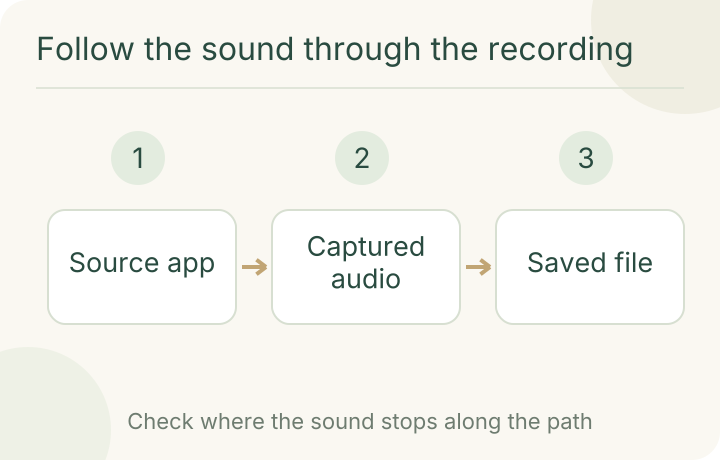
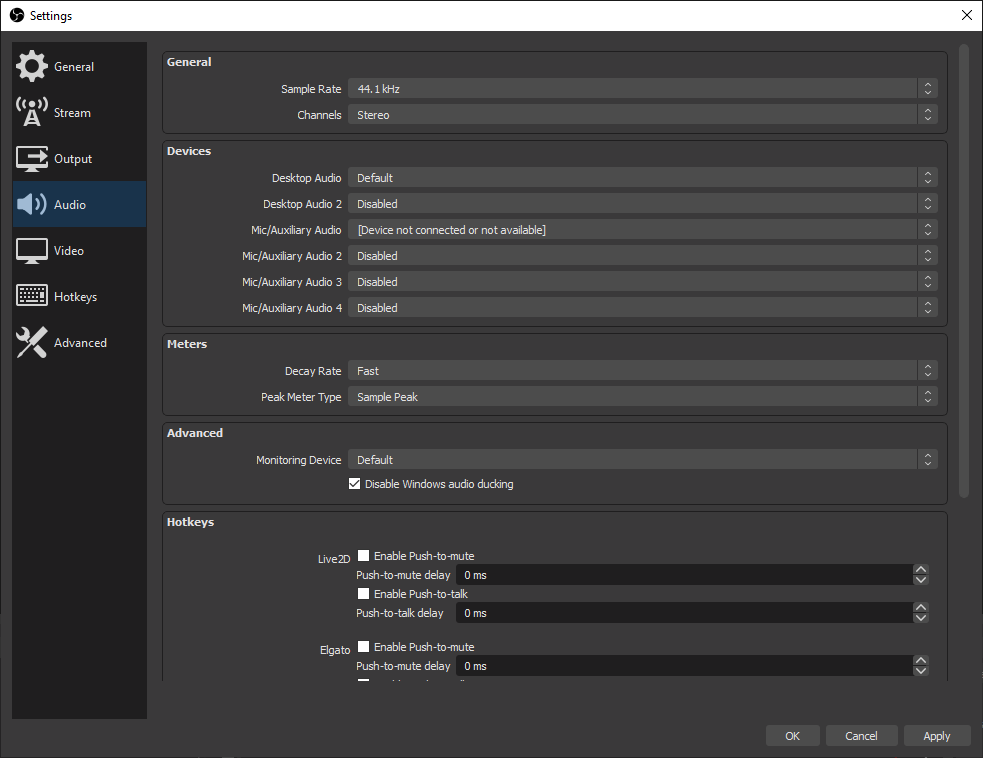
Select the correct desktop audio device in OBS
Open Settings → Audio in OBS and select the output device used by your source app for Desktop Audio. Choosing a different device can leave the recording silent.
Play the source again after changing the setting. Keep the output selection consistent during the test, particularly if Bluetooth headphones or an external audio device are connected.
Watch the correct meter while the music plays
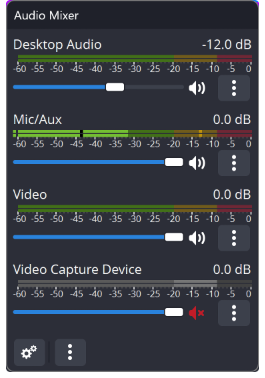
In the OBS Audio Mixer, check that the desktop audio meter moves and its speaker button is not muted. Adding a video source does not automatically confirm the audio setup.
Make sure you are not seeing only the microphone meter move. A microphone picking up the computer speakers can record room noise and echo instead of the clean application sound.
Record ten seconds and listen to the saved file
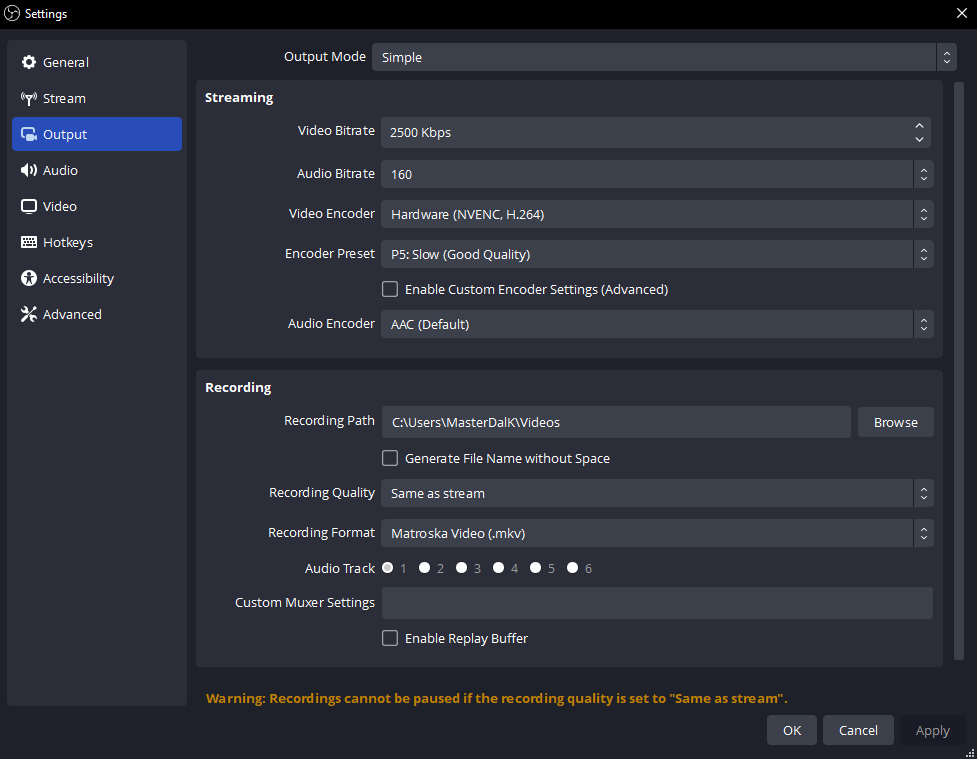
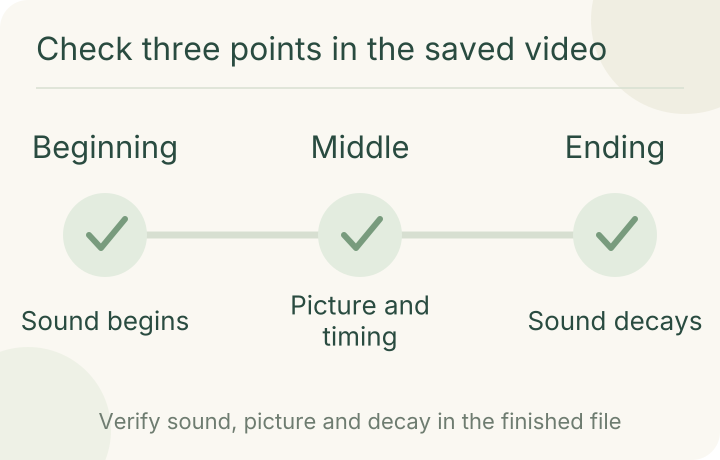
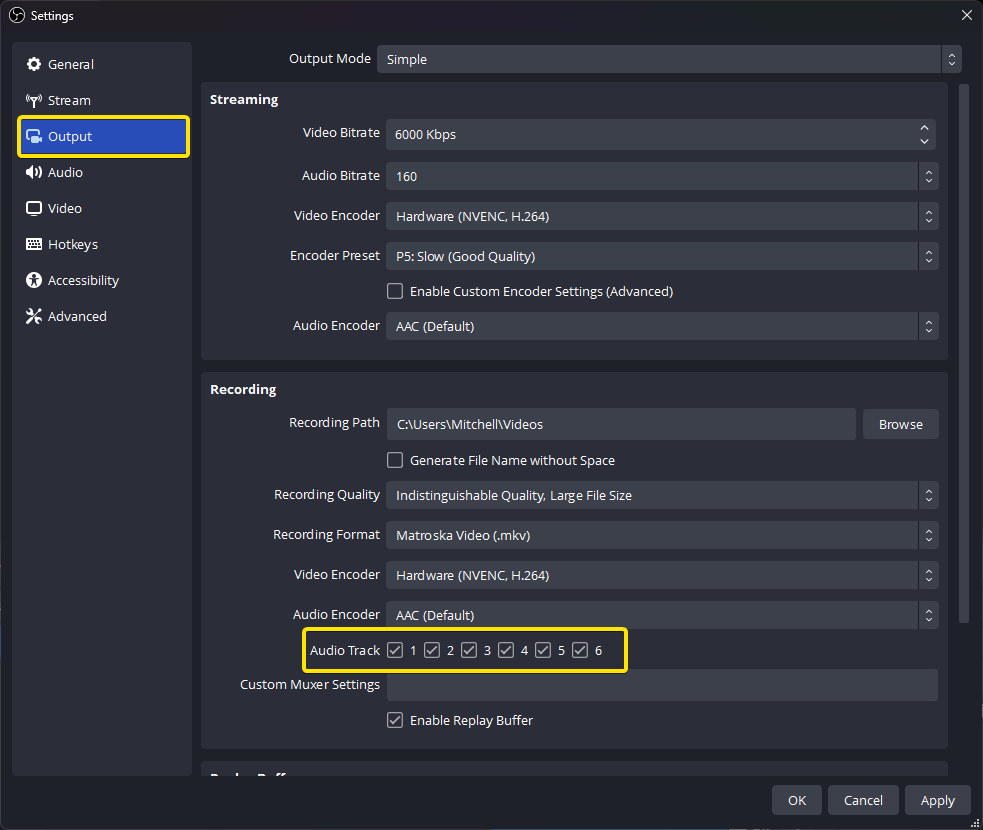
Make a short recording, stop it and open the saved file. If it is silent, inspect both the recording track selection and the track assignment for the audio source.
In a video editor, also check for muted timeline tracks and whether audio is included in the export. Resolve the short test before recording a whole song again.
Try another player and check its output
Open the same MP4 in a second player. Check the device volume and whether sound is being sent to Bluetooth headphones or another output you are not listening to.
If the recording contains no audio track with the performance, increasing playback volume cannot recover it. Fix the capture settings and rerecord, or synchronize a separately saved audio recording.
Match the mixer track assignment to the recording output
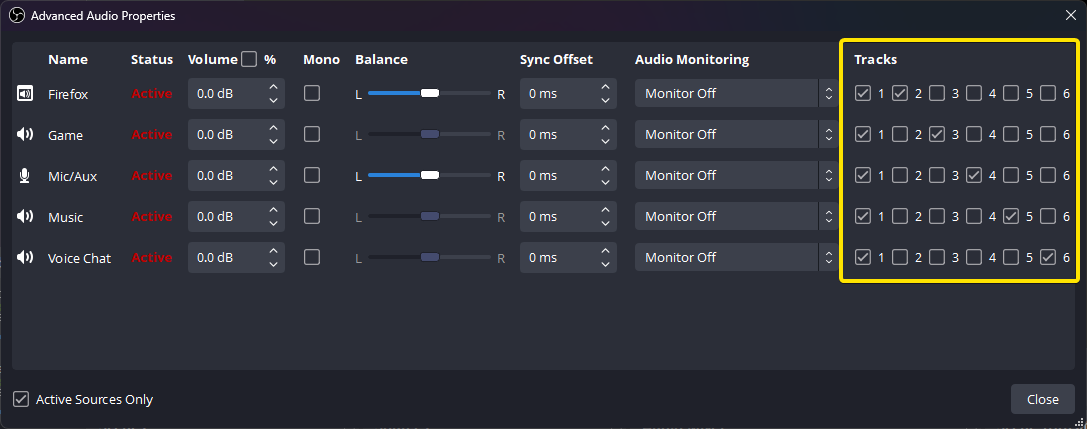
Right-click the relevant source in the OBS Audio Mixer and open Advanced Audio Properties. For sounds you want to hear together in an ordinary player, assign them to a common track such as Track 1.
Then open Settings → Output and check that the recording includes that same audio track. Both the mixer assignment and the recording selection must agree. With multiple tracks, also check which track the playback app has selected.
Frequently asked questions
Does an MP4 file always contain sound?
No. The filename extension does not tell you whether an audio track was saved. Check the export settings and listen to the actual file.
Will uploading the file to YouTube fix missing sound?
Uploading does not add a missing performance to a silent source file. Confirm that the MP4 plays with sound locally first.