Show falling notes from MIDI or a recording
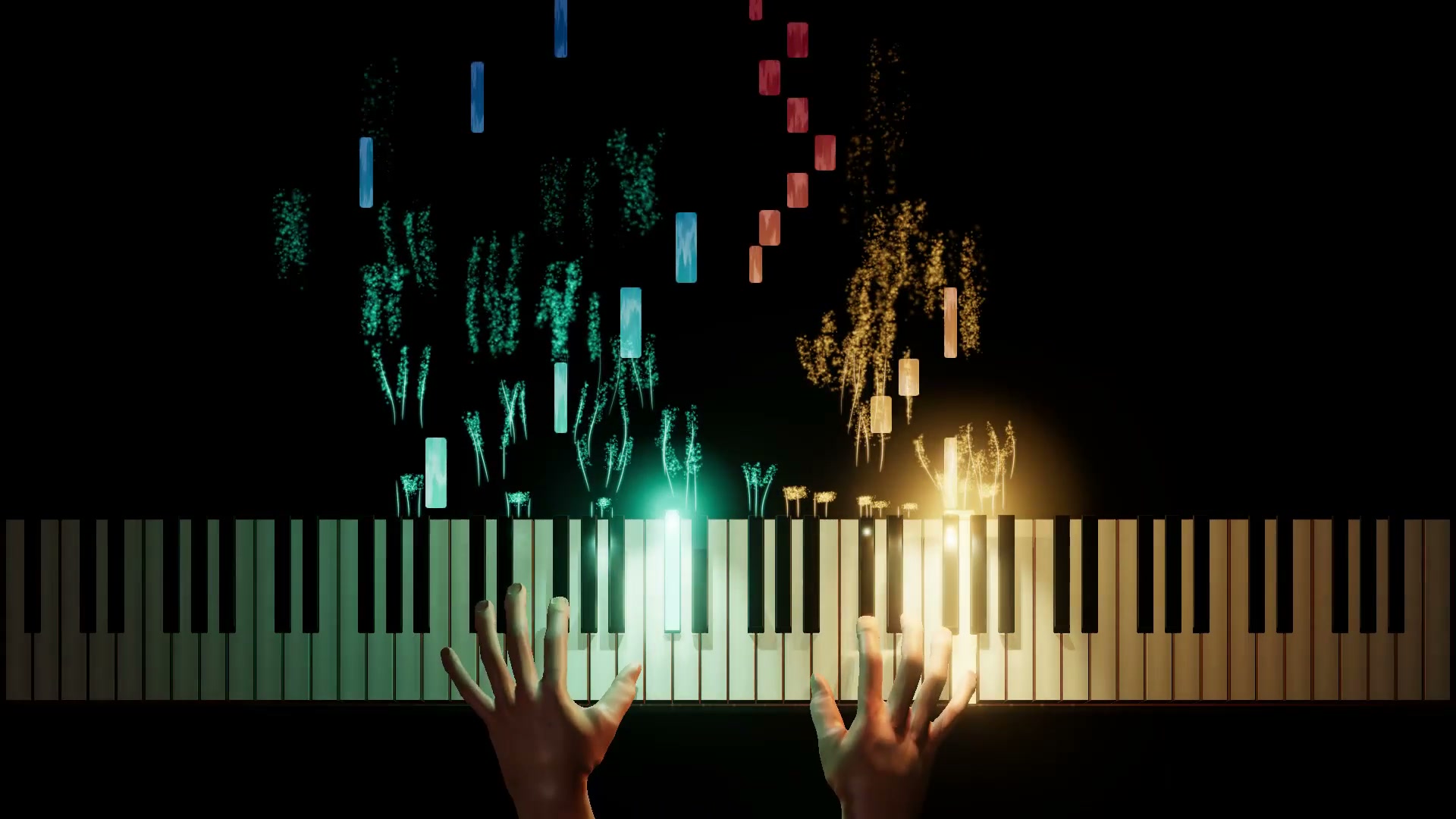
A bar’s horizontal position shows its pitch and its length shows how long the note lasts. Changing the color or fall speed won’t change which key is played.
MIDI gives the visualizer the notes directly. With audio, it estimates them from the sound. Sustained pedal can make the inner notes of a chord hard to distinguish.
For a recording, select Audio file, then Choose a piano recording. Load your solo piano MP3, WAV or M4A. The recording also supplies the soundtrack, so you only need to select it once.
Download the four-bar MIDI
Give the two hands distinct colors
Choose different colors for the left and right hands. Colors close to the background can be difficult to distinguish on a small screen, so start with two clearly different hues or brightness levels.
For a dense piece, compare a version without note-name labels as well. Removing overlapping text can make the note bars themselves easier to follow.

Adjust the visual falling speed
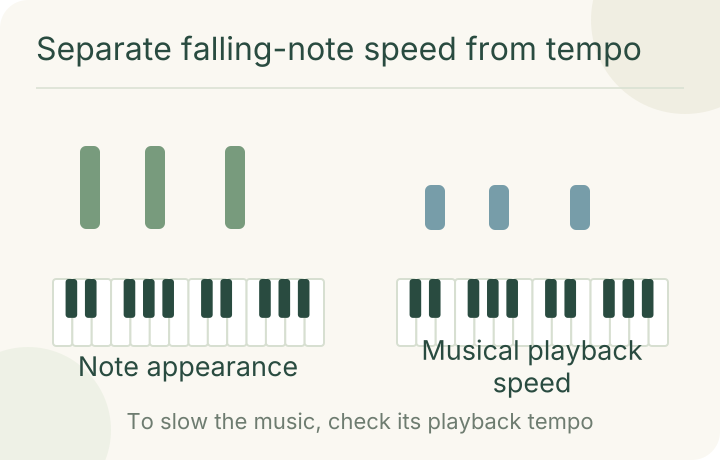
Choose slow, normal or fast falling-note speed. This changes the visual movement and how the upcoming notes appear; it does not change the musical tempo. Start with normal and compare the other settings.
Test two to four busy bars containing chords or quick passages, not only a sparse introduction. Check overlapping labels too. To slow the music itself, change the MIDI tempo first and import the updated file.
Keep the keys visible when adding effects
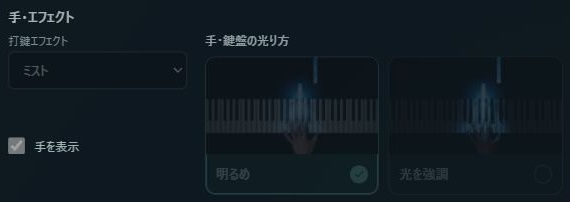
Choose a keypress effect and brightness. A glow-focused appearance emphasizes light around the notes and keys; a brighter appearance can make the hands easier to see.
Create a short test and play its densest chord sequence. Reduce the effect if it hides fingertips. The useful comparison is whether you can still follow the pressed keys and distinguish the two hands when several notes overlap.
Review the result on a phone
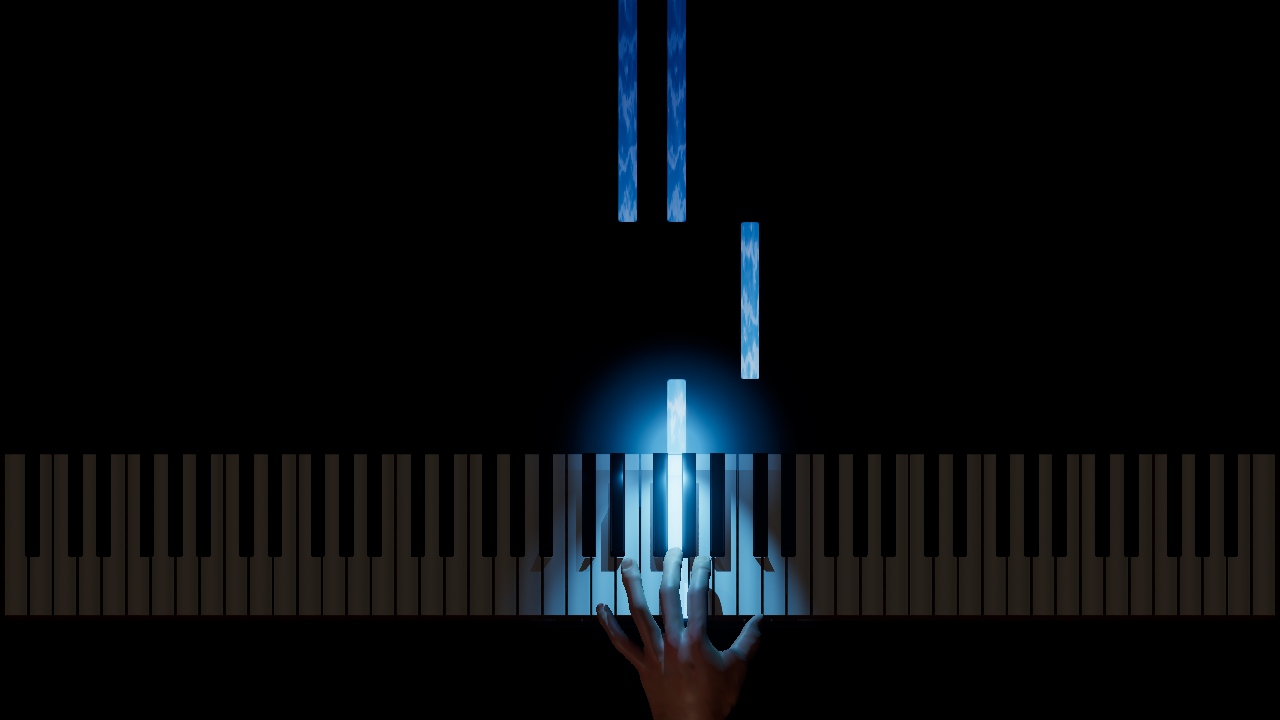
Save the MP4 and play it at the size people will actually use. Note names that look clear on a monitor can become small on a portrait phone screen.
Check hand colors, the timing of sound and keypresses, and the last notes. Player controls may temporarily cover the keyboard: view full screen and let the controls disappear before deciding to change the video's framing.
Check the source files when sound and notes disagree
If the note reaches the keyboard at the wrong time relative to the sound, first check the MIDI and audio pair. Falling speed is a display setting, not a way to synchronize a different recording or correct its tempo.
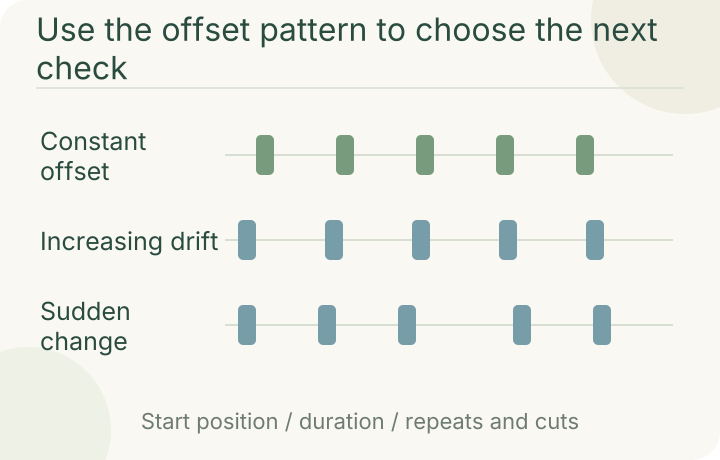
Note whether the offset stays constant, grows toward the end or changes suddenly. These patterns suggest start position, performance duration or differences in repeats and edits. Check a short MIDI-only output first, then add audio from the same performance.