
Open Hands, Colors, and Instruments
Choose the song and open Hands, Colors, and Instruments. The parts listed here are where you set hand assignments, colors and sound behavior.
If you cannot find the song, add the MIDI folder in Settings → Songs first. Confirm that you are editing the intended version of the file.
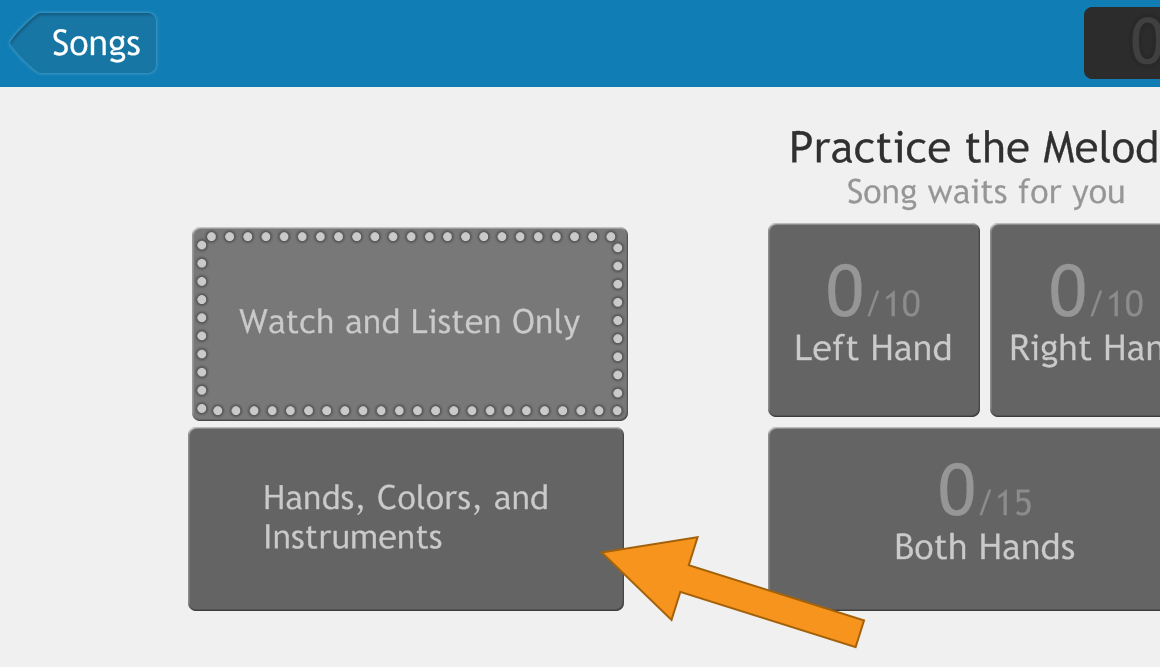
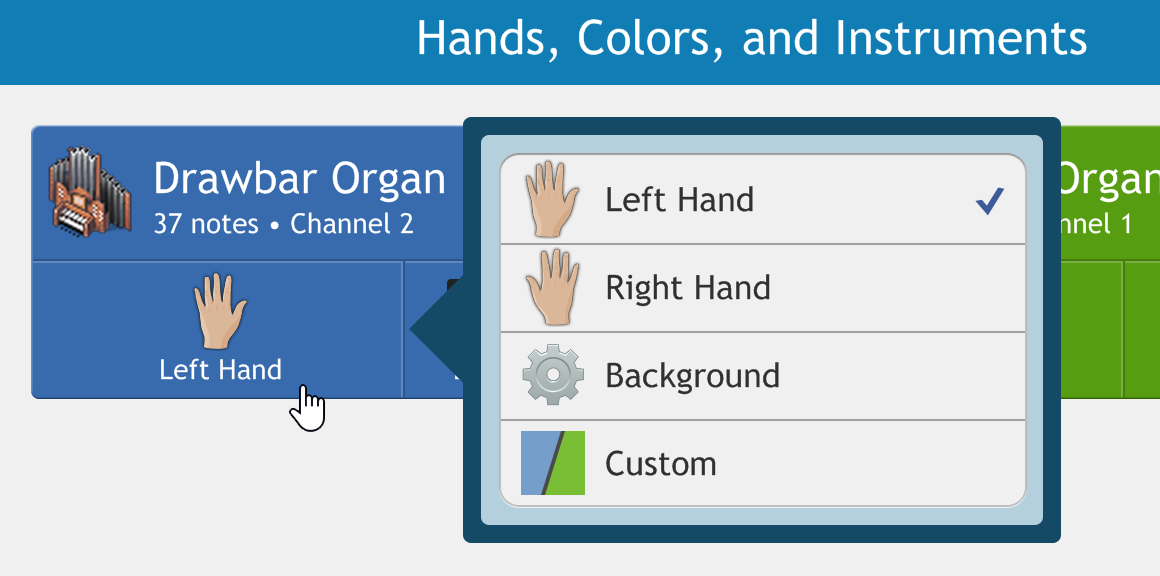
Identify which part belongs to each hand
Click a part's hand icon and choose Left Hand or Right Hand. Listen to the parts if their names do not make the musical roles clear.
When both hands are combined in one part, changing that part's color colors them together. Use the Custom hand-splitting workflow first if you need separate hand assignments.
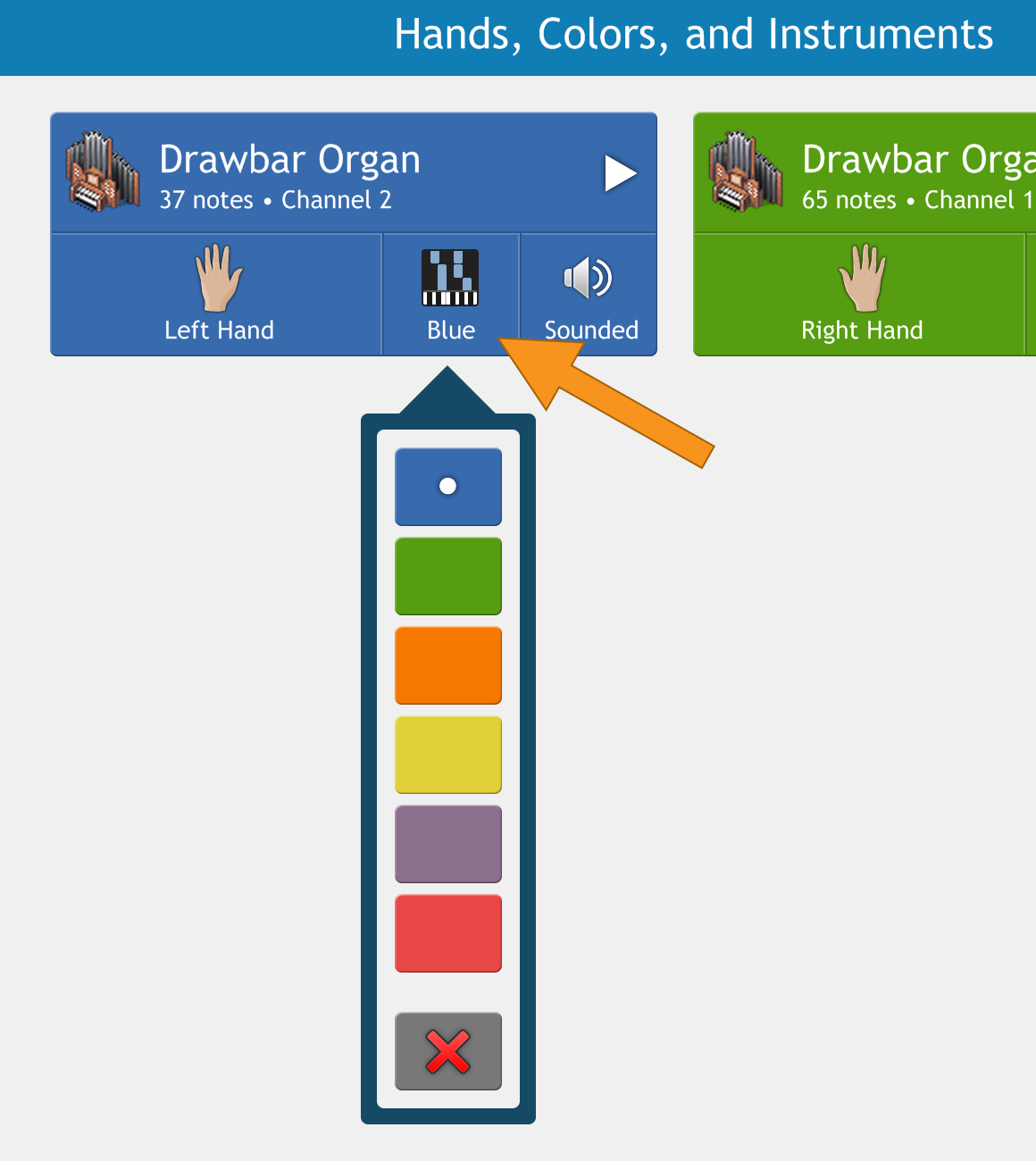
Choose contrasting colors for the parts
Click a part's color button and choose a color. Use different, distinguishable colors for the left and right hands, and avoid colors that disappear into the background.
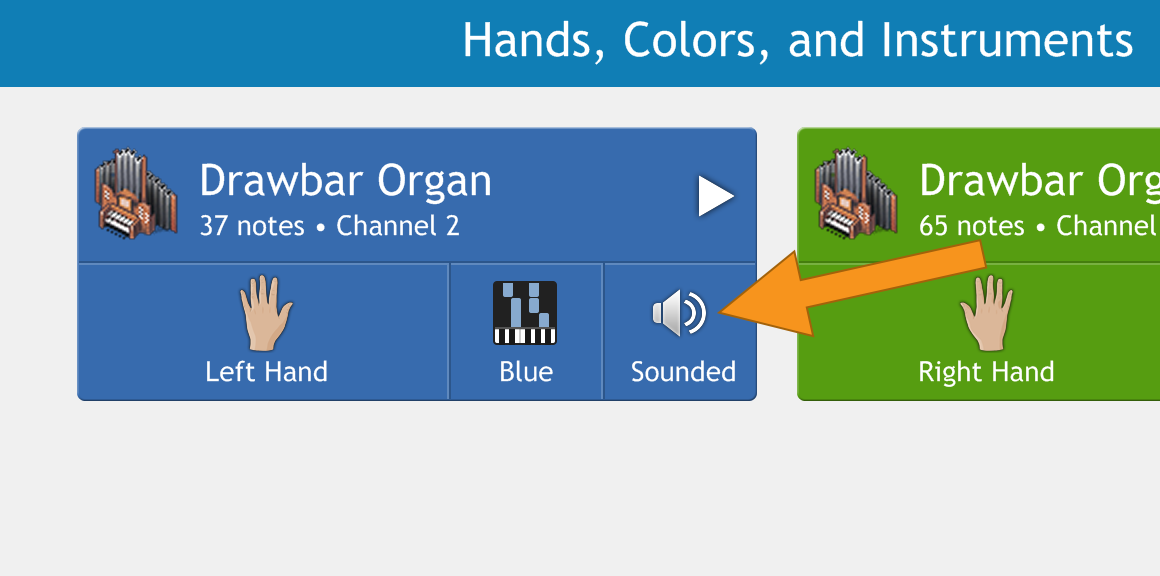
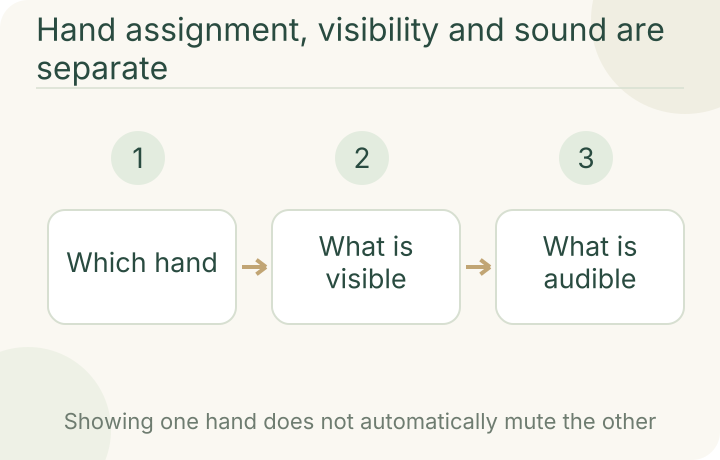
Hidden removes that part's notes from view. Changing the color does not change its pitch or volume, so treat appearance and sound as separate controls.
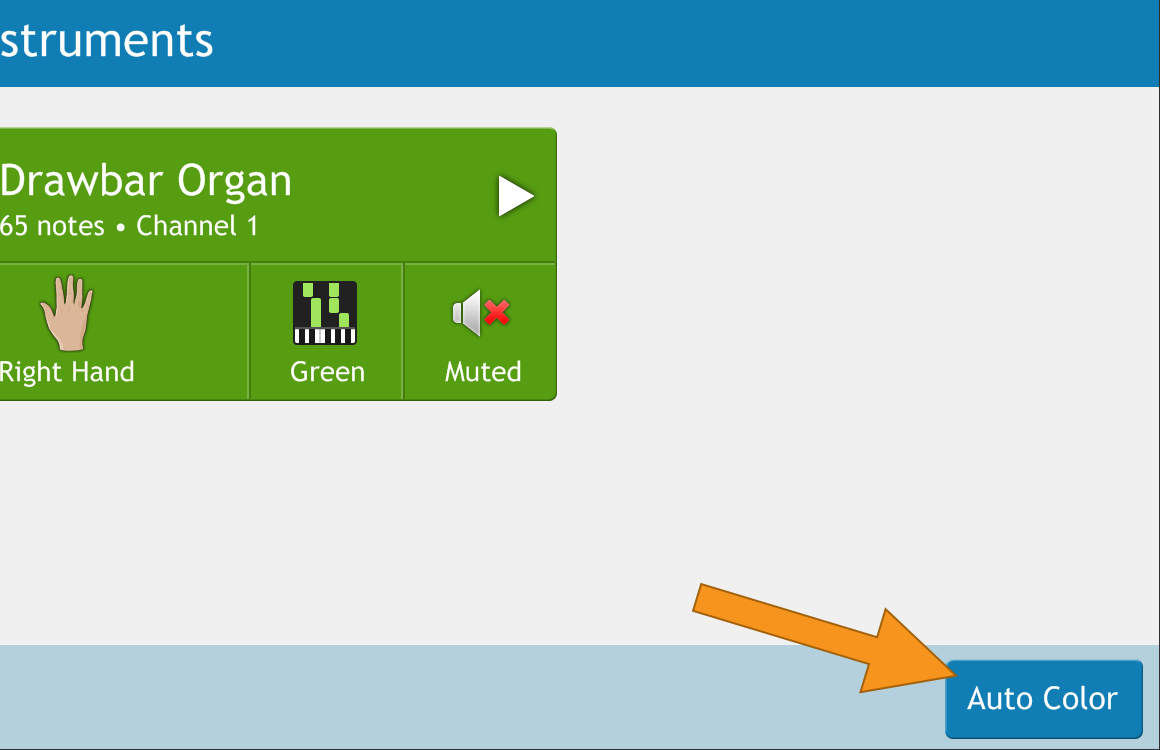
Use Auto Color for a consistent starting point
Auto Color uses the hand assignments to set left-hand parts blue and right-hand parts green, while hiding background parts. You can then adjust individual colors if needed.
Check whether you want to replace your previous custom colors before using it. Afterward, inspect each part instead of assuming the automatic assignment matches your intended arrangement.
Play a passage that alternates between the hands
Return to playback and listen while watching the colors. If a hand is invisible, check Hidden; if it is silent, check Muted.
Once the colors and sound are correct, record the Synthesia window with OBS Studio. Use a short saved test to confirm that the distinction remains clear on a phone.
Return to hand assignments if the colors identify the wrong notes
Auto Color follows the existing hand assignments. If a part is assigned to the wrong hand, correcting only its color does not resolve the underlying organization.
A hidden background part may still make sound. Check Hand, Color and Sounded in order, then play a measure where both hands overlap to confirm that the picture and music agree.
Frequently asked questions
Must the right hand be red and the left hand blue?
No. Choose colors that remain distinguishable against the background and use them consistently throughout your material.
Does changing colors separate the audio into left and right channels?
No. Visual part colors and the audio's stereo placement are separate settings.