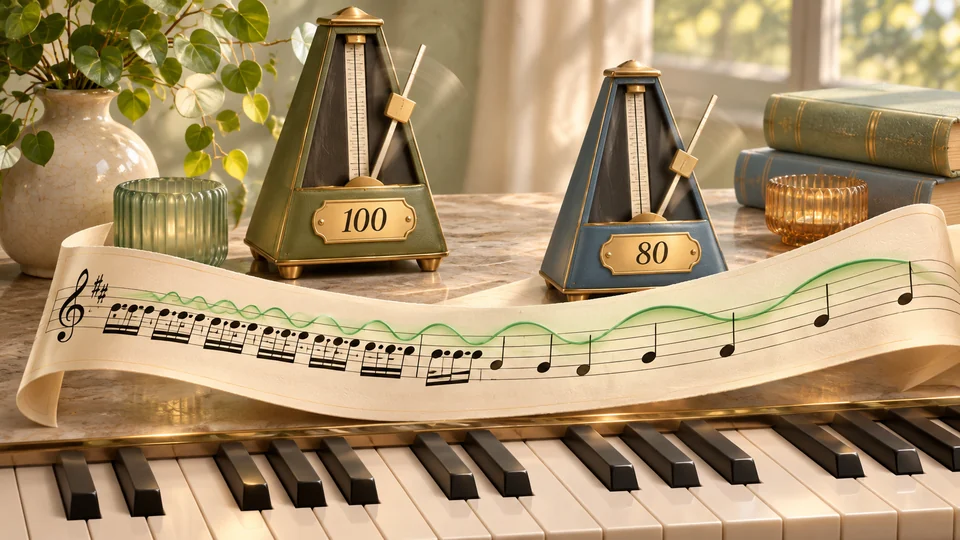
Select where the tempo should change
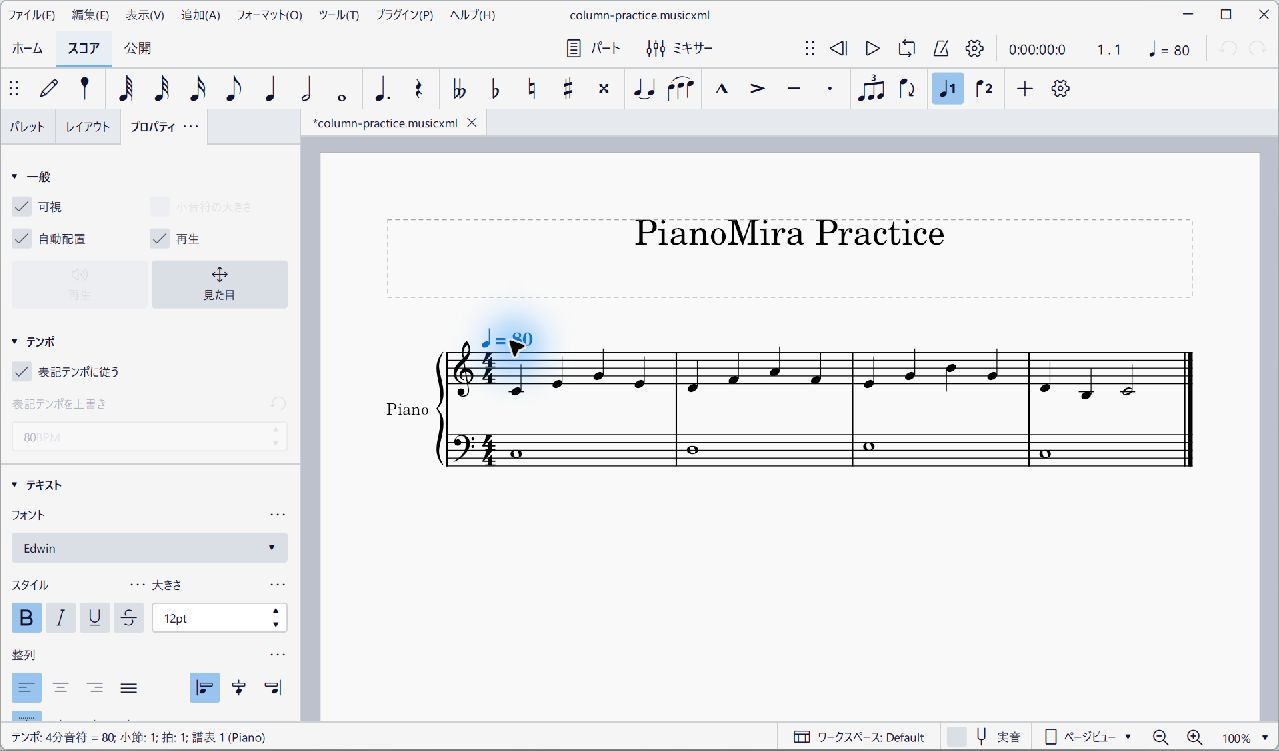
Select the note or rest where the new tempo begins. Choose the first note for a change from the start, or the relevant bar for a change in the middle.
Use a short test phrase when learning the controls so the point where the speed changes is easy to hear.
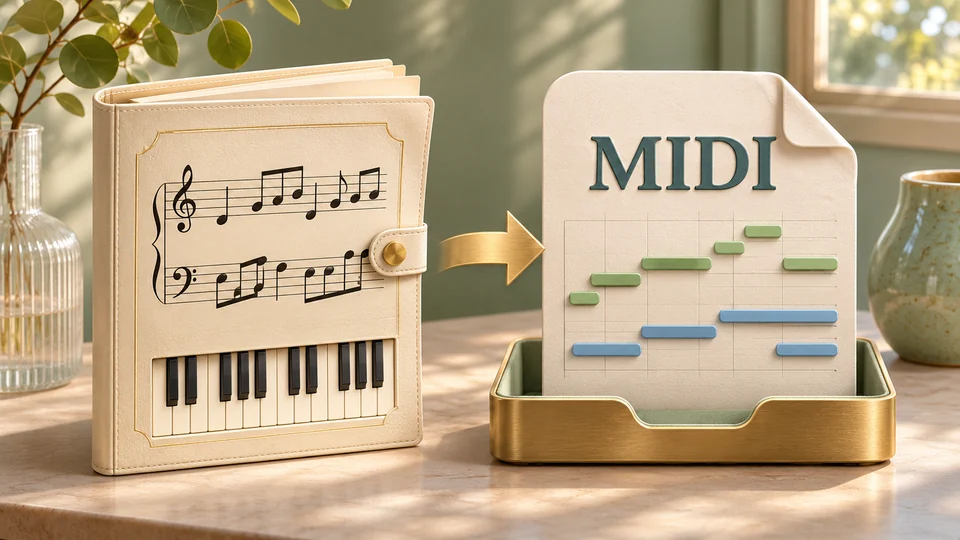
Download the matching MusicXML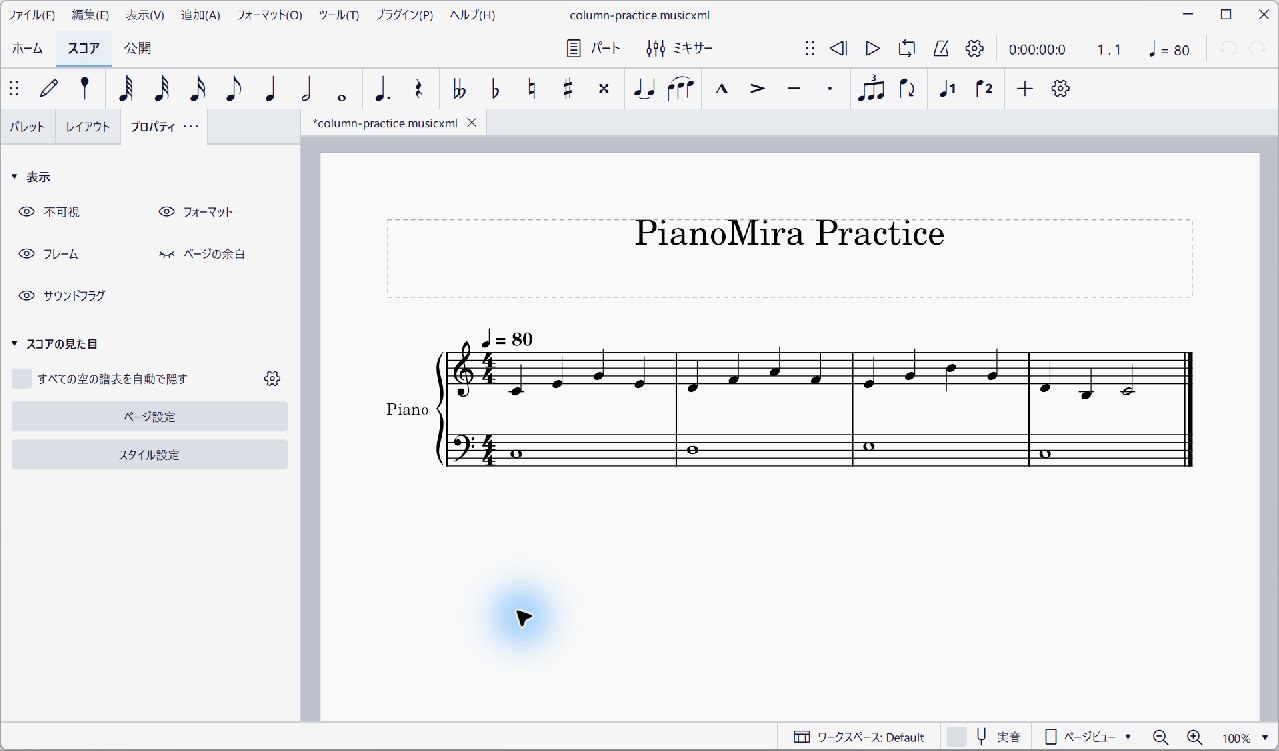
Edit the score's tempo marking
Edit an existing tempo marking, such as quarter note = 80. If none exists, add tempo text to the selected note. Select the marking to inspect its tempo value in Properties.
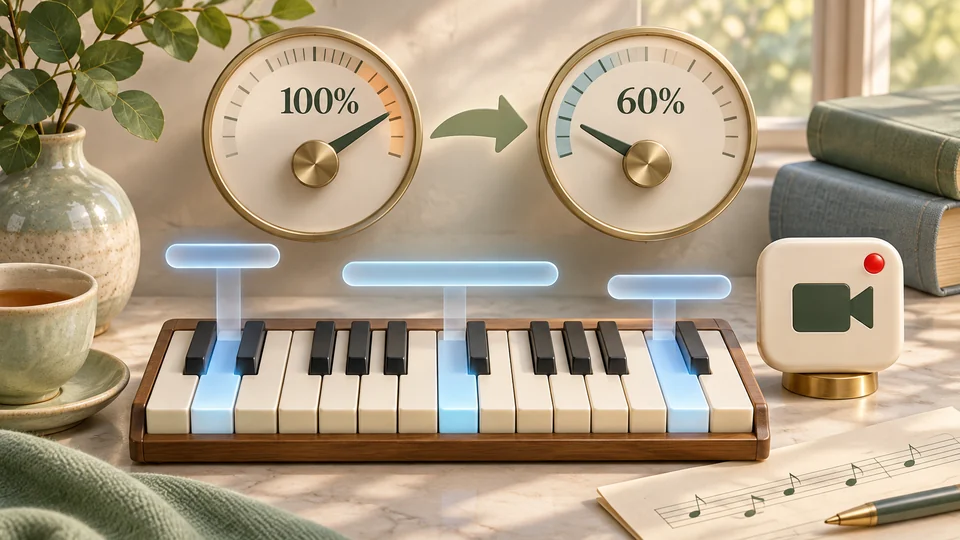
Changing 80 to 60 makes the same notes play more slowly. A temporary playback-speed adjustment is not necessarily the tempo exported in MIDI, so edit the score marking and test the exported file separately.
Listen before and after the change
Start playback slightly before the selected bar and listen for the new tempo. Later markings can change the speed again.
If you want one tempo throughout, inspect the rest of the piece for other tempo markings or tempo-change lines. Correcting only the first number may leave a later speed change in place.
Export a named MIDI or WAV version
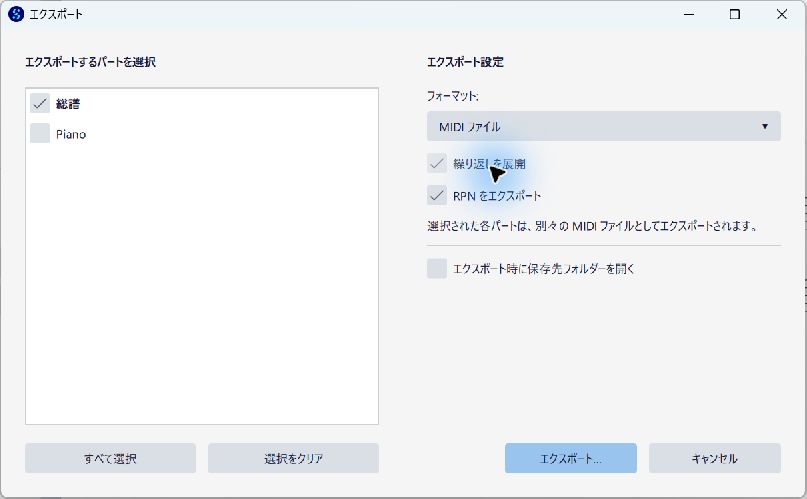
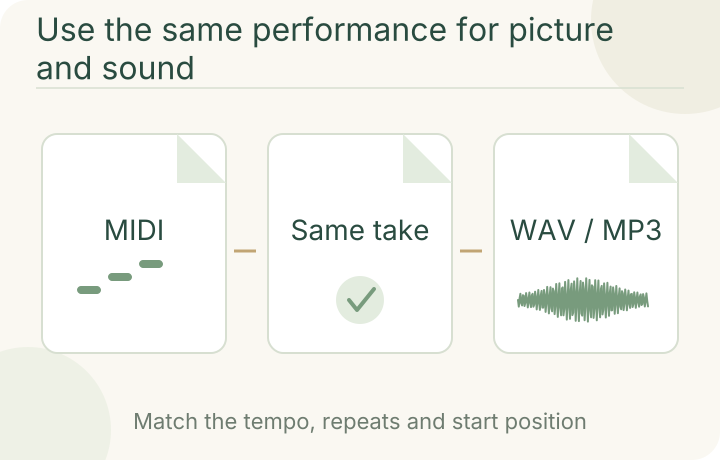
Choose File → Export and save MIDI or WAV under a name that includes the new tempo. For a video using both, export both from the revised score.
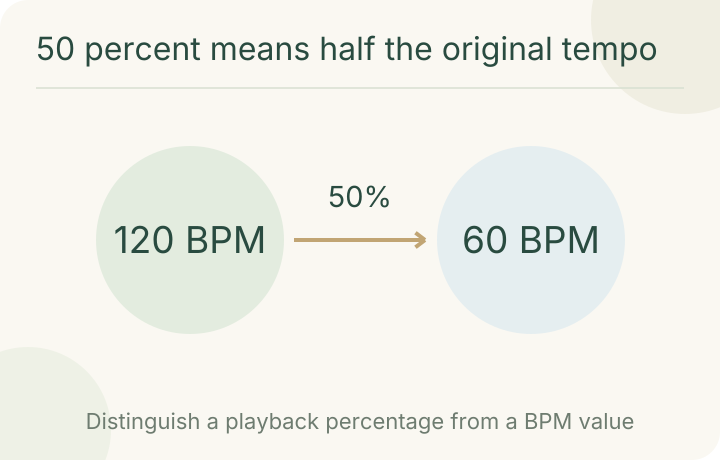
At a constant tempo, changing 120 BPM to 90 BPM makes the same note sequence about 1.33 times as long: a 30-second phrase becomes roughly 40 seconds. Tempo changes and decay can affect a real file's duration, so also compare note attacks.
Check the exported playback
Open the exported file in the receiving app. A constant-tempo change from 80 to 60 BPM also increases that passage's duration by about one third.
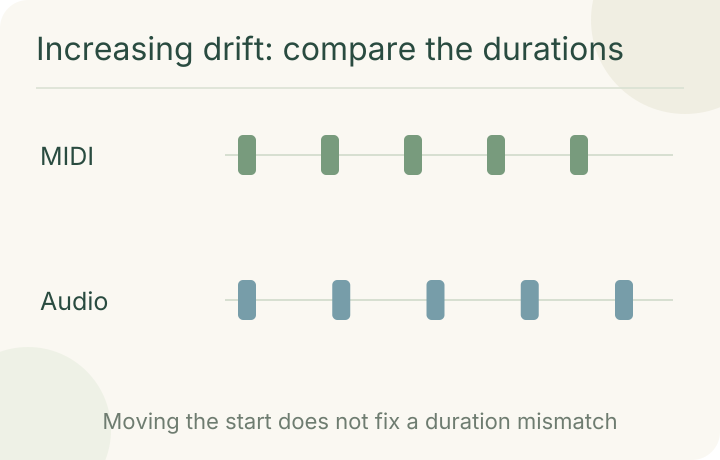
If the tempo has not changed, check whether you changed only the playback control rather than the score marking, and whether you opened the new export. Combining slower MIDI with the old audio produces increasing drift even if the first note matches.
Keep separate practice and performance versions
Retain the editable score and export separate files such as song_60bpm.mid and song_80bpm.mid. For a piece with several tempo changes, also note the bars you changed.
Use audio rendered at the matching speed. The visual falling-note speed and the actual performance tempo are different settings; adjust the musical source when you need a slower practice performance.
Frequently asked questions
Does changing MIDI tempo change pitch?
Normally, MIDI tempo changes timing while preserving note pitches. This is different from changing the playback speed of a recorded waveform.
Why does the piece speed up again partway through?
Check for another tempo marking or tempo-change line later in the score.