Check the sound in the score
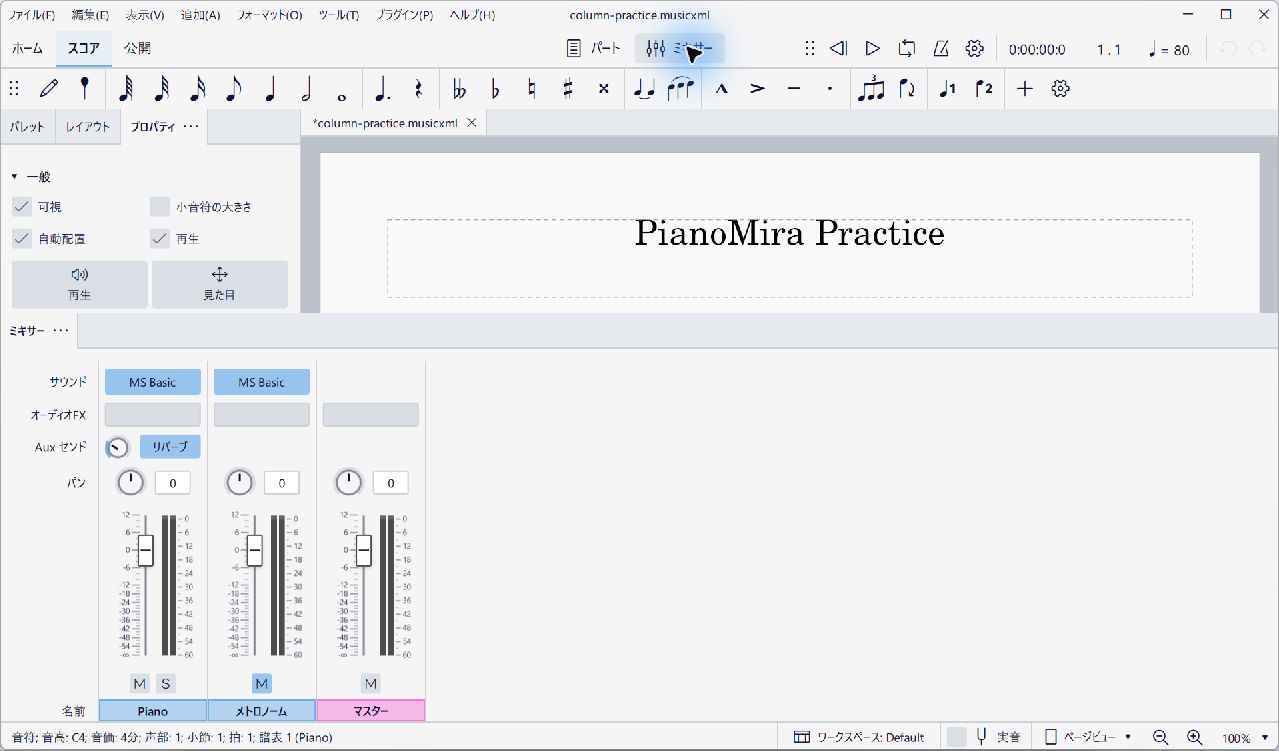
Play the score and check the piano sound source, volume and mute settings in the mixer. Fix missing instruments or overly loud accompaniment before exporting.
When several instruments are present, check that a mute or solo setting has not been left on unintentionally. Listen to a passage where all the instruments you want should play.
Choose WAV in Export
Open File → Export and select the full score. Choose WAV in the format list.
Check the format before saving, especially if your last export used MP3. Renaming an existing MP3 with a .wav extension does not convert its contents.
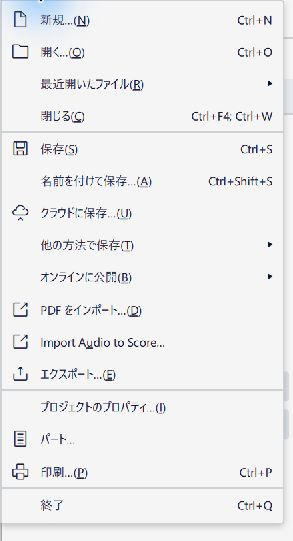
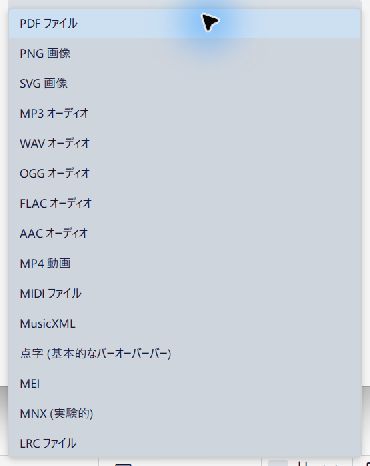
Choose a folder and audio settings
If the export offers sample-rate options, use settings compatible with your video workflow. When unsure, make a short test with the defaults and confirm the receiving application can play it.
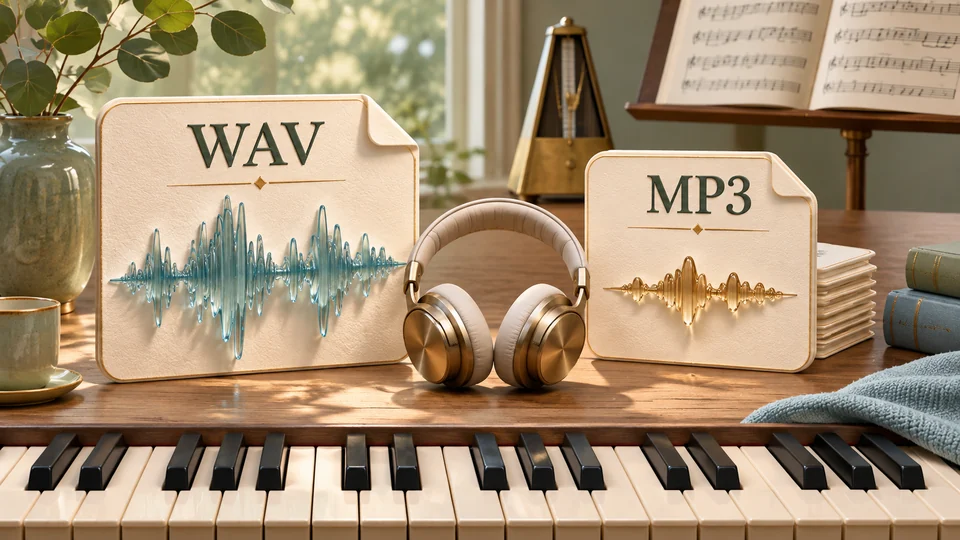
WAV is larger than MP3 but useful as an editing source. Include the song name and tempo in the filename. Avoid changing several audio settings at once before you have a working test export.
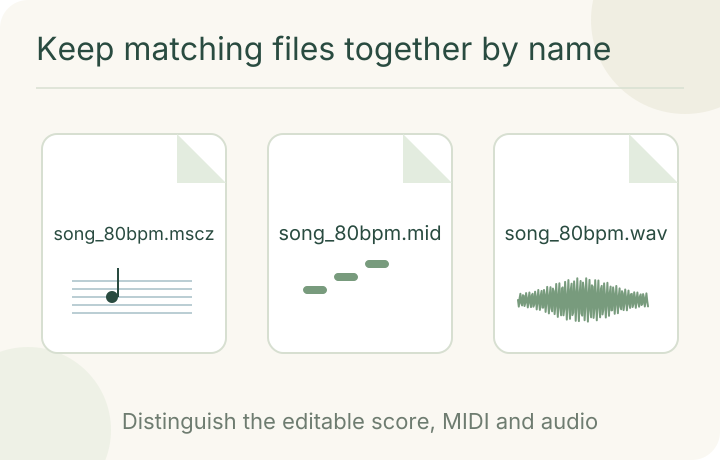
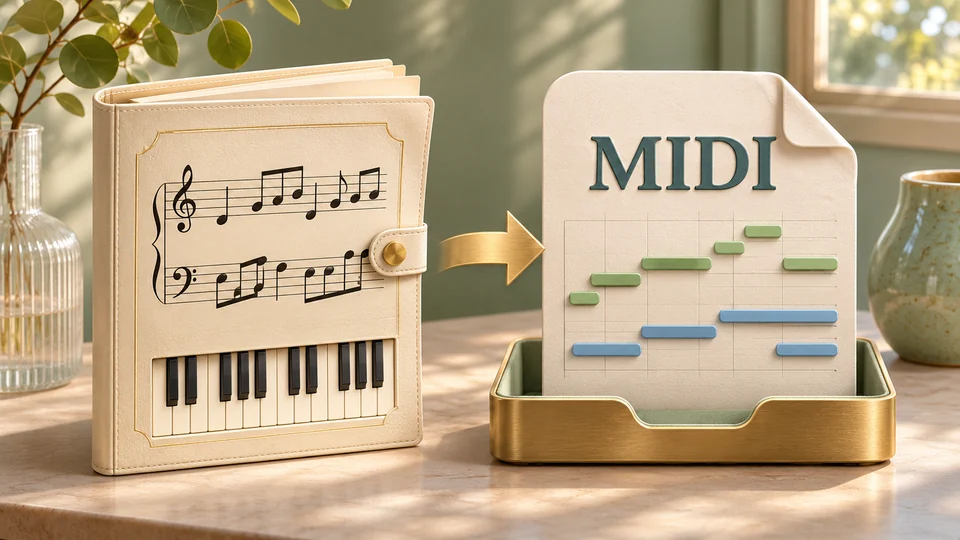
Export matching MIDI from the same score
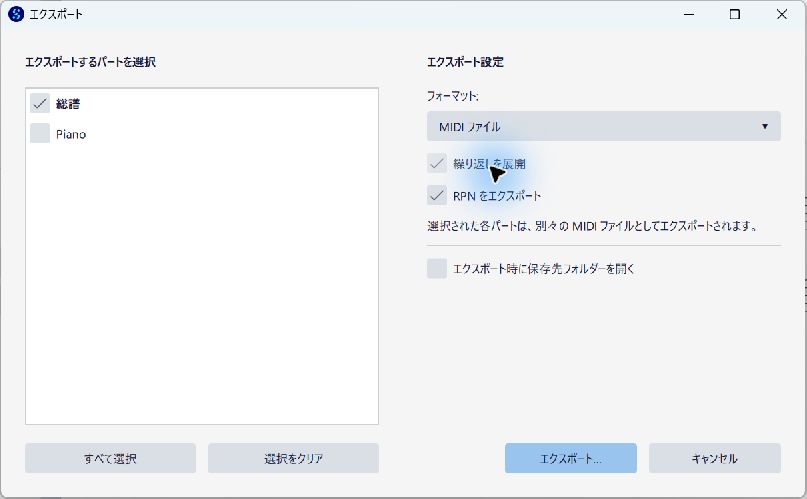
After exporting WAV, export MIDI without changing the tempo or repeat order. If either setting changes later, export both files again.
WAV contains rendered sound, not editable notation. Keep the MuseScore project for later note corrections. Different MIDI playback timbres do not automatically mean the WAV export failed: use WAV for the desired sound and MIDI for the animated notes or hands.
If all you have is the solo piano WAV, open it as an audio file in PianoMira to make a keyboard video. If you still have the score, exporting MIDI as well lets you skip transcription. After editing the score, export the audio from the same version.
How to turn a piano recording into a video: MP3, WAV or M4A?
Listen to the WAV by itself
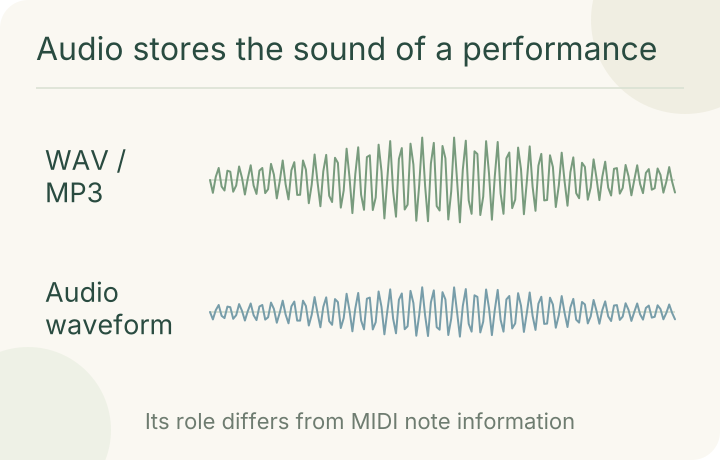
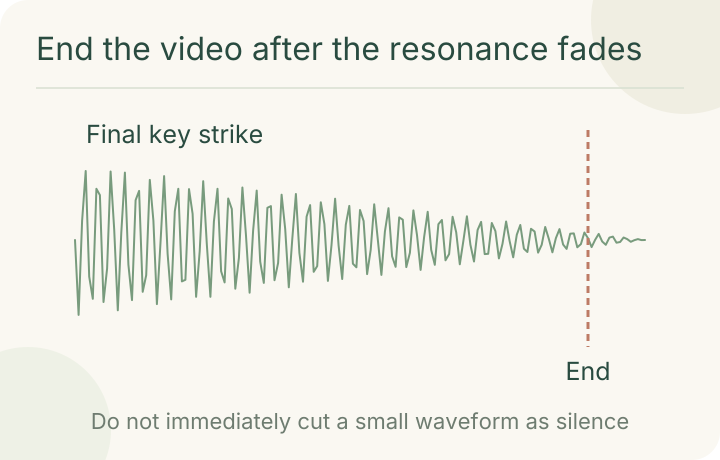
Open the WAV in an audio player. Check the opening, loud chords and the final decay. Listen for missing sound, distortion or an abruptly cut ending.
If a later MP4 is silent, test this source WAV independently. That separates an audio-source problem from a problem in video import or export.
Compare the ending with MuseScore playback
If the sound stops too soon, play the end inside MuseScore. If it is short there too, inspect note lengths, pedal markings and the sound source. If only the WAV is cut off, confirm the exported file and destination, then export another named test.
Distinguish a change in timbre from a change in performance length. When tempo or repeats change, replace both WAV and MIDI with exports from the same revised score.
Frequently asked questions
Is WAV required for a video?
No. MP3 can also be usable, but keeping WAV is useful before repeated audio editing.
Is a slightly longer WAV than MIDI a failure?
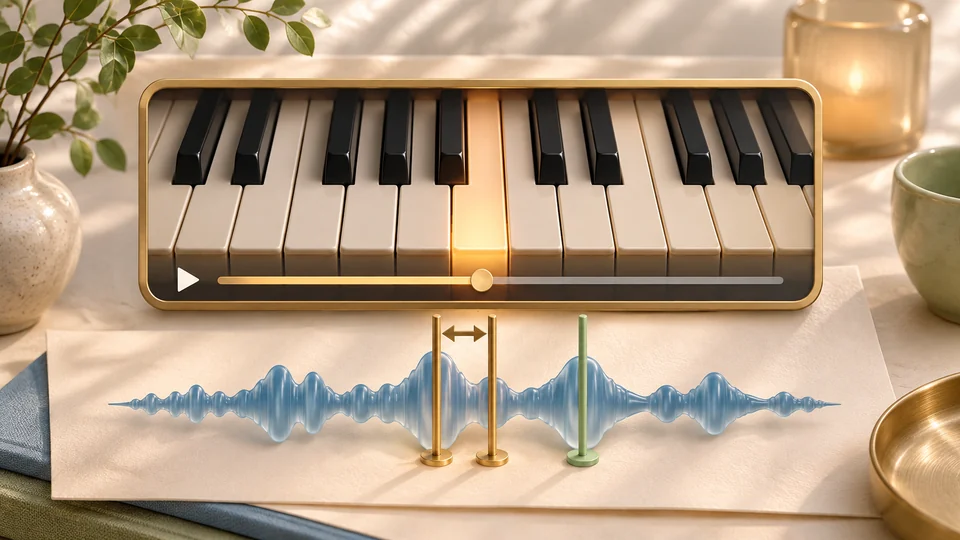
Not necessarily. The WAV can include the sound source's decay. Compare note attacks near the beginning and end, not only total duration.