Export MusicXML from the original score
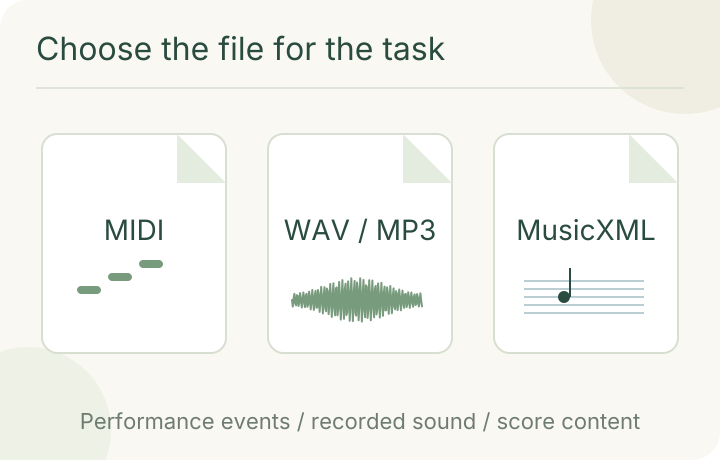
Choose MusicXML in your notation app's export formats. A PDF or a photograph of sheet music is not MusicXML. Keep the original editable score too.
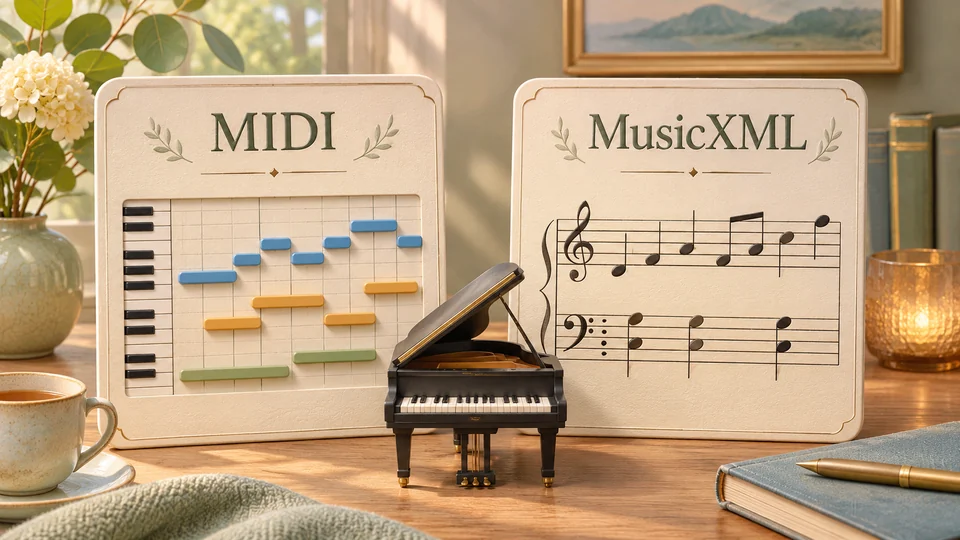
Check tempo, repeats and rests before exporting. MusicXML carries structured notes and bars; it is not simply a pasted image of a printed page. Confirm the selected export format as well as the filename.
Download the matching MusicXML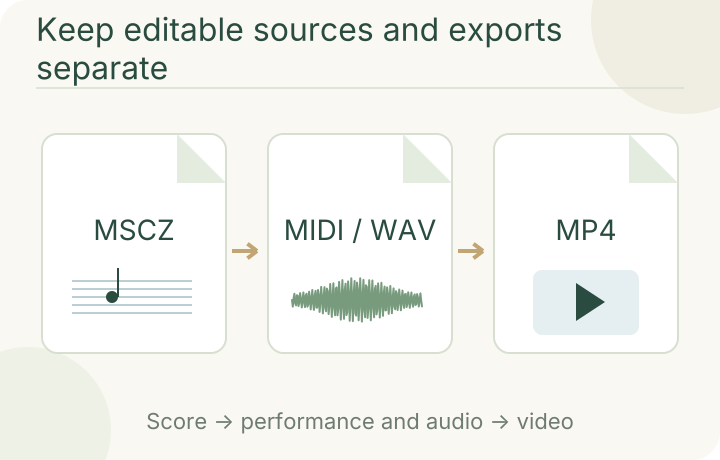
Import the MusicXML into SeeMusic
Use SeeMusic's file import to select the MusicXML. When the score appears, check its opening note and bar. Use MIDI and audio from the same version of the song.
If you suspect the file is incomplete, open the MusicXML in a notation app first and check that its notes are present. This helps distinguish a source-file problem from a display setting.
Leave room for both the score and keyboard
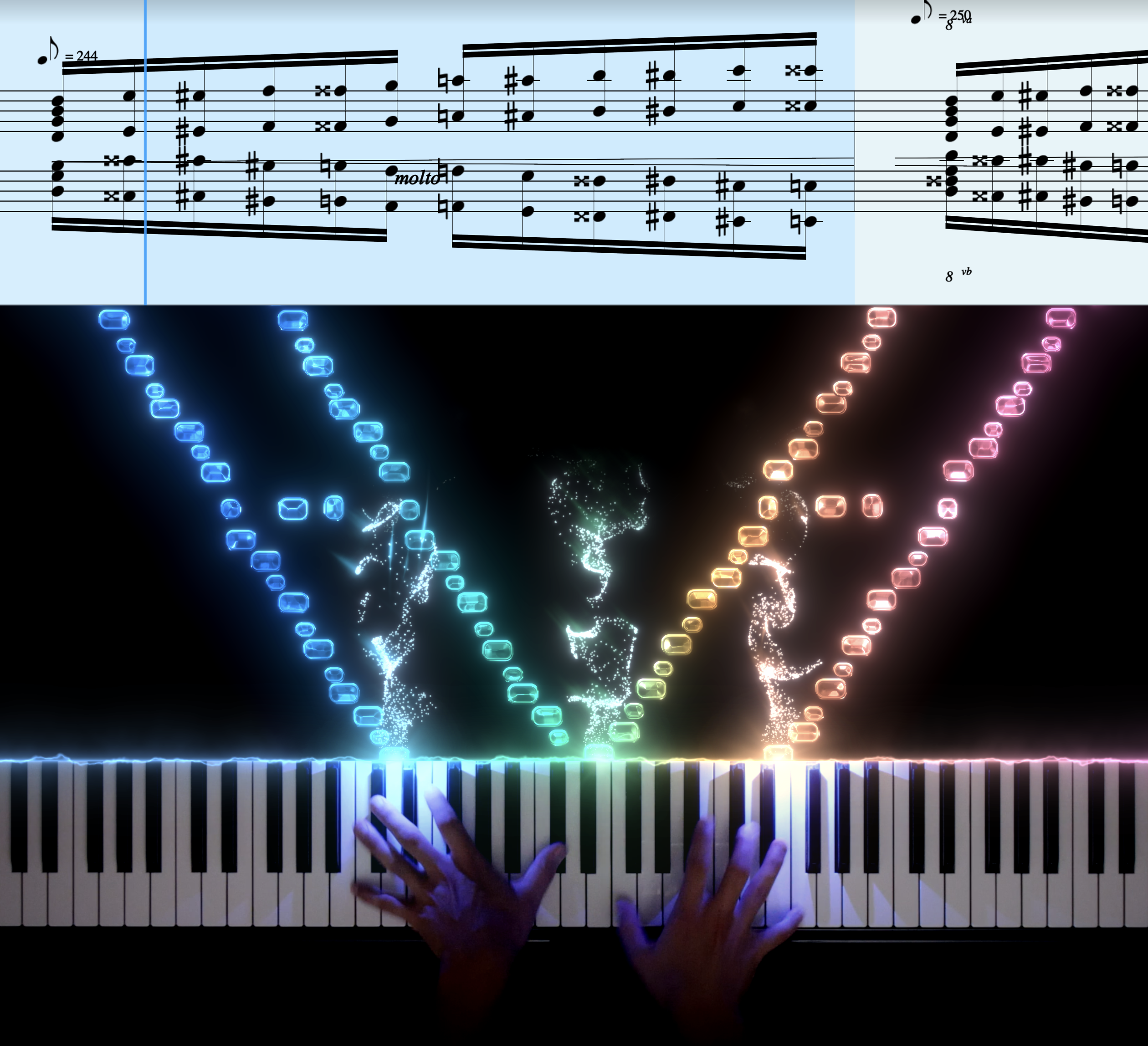
Adjust the score's size and position while keeping the keyboard and falling notes visible. Separating the area for reading notation from the area for watching keys makes the result easier to follow.
Check a dense bar with chords and accidentals. Enlarging the score uses space that might otherwise show the hands. Choose what viewers should concentrate on and test the arrangement at phone size.
Check both sides of a repeat
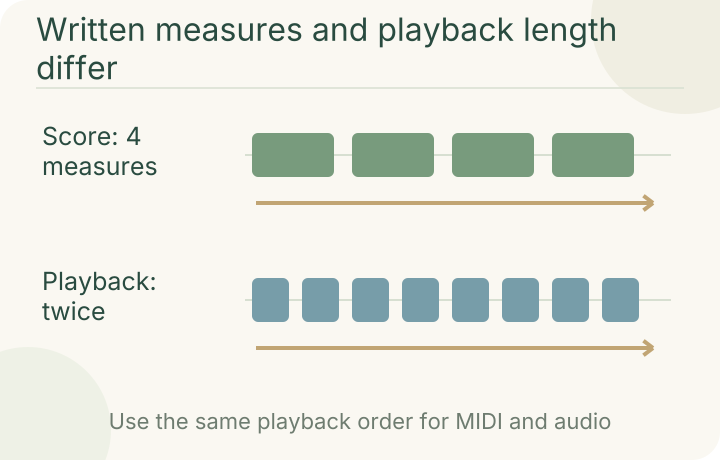
Play across repeats and tempo changes, not just the opening. If the score position advances differently from the sound or notes, compare the MusicXML structure with the performance order in the other files.
Materials edited separately can represent different versions of the same piece. It can be simpler to export matching MusicXML, MIDI and audio from one original score than to keep adjusting an incompatible set.
Read the notation in an exported test
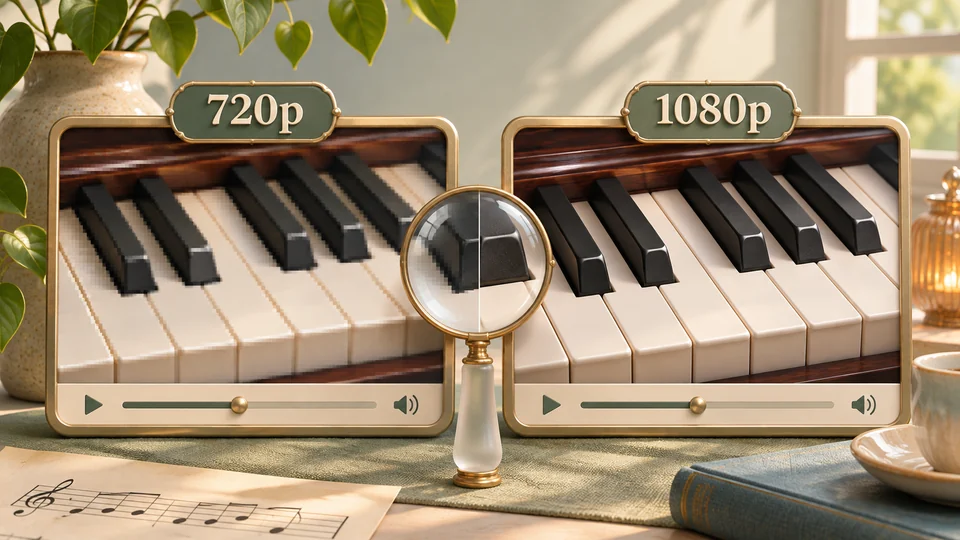
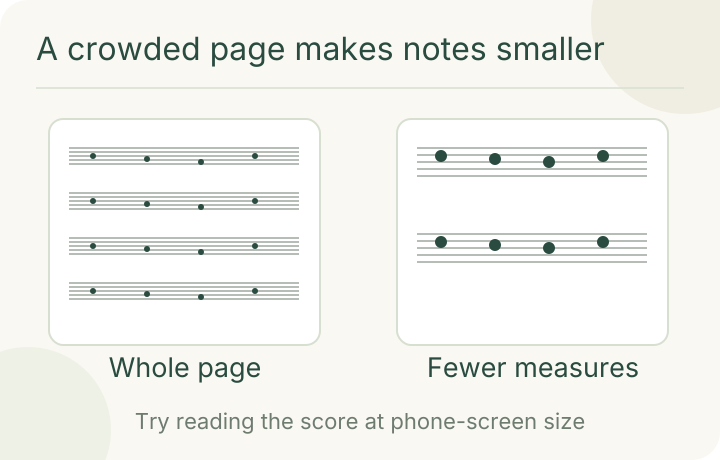
Export a short video and open it on a phone. Check whether notes and bars remain readable at the actual viewing size, including the busiest passage.
If glow or effects obscure the score, reduce them or move the score. Use SeeMusic's official feature explanations and tutorial videos to locate controls in the version you are using.
Compare the musical order when synchronization changes
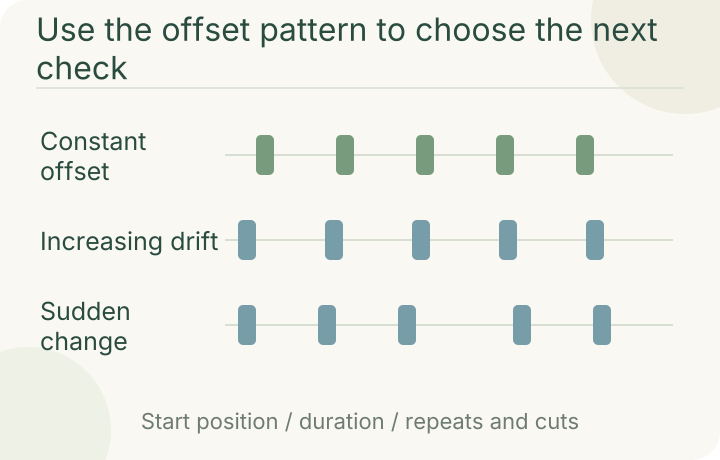
If alignment is correct at the beginning but fails later, check repeats, first and second endings, and cuts before moving the whole display. The printed number of bars and the played sequence can differ.
Compare the opening, the first note after a repeat and the final phrase. A sudden change points to the passage immediately before it. When MusicXML and MIDI were edited independently, export both again from the same score and compare.
Frequently asked questions
Will adding a PDF synchronize it automatically?
A static image alone does not supply timed page turns or playback position. Edit the changes yourself or use a method that supports synchronized score display.
Can MIDI restore the original printed score exactly?
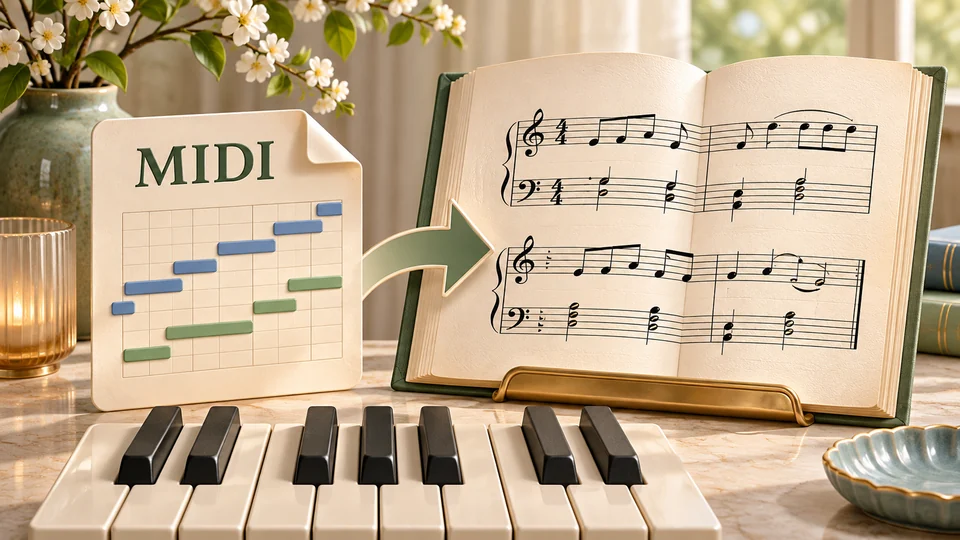
Not necessarily. Original line breaks, page layout and voice structure may not be reproduced. Keep score images for their appearance and notation data for its structure.