Identify where MP4 export stops
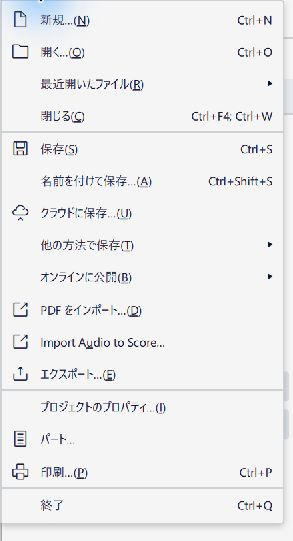
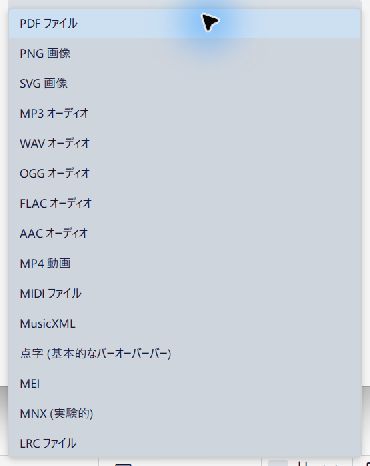
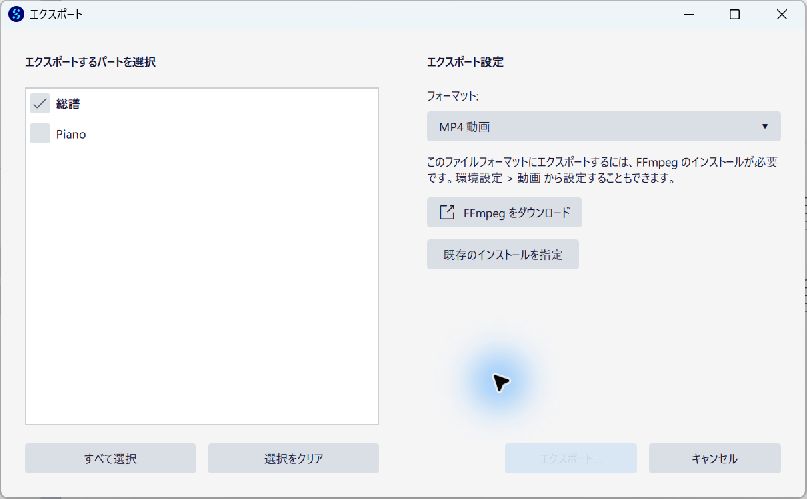
Open File → Export and select MP4. If MP4 itself is missing, check the MuseScore version. If it is listed but Export is disabled, look for the FFmpeg setup message.
MIDI or WAV export can work while video export fails because video uses additional components. Keep this problem separate from a score that will not open or a mixer that produces no sound.
Use MuseScore's official installation instructions
Open the official FFmpeg guide and choose your operating system. On Windows, use the linked installer intended for MuseScore; on Mac, use the package described there.
Downloading the package is not enough. Run the installer and complete the installation before returning to MuseScore.
Close and reopen MuseScore
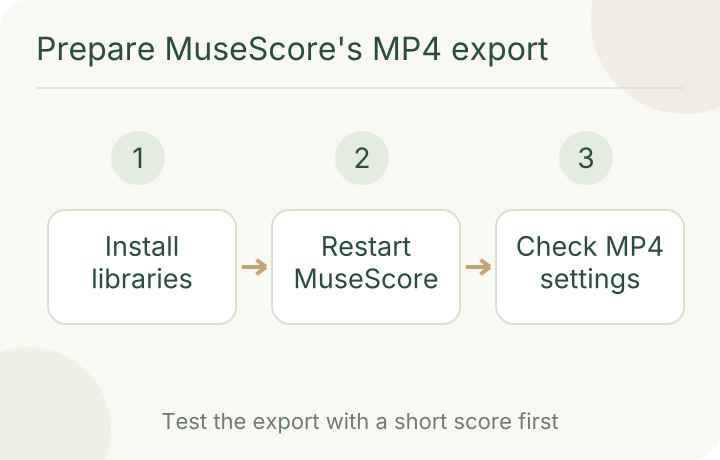
Save the score and close MuseScore completely. Reopen it, open the same score and return to MP4 export.
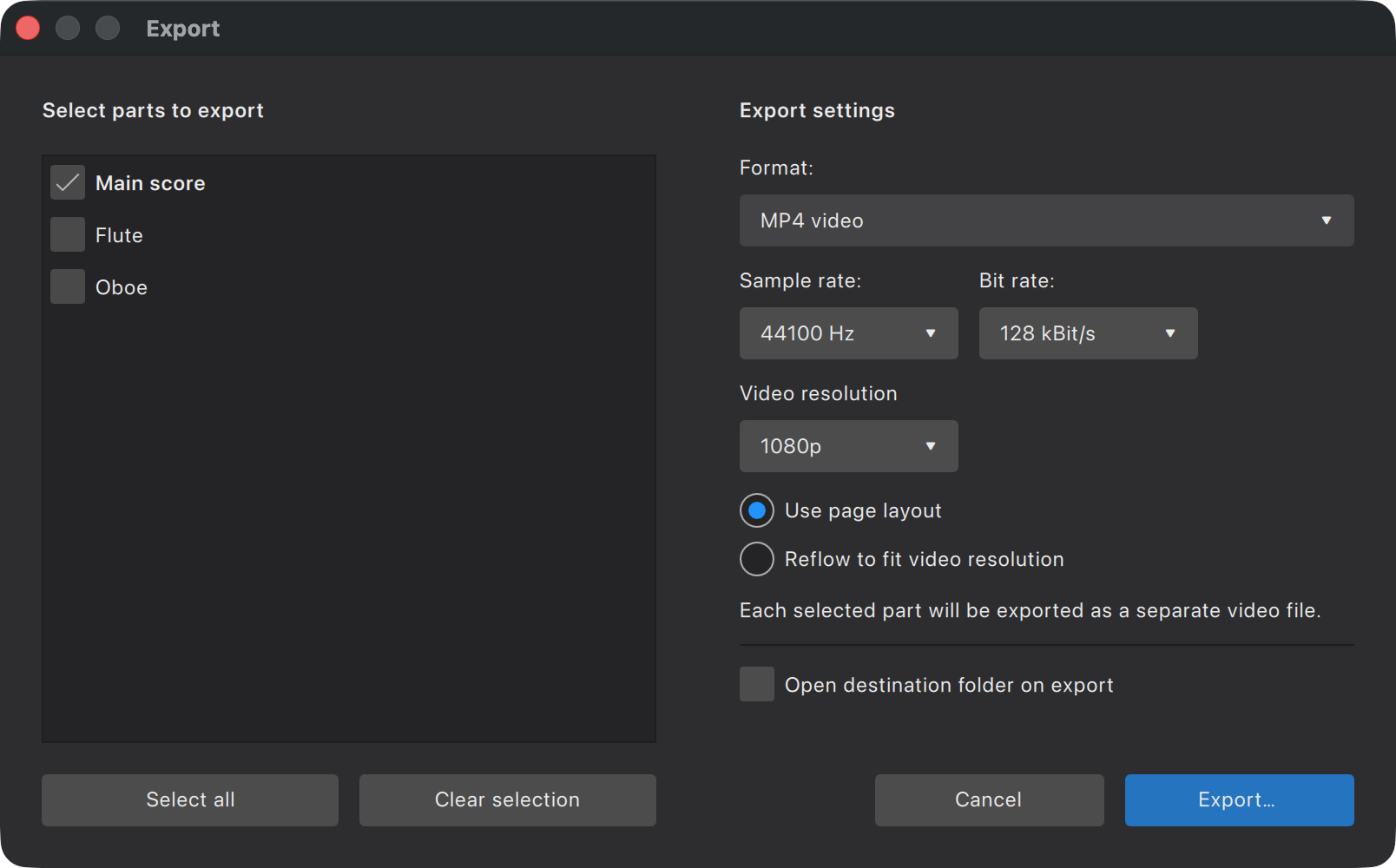
If resolution and layout settings are available and Export is enabled, the libraries have been detected. Test a short score before moving to a long piece.
Check the library folder if detection fails
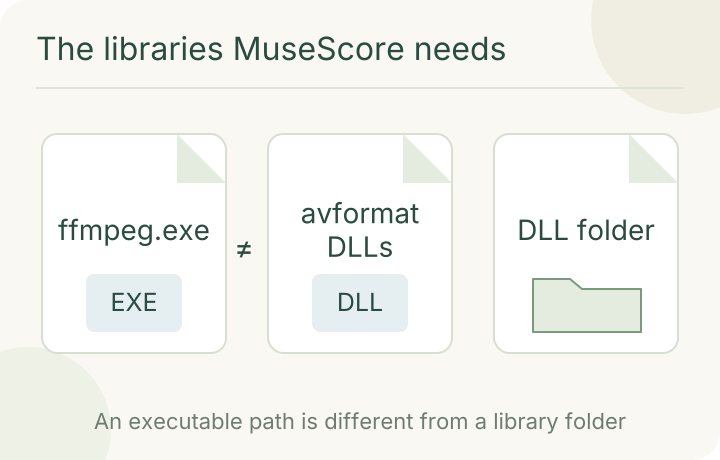
For a manually installed copy, open the Video section in MuseScore's preferences and specify the library location. On Windows, this is the folder containing the avformat library and the other required DLLs.
A package containing only ffmpeg.exe may not provide the shared libraries MuseScore needs. On Mac, follow the official location guidance for the dylib files. Return to the recommended installation method if the library location is unclear.
Save and play a short MP4
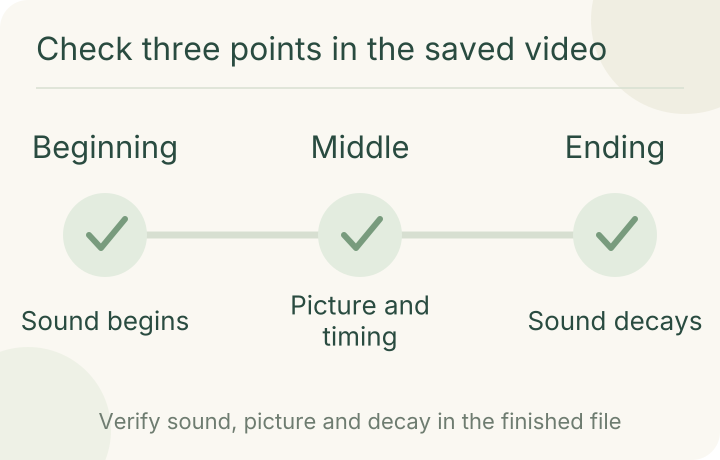
Choose a resolution, export and open the saved file. Confirm it contains both the score and audio. An enabled button alone does not prove that a finished video has been saved.
If export starts but fails, check destination permissions and free space, then try a short score in another folder. If the picture works but sound is missing, return to playback and mixer checks in MuseScore.
Distinguish the command from the libraries
A working ffmpeg command does not guarantee that MuseScore can locate the libraries required for video export. If you installed it another way, check the Video preferences and the official instructions.
For manual Windows configuration, choose the folder containing the required DLLs, not ffmpeg.exe itself. Restart MuseScore after changing the location, confirm the MP4 quality settings appear and complete a short export test.
Frequently asked questions
Can I export MIDI without video FFmpeg setup?
The video libraries and MIDI export are separate. If MIDI export is available, you can use that file in a different video workflow.
Where should I download FFmpeg?
Start with the links in MuseScore's official video-export instructions rather than choosing an unrelated installer from a search advertisement.