Open and play the score
Choose File → Open in MuseScore Studio and select your score. Play it from the beginning to check the instruments, tempo and repeat order. The exported video uses this score's playback, so resolve missing sound first.
For a score with several parts, decide whether to show the full score or a particular part. Mixer settings can affect the audio too. Play a passage where each relevant instrument enters, rather than checking only the opening.
Download the matching MusicXML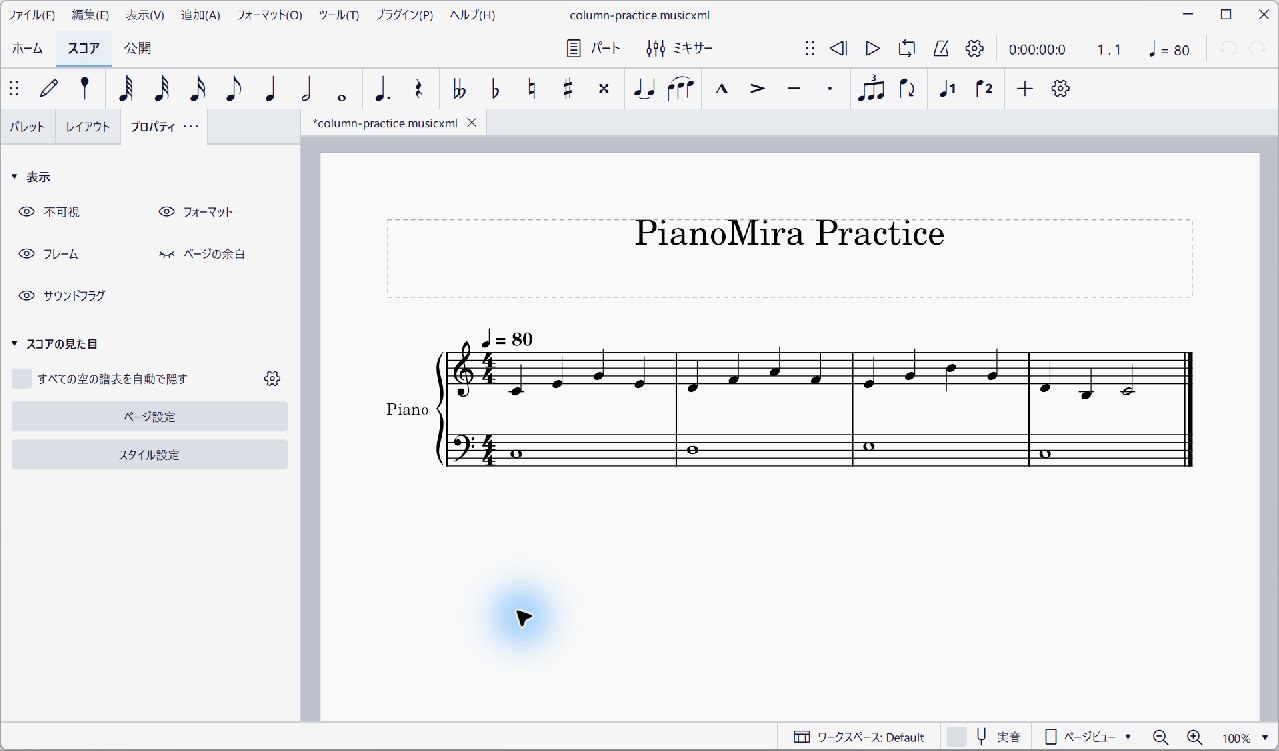
Choose MP4 in Export
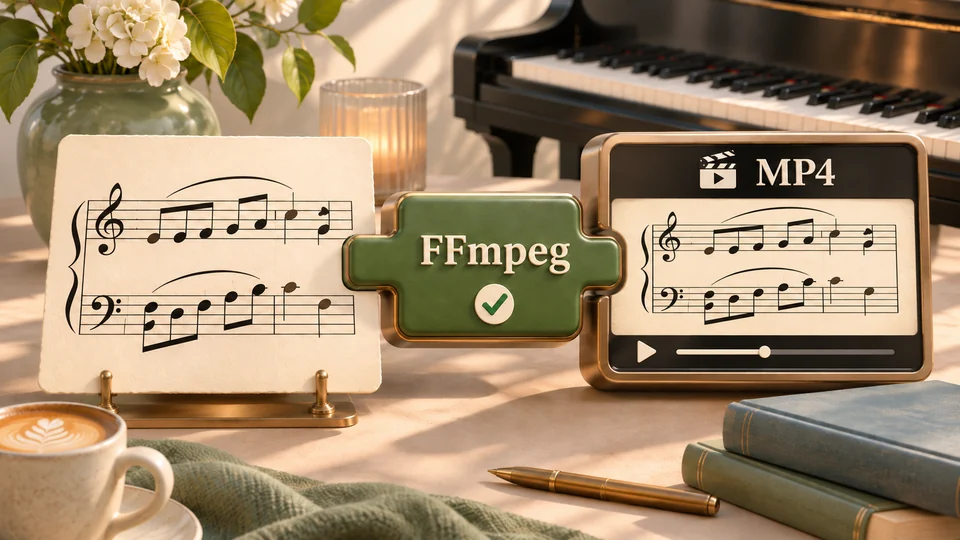
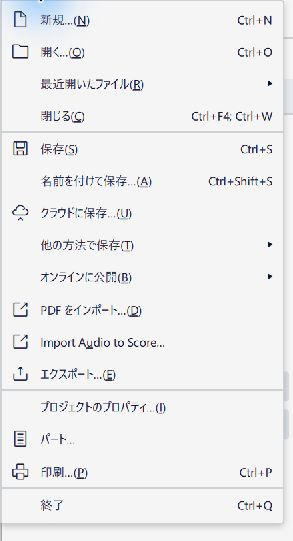
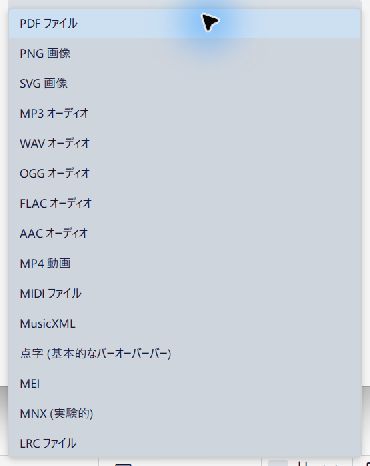
Open File → Export. Select the full score on the left, then choose MP4 from the format list on the right. MP4 export is available in MuseScore Studio 4.7 and later.
If MP4 is missing, check the application version. If the export button is disabled, continue to the FFmpeg setup step instead of repeatedly clicking the button.
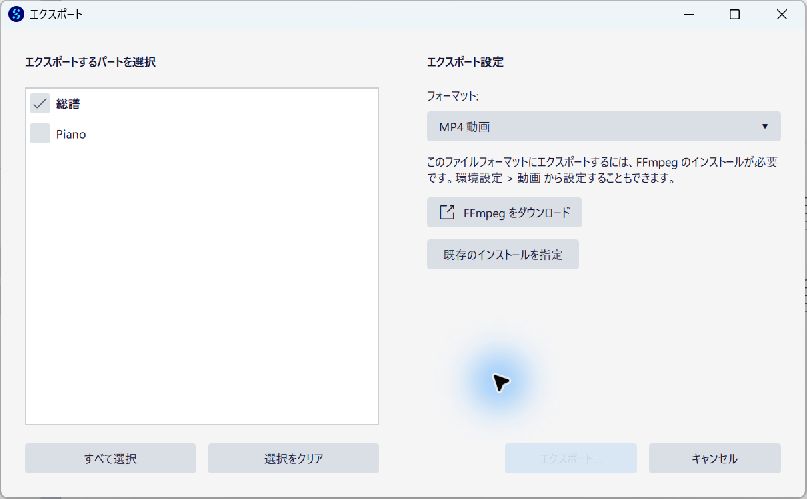
Install FFmpeg if export is unavailable
Follow the FFmpeg instructions in the official MuseScore handbook. Use its linked MuseScore installer on Windows or the package specified for Mac. Close MuseScore completely and reopen it after installation.
Return to the MP4 export settings and check that the resolution options and Export button are available. If MuseScore still cannot find the libraries, follow the FFmpeg troubleshooting guide to check their folder location.
Choose resolution and score layout
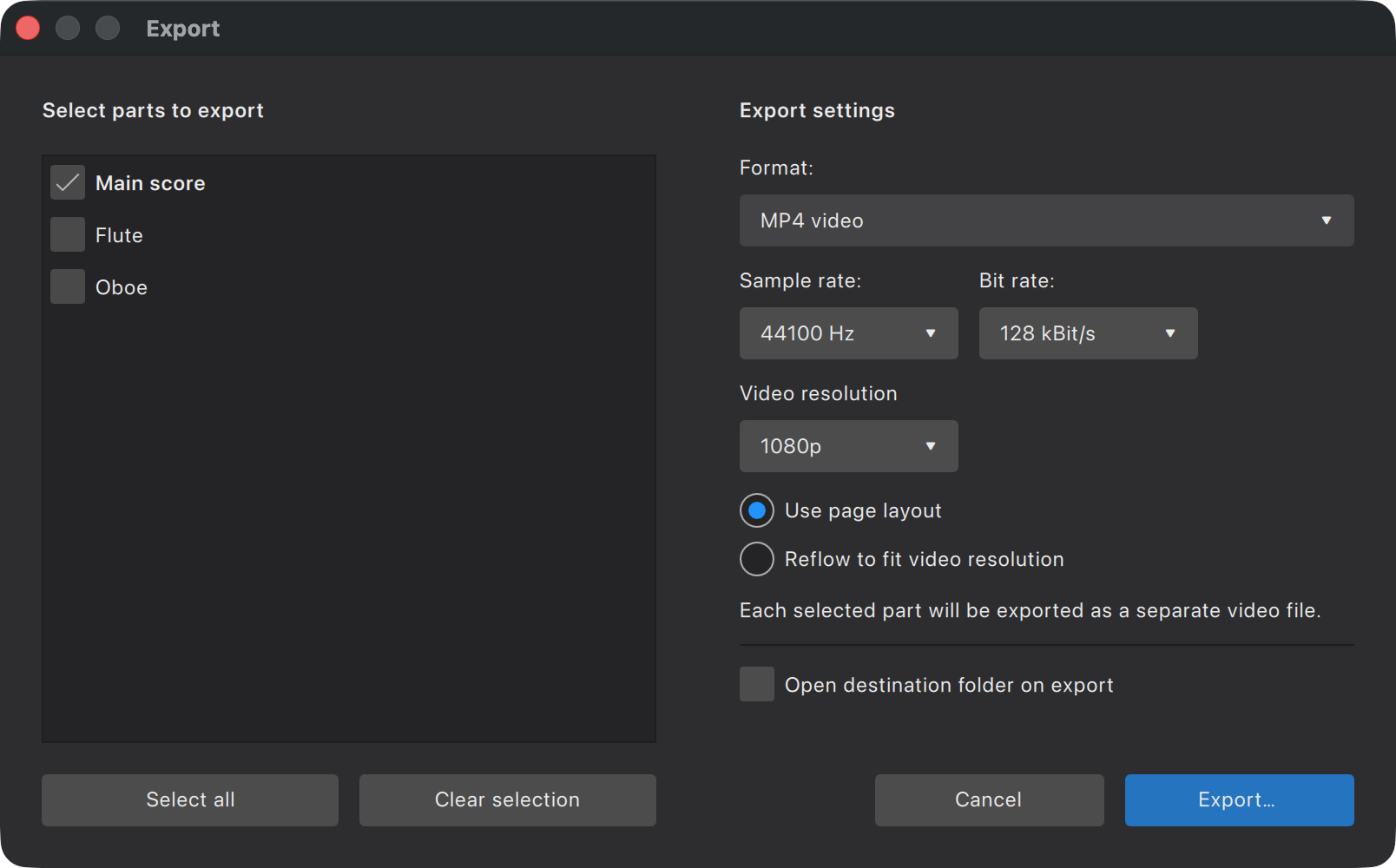
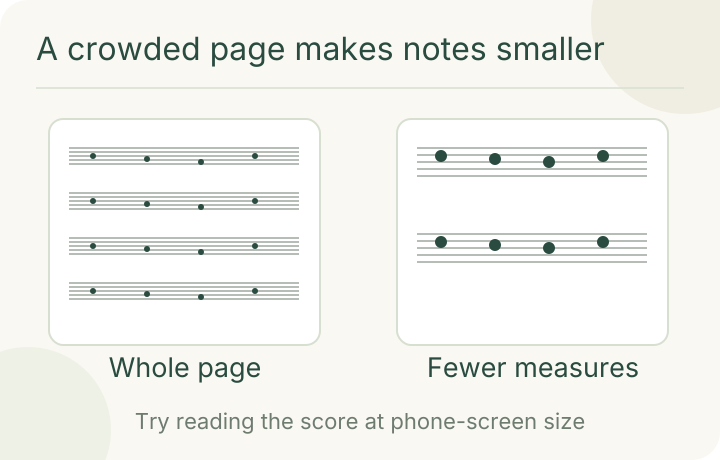
Choose a video resolution. Try 1080p when viewers need to read notation, or test a lower resolution when file size matters. Use page layout keeps the score's page arrangement; Reflow to fit adapts the layout to the video.
Export a short score to compare the layouts. MuseScore's MP4 shows notation and playback audio, rather than animated hands or falling notes. For a four-bar phrase on a phone, readable notes matter more than fitting a whole page onto one screen.
Save and play the MP4
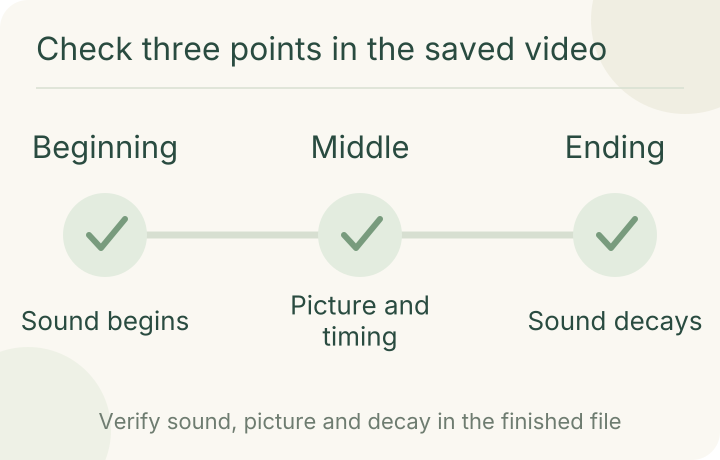
Click Export and choose the destination. When the export finishes, open the MP4 in a video player. Check page changes, repeats and the final decay. Adjust the score or video layout and export again if the notation is too small.
Exporting saves a file; it does not automatically publish the video. Uploading that MP4 in YouTube Studio is a separate step. If you want animated hands and keys, export MIDI from the same score and use a separate service such as PianoMira.
Show fewer notes when the score looks too small
If the finished video is hard to read, check how much notation appears in each frame as well as its resolution. Fitting an entire page also shrinks its margins, which can make notes very small on a phone.
Compare a four-bar test using Reflow to fit video resolution. Choose between preserving the printed page and making the notes easier to read in the video's proportions. Save test versions under different filenames so you can compare them and return to the original layout.
To show the keys and hands playing the same passage, use MIDI exported from the score. If you only kept a solo piano WAV, you can load that recording into PianoMira instead.
How to turn a piano recording into a video: MP3, WAV or M4A?
Frequently asked questions
Do I need to sign in to YouTube to export MP4?
No. This workflow saves an MP4 on your computer. Sign in to YouTube Studio separately if you want to upload the saved file.